1Chapter 10: Week 3, Session C — Copilot in OneNote
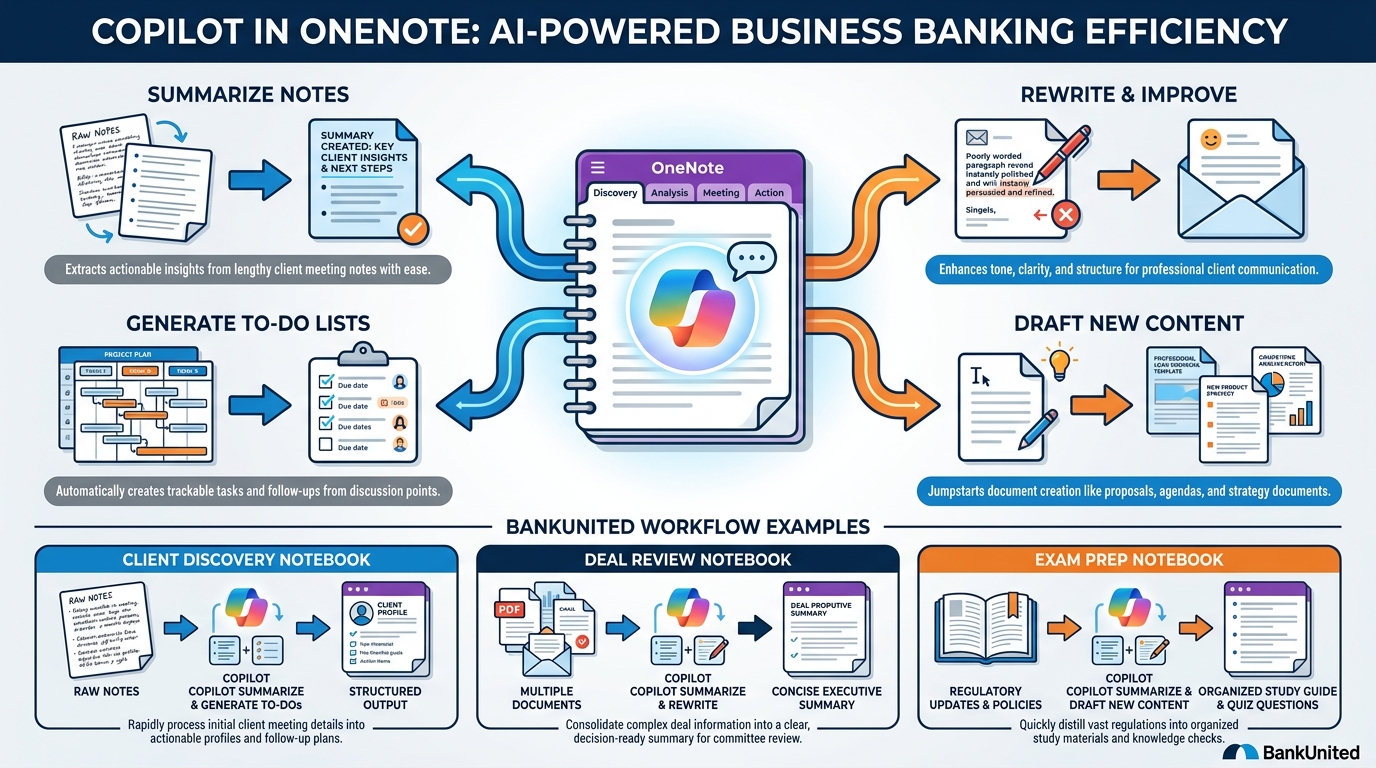
Figure 1:Copilot in OneNote transforms the way banking professionals capture, organize, and act on knowledge. Four confirmed capabilities — summarize, create task lists, rewrite, and draft new content — work within the context of your actual notebook pages to turn raw notes into structured, actionable intelligence.
“Notes are only as valuable as the action they generate. Copilot closes the gap between capturing and acting.”
Think about the last client meeting you attended. You came prepared, you asked good questions, you learned things — about the business, about the owner’s priorities, about the relationship’s potential. You took notes. Those notes exist somewhere: in a OneNote page, in a Word document, on a legal pad, in the Notes app on your phone.
Now think about what happened to those notes.
For most banking professionals, the honest answer is uncomfortable. The notes sat. They were captured with good intentions and reviewed rarely. The commitments buried in paragraph three of your client visit notes stayed buried until the client followed up, or until you were preparing for the next meeting and scrambled to reconstruct what happened in the last one. The knowledge you gathered deteriorated — not because you are disorganized, but because the gap between capturing information and acting on it is enormous, and the tools that existed before AI did little to help bridge it.
This is the problem Copilot in OneNote is designed to solve. Not the problem of taking notes — OneNote has always handled that — but the problem of making notes useful. Getting from raw capture to structured summary. From a page full of meeting notes to a clear list of action items. From rough shorthand to polished documentation that a colleague can actually use. From scattered observations to a coherent synthesis.
According to Microsoft’s official documentation, Copilot in OneNote is available with a Microsoft 365 Copilot (Work) license on OneNote for Windows, Mac, iPad, and OneNote for the web. It is also available with eligible M365 subscription plans on OneNote for Windows. That coverage — across every platform a BankUnited professional might use — makes it one of the most universally accessible Copilot features in the entire M365 suite.
This chapter covers how it works, what it can do, how to access it, and — most importantly — how BankUnited professionals can apply it to the knowledge workflows that define the job: client discovery, deal review, regulatory exam preparation, and team knowledge management.
1.11. Why Notes Matter More in the AI Era, Not Less
There is a common misconception about AI and note-taking. The misconception goes something like this: if AI can summarize meetings and generate recaps automatically, why do I need to take careful notes at all? Won’t AI handle it?
This reasoning gets the relationship exactly backwards. The truth is more important and more useful: the quality of Copilot’s output is directly proportional to the quality of the notes it works with. AI amplifies what you give it. Rich, specific, well-organized notes produce rich, specific, well-organized summaries and action lists. Sparse, vague, or poorly structured notes produce sparse, vague, or poorly structured outputs — no matter how powerful the underlying model.
Think of it this way. If you hire the best research analyst at your firm and hand them a napkin with three illegible bullet points, their output will be limited by what you gave them. If you hand them a thorough briefing document with clear context, specific data points, and named individuals and commitments, their analysis will be genuinely valuable. Copilot in OneNote operates on the same principle. The AI does not manufacture intelligence from nothing. It organizes, synthesizes, and extends what you have given it.
This means the note-taking discipline still matters — and in fact matters more now than it did before AI. The professional who takes clear, structured, contextually rich notes during every client interaction does not just have better personal records. They now have an asset that Copilot can transform into summaries, action lists, new content, and institutional knowledge. The professional who takes vague notes gets vague AI outputs.
In a banking environment, this has real stakes. A relationship manager whose client discovery notes are thorough and structured can use Copilot to surface action items before every follow-up call. A commercial lender whose deal review notes are organized by topic — borrower, financials, collateral, risk — can ask Copilot to analyze ideas across sections. An operations leader whose exam prep notebook is comprehensive and well-maintained can use Copilot to identify gaps and draft response documentation.
The best news is that OneNote has always been the right tool for this kind of structured capture. The arrival of Copilot does not change what OneNote is good for. It exponentially increases the return on time invested in using it well.
1.22. OneNote in the M365 Stack — Where It Fits and Why It Is Underused
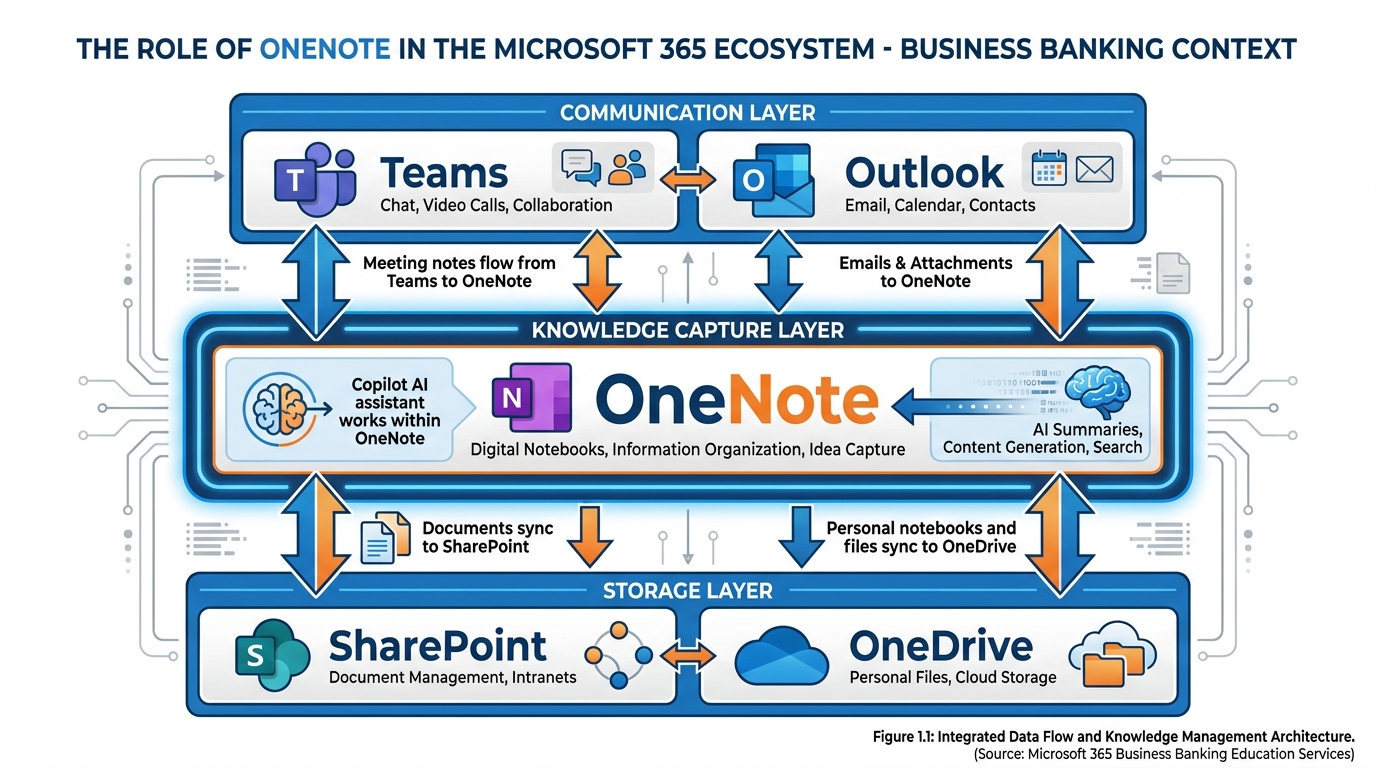
Figure 2:OneNote occupies the knowledge capture layer of the Microsoft 365 stack — positioned between the communication tools above it and the storage infrastructure below. This placement makes it the connective tissue of the M365 knowledge ecosystem, and the place where information from meetings, documents, and conversations comes together into a structured record.
To understand why Copilot in OneNote matters, you first need to understand OneNote’s role in the M365 ecosystem — because OneNote is one of the most underused applications in the entire Microsoft 365 suite, and underused in ways that cost banking teams real productivity.
Microsoft 365 is a knowledge ecosystem, not just a collection of apps. Each application serves a distinct layer:
Teams and Outlook form the communication layer — where conversations happen, meetings occur, and information is exchanged in real time. These tools are ephemeral by nature. A Teams chat scrolls away. A meeting ends and the conversation dissipates. Email threads grow unwieldy and lose their shape.
SharePoint and OneDrive form the storage layer — where finished documents live, where formal records are maintained, where institutional files are organized and versioned. These tools excel at storage and retrieval, but they are not designed for the messy, iterative, context-rich work of capturing knowledge in flight.
OneNote is the knowledge capture layer in the middle — the place where the ephemeral communication above gets distilled into structured, searchable, persistent records, and where the raw material for formal documentation below gets organized before it is ready for final form. It is a notebook, not a document. Its structure is flexible, hierarchical, and permanent.
In practice, however, most banking professionals use SharePoint and Teams heavily and OneNote barely at all. When asked why, the common answers are: “I use Outlook to store notes,” “I have my own system,” “I’m not sure how to structure it,” or “I didn’t think it would be worth the effort to set up.”
These are exactly the answers you would expect from professionals who have never had an AI assistant working inside their notebook. Because the value proposition of OneNote alone — a digital notebook that syncs across devices — was not always compelling enough to displace existing habits. The value proposition of OneNote with Copilot is categorically different. Now that notebook is also an AI analyst who reads everything you have written, summarizes it on demand, extracts your commitments, drafts new content based on your context, and helps you turn captured knowledge into action.
The setup investment pays off immediately and compounds over time.
1.33. How to Access Copilot in OneNote
Microsoft’s official documentation confirms three access points for Copilot in OneNote, each suited to a different working style and moment.
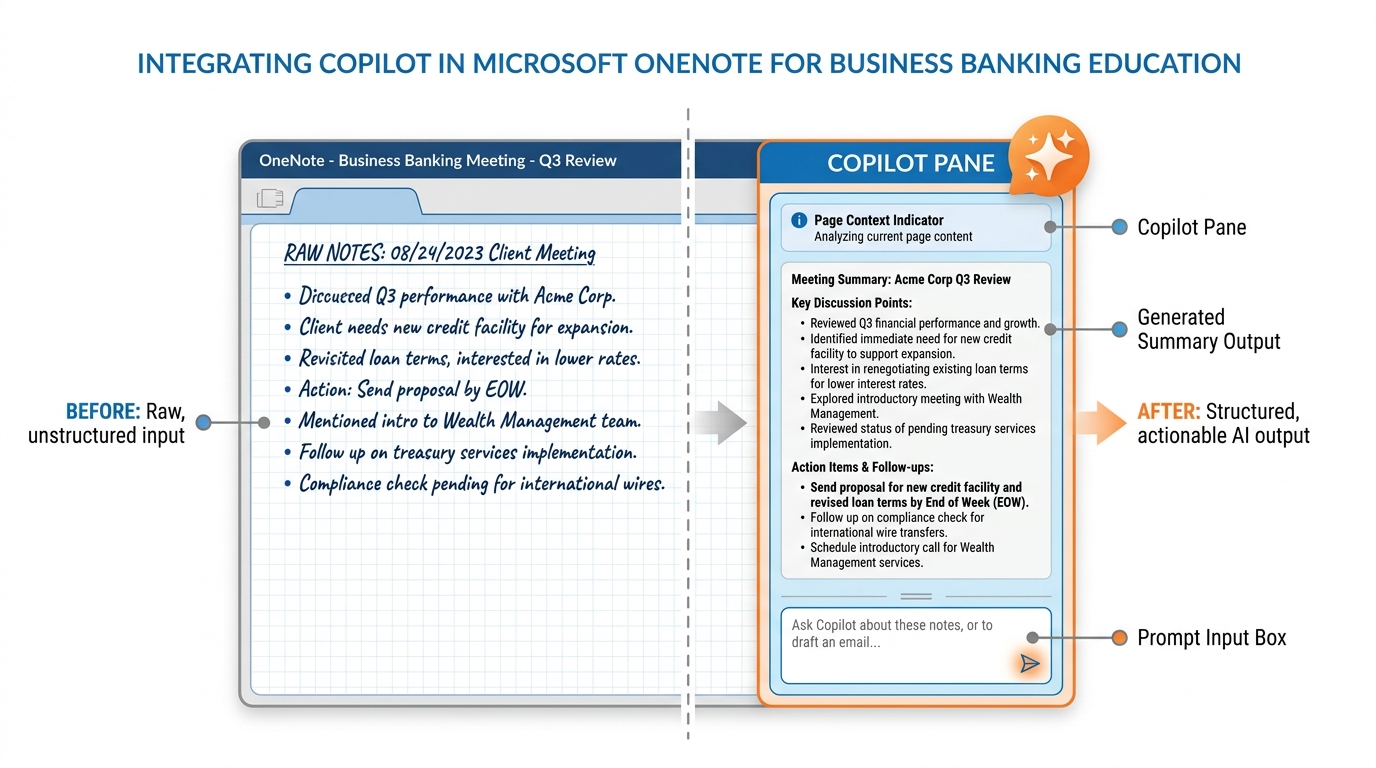
Figure 3:The Copilot pane in OneNote opens on the right side of the screen via the Home tab on the ribbon. From here, banking professionals can enter prompts, receive summaries and task lists, chat with Copilot in real time, and copy outputs directly into their notebook pages or other applications.
The Ribbon Button (Home Tab): The primary access point is the Copilot button on the Home tab of the OneNote ribbon. Clicking it opens the Copilot pane on the right side of the screen. From this pane, you can enter prompts, receive Copilot’s responses, and interact with the output — all while your notebook page remains open and visible on the left. This is the full-featured Copilot interface, appropriate for complex requests, longer summaries, and multi-step interactions.
The On-Canvas OneNote Icon: For quicker, more immediate access, Microsoft has placed an on-canvas OneNote icon that allows you to trigger specific Copilot functions — including summaries, rewrites, task lists, notes, and new content ideas — directly from the page context without opening the full pane. As of December 2025, according to documentation from SuperSimple365 (who tracks M365 feature rollouts), the primary features “Summarise Page,” “Create a Task List,” and “Rewrite Page” now open directly in the Copilot Chat pane — a UI refinement that streamlines the workflow.
Right-Click Context Menu: Microsoft’s documentation confirms that right-clicking within a OneNote page surfaces quick Copilot actions in a context menu, providing a fast route to common operations without navigating to the ribbon.
One important note from Microsoft’s official documentation: Copilot in OneNote is not available if Windows Information Protection (WIP) is enabled on your device. If you are on a managed corporate device and WIP is active, you will need to check with IT about your specific access configuration.
For BankUnited professionals, the practical starting point is the ribbon button. Open a notebook page, click Home → Copilot, let the pane open, and begin. The first time you see a page of meeting notes transformed into a clean summary in under thirty seconds, the habit forms itself.
1.44. Capability 1 — Summarizing Your Notes
Of all the confirmed Copilot in OneNote capabilities, summarization is the one that most immediately changes how banking professionals relate to their notes. And Microsoft’s confirmation of a specific feature makes it especially powerful for a professional context: when Copilot summarizes your notes, it cites its sources within the response.
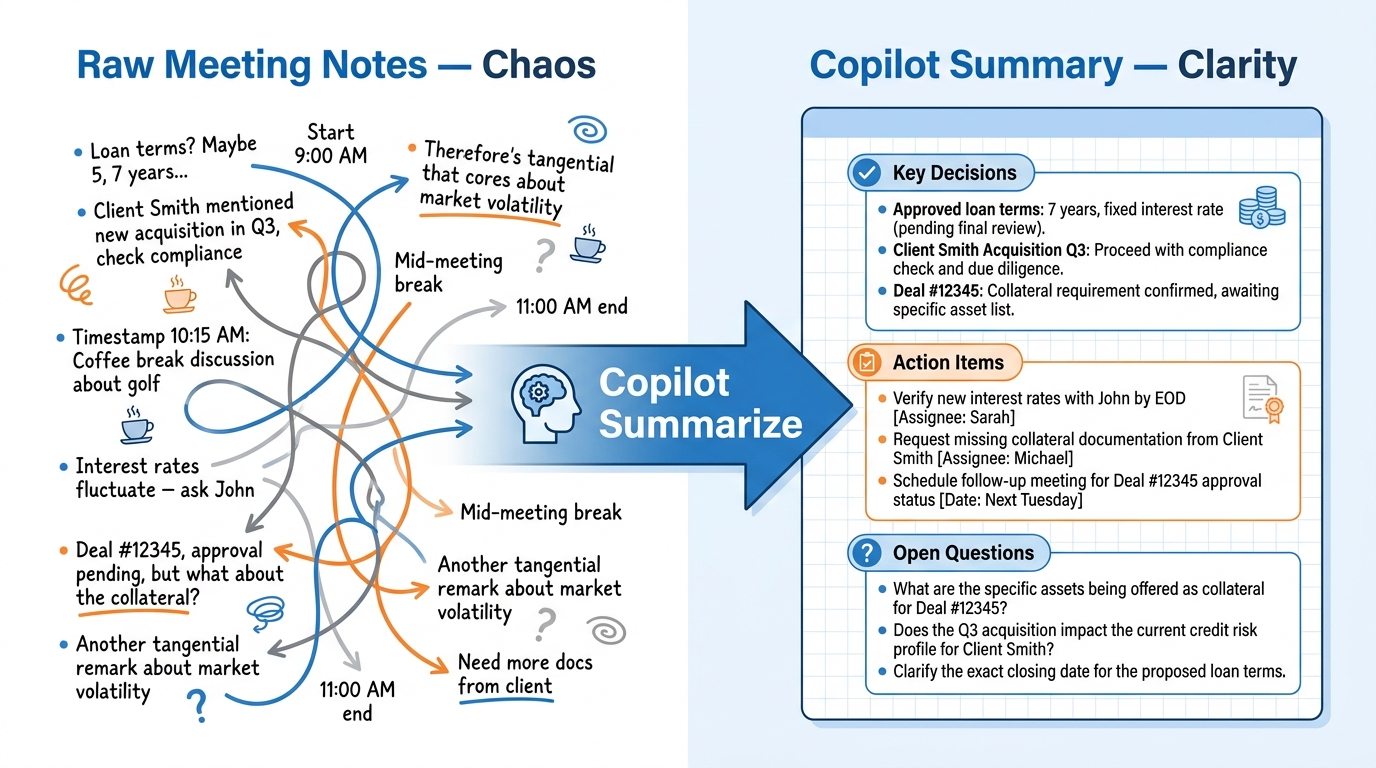
Figure 4:Summarization is the most immediately impactful Copilot capability for banking professionals. Raw meeting notes become structured summaries with key decisions, open questions, and action items — with Copilot citing the specific parts of your notes it drew from, so you can verify accuracy.
That citation mechanism is not a minor detail. In a banking environment, accuracy is not optional — it is regulatory. When Copilot tells you that it derived a particular point from a specific section of your page, you can verify it. You are not trusting AI’s interpretation blindly. You are reviewing AI’s synthesis with a clear audit trail back to your source material. Microsoft has designed this into the product precisely because it understands that professionals operating in high-stakes environments need to be able to check the work.
According to Microsoft’s documentation, summarization in OneNote works at three levels of granularity:
A full page summary: Ask Copilot to summarize everything on the current page. This is the most common use case — you have three pages of notes from a client meeting, and you need a structured recap you can send to a colleague or drop into a credit file.
A section summary: Ask Copilot to summarize a specific topic or section of your notes. This is particularly useful when your page covers multiple threads — the financial discussion in the first half and the relationship conversation in the second half — and you need to summarize each separately.
A selection of text: Highlight a specific passage and ask Copilot to summarize it. For dense regulatory or financial notes, this allows surgical precision — summarize this particular set of points without touching the rest of the page.
Microsoft’s documentation even provides an example of a well-crafted summarization prompt: “Create a summary of the deposition notes on this page. Focus the summary on the chronological order of events and place the events into bullet points.” The specificity of that prompt — naming a focus (chronological order) and specifying a format (bullet points) — illustrates the same principle we encountered in Copilot for Word: the more specific your instruction, the more useful the output.
Once the summary is generated, a copy button allows you to paste it directly into another location — into an email, into a Word document for the credit file, into a Teams message to a colleague, or into a new section of the same notebook for a structured recap page. That portability is part of what makes OneNote the connective tissue of the M365 knowledge ecosystem.
Microsoft’s documentation also confirms a feature that reflects the breadth of OneNote’s capture capabilities: Copilot can work with both typed notes and handwritten notes on the same page. For professionals who use an iPad with an Apple Pencil to take handwritten notes in client meetings, this means their handwritten captures are not second-class citizens — Copilot can synthesize them alongside their typed content.
1.4.1BankUnited Application: Post-Meeting Summary
Consider the workflow for a relationship manager who has just completed a 90-minute client site visit. The meeting covered: the company’s three-year financial trajectory, an expansion plan requiring $6.5 million in new financing, concerns about rising construction costs, a conversation about the owner’s longer-term exit timeline, and three specific commitments made by the RM (send a term sheet draft, schedule a site appraisal, introduce the owner to a specialist in SBA financing).
All of this is captured in a OneNote page — some of it in structured bullets, some in hasty shorthand captured while listening. The RM opens the Copilot pane and enters: “Summarize this page. Organize the summary into: Financial Context, Loan Request, Key Concerns, Relationship Notes, and Commitments Made. Use bullet points within each section.”
Copilot returns a structured five-section summary in approximately thirty seconds. The RM reviews it — checking the cited sources to verify accuracy — and then copies it into an email to their credit partner and into a new “Meeting Summary” page in the client notebook. The two-hour post-meeting documentation task that would normally have eaten into the evening is complete before they reach the car.
1.55. Capability 2 — Rewriting Notes for Clarity
The second confirmed capability in OneNote is rewriting — taking rough, informal, or incomplete notes and transforming them into clear, polished, professionally usable documentation.
This capability addresses one of the most persistent tension points in professional note-taking: the trade-off between speed and quality. During a meeting, the optimal note-taking posture is fast and comprehensive — capture everything that might matter, use abbreviations, skip full sentences, worry about polish later. But “later” rarely comes. The rough notes that were captured quickly stay rough because cleaning them up requires time that is always consumed by the next thing.
Copilot’s rewrite capability eliminates that trade-off. You capture fast and rough, then ask Copilot to translate your shorthand into clear, complete, professional-quality documentation. According to Microsoft’s documentation, “Rewrite Page” is one of the four primary confirmed functions — alongside Summarize, Create Task List, and Take Notes — and as of December 2025, it opens directly in the Copilot Chat pane.
The operational difference between summarizing and rewriting is important:
Summarize condenses — it takes a longer body of notes and distills them into key points, removing detail in service of clarity.
Rewrite transforms — it takes the same content and reconstructs it with better structure, clearer language, and more professional presentation, without necessarily reducing its length. The detail stays; the rough edges go.
For a banking professional, the rewrite function is particularly valuable for notes that will be used as formal documentation — meeting recaps that will go into a credit file, client interaction logs that might be reviewed in an examination, onboarding documentation that will be shared with new team members. These need to be clear and professional not just for personal reference but for institutional and potentially regulatory purposes.
1.5.1Prompt Craft for Rewriting
The way you instruct Copilot to rewrite matters. A plain “Rewrite this page” will improve clarity but may not hit the specific professional register you need. Consider these more directive prompts:
Each of these prompts gives Copilot a clear destination — not just “better” but specifically what “better” means for this particular use. The more precisely you define the target, the closer Copilot lands on the first pass.
1.5.2BankUnited Application: Formalizing Field Notes
A commercial lender returns from a construction site inspection with a page of rough field notes: scattered observations about the project’s progress, some financial concerns noted in shorthand, a few quotes from the contractor, and a reminder to check on the bond status. The notes are accurate but look exactly like what they are — working notes from a site visit, not documentation suitable for a credit file.
The lender opens Copilot on the page and prompts: “Rewrite this page as a formal construction loan inspection report. Organize it with sections: Project Progress, Financial Observations, Contractor Comments, Outstanding Issues, and Required Follow-Up Actions. Use professional lending language throughout.”
The rewritten page becomes the construction inspection documentation that goes into the loan file — a transformation from rough field notes to formal institutional record in under a minute, requiring only a professional review pass to confirm accuracy before it is filed.
1.66. Capability 3 — Creating Task Lists and Action Items
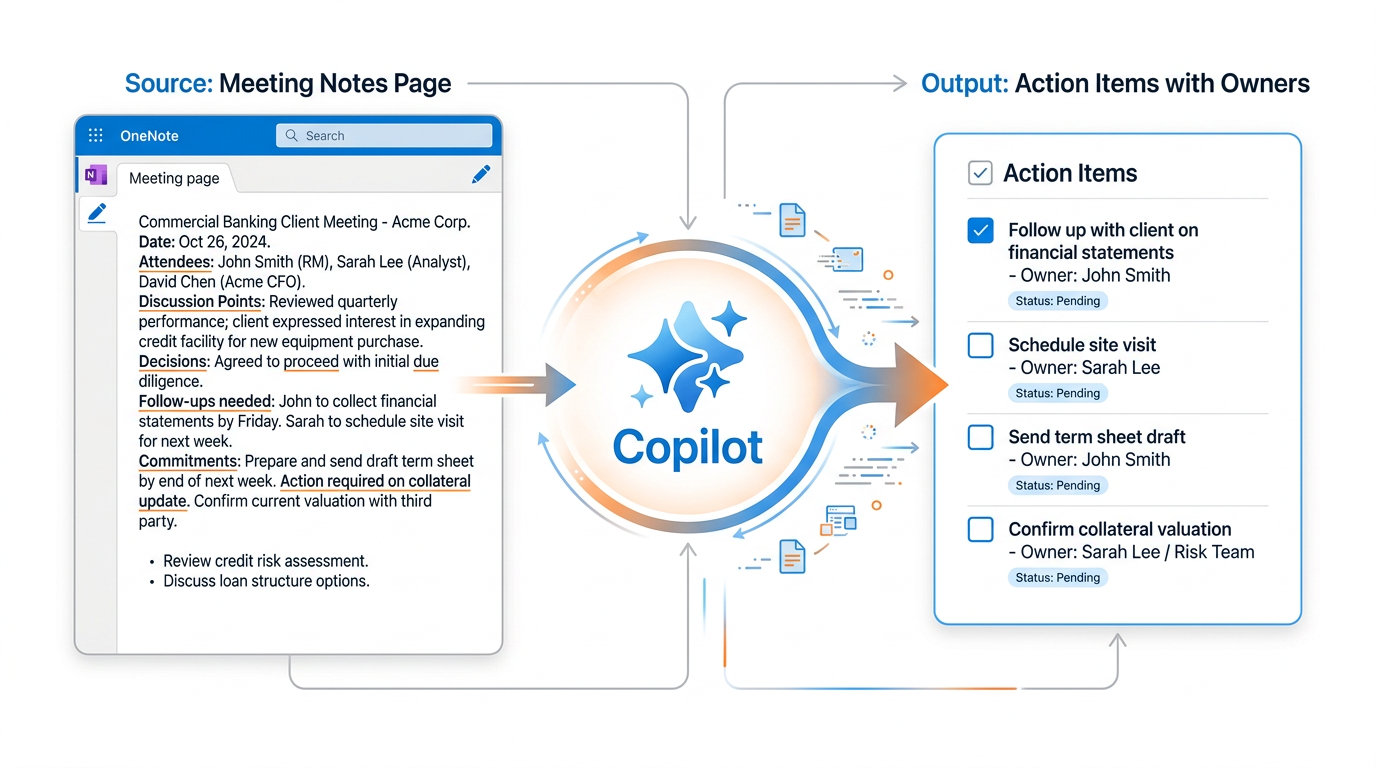
Figure 5:Copilot in OneNote automatically extracts action items and commitments buried in meeting notes and organizes them into structured task lists with deadlines and priorities. What once required manual review and extraction now happens in seconds.
Action items are the connective tissue between a conversation and a result. Every client meeting, every internal discussion, every regulatory call ends with commitments — things someone promised to do, questions that need answers, documents that need to be requested or delivered. Those commitments, if they are not extracted and tracked, evaporate. The follow-up that should have been made in three days doesn’t happen because the commitment was buried in paragraph four of the meeting notes and never surfaced again.
According to Microsoft’s official documentation, Copilot in OneNote can create task lists from your notes, a page, or an entire section — and it can incorporate details like tasks, deadlines, and priorities when they are present in the source material. This is one of the four primary confirmed functions of Copilot in OneNote, and it is the one with the most direct impact on daily execution.
The mechanism is straightforward. After a meeting, you open the Copilot pane on your meeting notes page and ask it to extract the action items. Copilot reads the page, identifies every commitment, question, and required follow-up it can find, and presents them as a structured task list. You can then copy that list into Microsoft Tasks, paste it into a Teams message to distribute assignments, or keep it in a dedicated “Next Steps” section of your client notebook.
When the source notes are specific — including names, dates, and explicit commitments — Copilot’s task list will reflect that specificity. When the notes are vague, the task list will be vague in turn. This is another direct expression of the note-taking discipline principle: the more precise your capture of commitments, the more actionable Copilot’s output.
For maximum value, include in your prompt any additional framing that helps Copilot prioritize. For example:
“Create a task list from this page. For each task, note who is responsible (where stated) and any deadlines mentioned.”
“Extract all action items and open questions from this page. Separate them into two lists: items I need to do and items I am waiting on from others.”
“Create a prioritized task list from this section. Identify which items are time-sensitive based on the context.”
The separation of “my tasks” from “tasks I am waiting on from others” is a particularly useful structure for relationship managers managing multiple active deals — it distinguishes between what is in your control and what requires a follow-up ping to someone else.
1.6.1BankUnited Application: Post-Call Action Extraction
A treasury management officer has just completed a 45-minute call with a corporate client about transitioning their payables and receivables operations. The call covered seven different topics, and at various points in the conversation there were commitments made on both sides — the officer committed to send a product comparison document and schedule a technical integration call; the client committed to send their current bank’s ACH volume report and loop in their IT director.
The officer’s meeting notes page in OneNote captures all of this but in a conversational flow that does not clearly separate what needs to happen next. She opens Copilot and prompts: “Create a task list from this page. Organize it as: (1) Tasks I need to complete with target dates, and (2) Items I am waiting to receive from the client.”
Copilot returns a clean two-section task list. Section one has three items, all with implied dates from the conversation. Section two has two items, representing client commitments to follow up on. The officer pastes the list into her CRM notes and into the “Next Steps” section of the client’s notebook. Three days later, when she goes to prepare for a follow-up call, both sections are still there — and the client items she is waiting on have become the agenda for the follow-up.
This is not a marginal improvement in efficiency. It is a fundamental change in how knowledge moves from a conversation into a managed workflow.
1.77. Capability 4 — Drafting New Content from Your Notes
The fourth confirmed capability of Copilot in OneNote extends beyond summarizing or transforming existing content — it allows you to draft entirely new content from within the context of your notebook. Microsoft’s documentation confirms this includes event plans, presentation outlines, meeting agendas, meeting drafts (with discussion points, key objectives, and action items), brainstormed ideas, and new pages and sections.
This is where OneNote transitions from a knowledge capture tool to a knowledge generation platform. Your notes become the raw material from which Copilot helps you build the next thing: the next meeting agenda, the next proposal outline, the next strategy document, the next briefing.
The workflow is intuitive. You have a section of notes from several client interactions over the past month. You ask Copilot to draft a meeting agenda for the upcoming quarterly review. Copilot draws on the context in your notes — the themes that have recurred, the open items from previous meetings, the client’s stated priorities — and produces a structured agenda that reflects the actual relationship history rather than a generic template.
Or you have notes from a successful deal that closed last year. You ask Copilot to brainstorm ideas for how to apply what you learned from that deal to a new prospect with a similar profile. Copilot draws on the notes and surfaces themes, parallels, and questions you might explore.
Or you are preparing for an internal strategy session. You have notes from your last three months of client interactions spread across multiple notebook pages. You ask Copilot to draft an outline for a presentation summarizing what your portfolio clients are telling you about their business conditions and financing needs. Rather than manually reviewing every page, Copilot synthesizes across the section and gives you a structured starting point.
1.7.1Using Chat for Complex Requests
Microsoft’s documentation confirms that Copilot in OneNote supports open chat capabilities with intelligent responses via the Copilot pane. This means that beyond the standard function buttons — Summarize, Create Task List, Rewrite — you can have an iterative conversation with Copilot about your notes, asking follow-up questions, requesting refinements, and exploring your content interactively.
This is an important capability for complex banking scenarios where the request is not a simple one-shot function but a multi-step exploration. For example:
“Based on the notes in this section about our commercial real estate portfolio reviews, what themes keep coming up about borrower stress? Organize your response by theme and cite which pages you are drawing from.”
Or: “I have three months of notes from client conversations in this section. Help me identify the five most common financing concerns my clients have raised. Rank them by frequency.”
These are analytical questions that go beyond summarization — they require Copilot to reason across your content and surface patterns. The chat interface is designed exactly for this kind of exploratory use.
1.88. Building a Client Discovery Notebook for BankUnited Relationship Managers
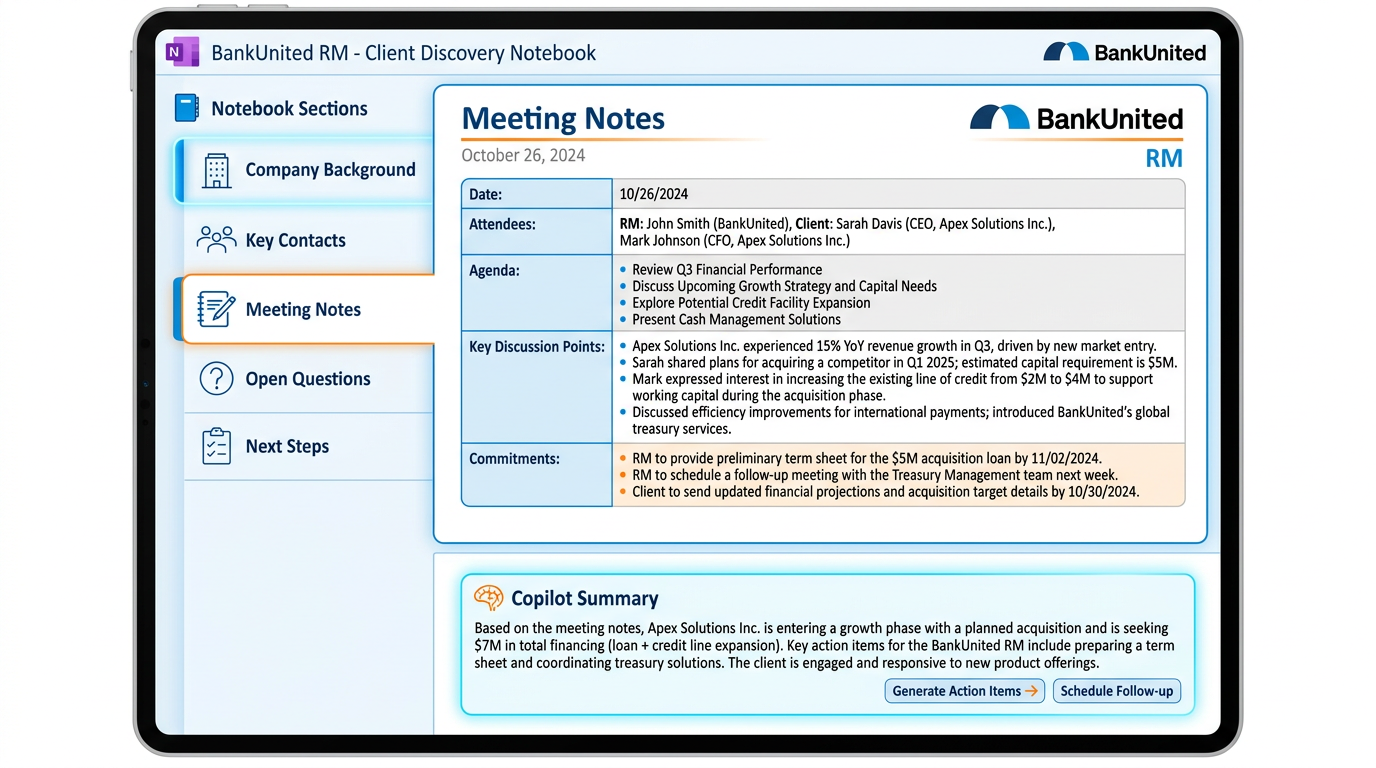
Figure 6:A Client Discovery Notebook gives BankUnited Relationship Managers a structured, AI-ready knowledge base for every prospect. Five core sections organize everything Copilot needs to generate useful summaries, action lists, and drafts — turning individual client notebooks into a living relationship intelligence system.
Knowing what Copilot in OneNote can do is only half the equation. The other half is building the notebook structure that makes those capabilities maximally useful. A well-structured notebook is not just easier to navigate — it is an AI-ready knowledge base. When your notes are organized, labeled, and consistently structured, Copilot has cleaner source material to work with and produces proportionally better outputs.
For a relationship manager at BankUnited, the Client Discovery Notebook is the most important notebook to get right. Every prospect and active client deserves one. Here is the recommended structure:
1.8.1Recommended Notebook Structure
Section 1: Company Background
This is the stable reference section — the facts about the company that do not change from meeting to meeting. Industry, founding date, ownership structure, number of employees, key markets, competitive positioning, and any relevant public information. This section is built once and updated as the relationship evolves.
When you need to bring a colleague or a new team member up to speed on a client quickly, you ask Copilot to summarize this section: “Summarize the Company Background section. Give me a three-paragraph executive overview of this company.” You get an instant briefing document.
Section 2: Key Contacts
The people who matter: names, titles, roles, relationship to the company (owner, CFO, operating partner), preferred communication channels, and any personal notes (interests, background, communication style). Each key contact gets their own page within this section.
Copilot can draw on this section when you ask it to help draft communications: “Based on the Key Contacts section, draft a pre-meeting agenda email to send to the CFO before our Thursday call.”
Section 3: Meeting Notes
One page per meeting or interaction, dated and titled. This is the most active section — the running journal of every conversation, site visit, call, and email thread. Each meeting note page should include: date, attendees, purpose, discussion summary, key points raised, and commitments made.
This is the section Copilot uses most heavily. After every meeting: “Summarize today’s meeting notes. Identify key decisions made, open questions, and a list of next steps.”
Section 4: Open Questions
A running list of unanswered questions — things you need to learn about this client, information you have requested but not yet received, due diligence items that are still outstanding. This section prevents important gaps from falling through the cracks.
Periodically ask Copilot to review this section alongside your meeting notes: “Based on the Open Questions section, are there items that have since been addressed in the Meeting Notes section? Flag any questions that remain open.”
Section 5: Next Steps
The current active task list for this relationship — what needs to happen in the next two weeks. This section is updated by pasting the action items Copilot extracts from Meeting Notes.
With this structure in place, a Relationship Manager’s client notebook becomes a living intelligence system. Each time you add new meeting notes, Copilot can instantly update your understanding of the relationship’s status, surface what is still outstanding, and help you prepare for the next interaction.
1.99. Building a Deal Review Notebook for Commercial Lending
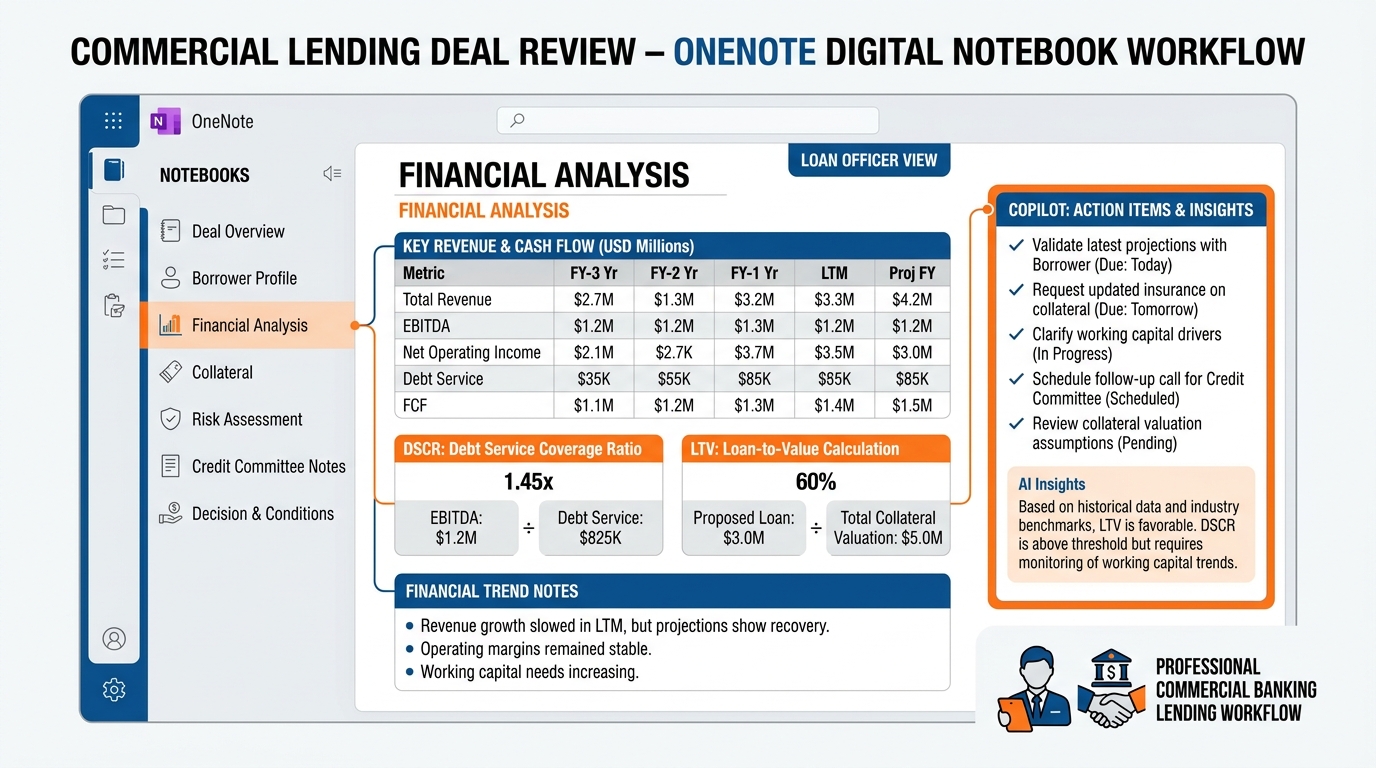
Figure 7:A Deal Review Notebook centralizes every dimension of a commercial loan in a single structured notebook — from initial borrower profile through financial analysis, collateral review, risk assessment, and credit committee feedback. Copilot can summarize any section, extract outstanding items, and draft new content to support the credit process.
For commercial lenders and credit officers, the Deal Review Notebook is the deal’s living record from initial discussion through credit decision. OneNote’s hierarchical structure — notebook → sections → pages — maps naturally onto the deal lifecycle.
1.9.1Recommended Deal Review Notebook Structure
Section 1: Deal Overview
The deal’s summary page — updated as the deal evolves. Loan amount, structure, pricing, collateral, intended use of proceeds, and the deal’s current status. This is what a senior leader needs to get oriented quickly.
Copilot use case: “Summarize the Deal Overview section into a two-paragraph executive summary suitable for a preliminary deal discussion.”
Section 2: Borrower Profile
Everything about the borrower: entity structure, ownership, operating history, existing banking relationships, credit history observations, and management team assessment. Each sub-topic gets its own page.
Copilot use case: “Based on the Borrower Profile section, draft a brief borrower narrative for the credit memo.”
Section 3: Financial Analysis
The numbers — revenue history, DSCR calculations, liquidity analysis, balance sheet observations, and financial trend commentary. This section may include pasted tables or screenshots from financial statements alongside the lender’s analytical commentary.
Copilot use case: “Summarize the key financial trends noted in this section. Identify any concerns or strengths that appear repeatedly across the analysis.”
Section 4: Collateral
Property descriptions, appraisal notes, inspection findings, title observations, and collateral valuation documentation.
Section 5: Risk Assessment
The lender’s running assessment of risks — credit, operational, market, concentration, and regulatory. This is a living section updated as new information emerges.
Copilot use case: “Create a task list from the Risk Assessment section. What items still need to be verified or resolved before credit committee presentation?”
Section 6: Credit Committee Notes
Notes from preliminary conversations with credit officers, the credit committee submission checklist, committee feedback, and conditions attached to any approval.
Section 7: Decision and Conditions
The final decision, terms approved, conditions precedent, and documentation requirements. This section becomes the post-approval reference.
With this structure, any member of the credit team can open the Deal Review Notebook and ask Copilot to bring them up to speed instantly. The lead lender who built the notebook has the added benefit of a knowledge base that serves the entire deal team — reducing duplicate questions, improving handoffs, and ensuring consistency across the credit process.
1.1010. Building an Exam Prep Notebook for Regulatory Examinations
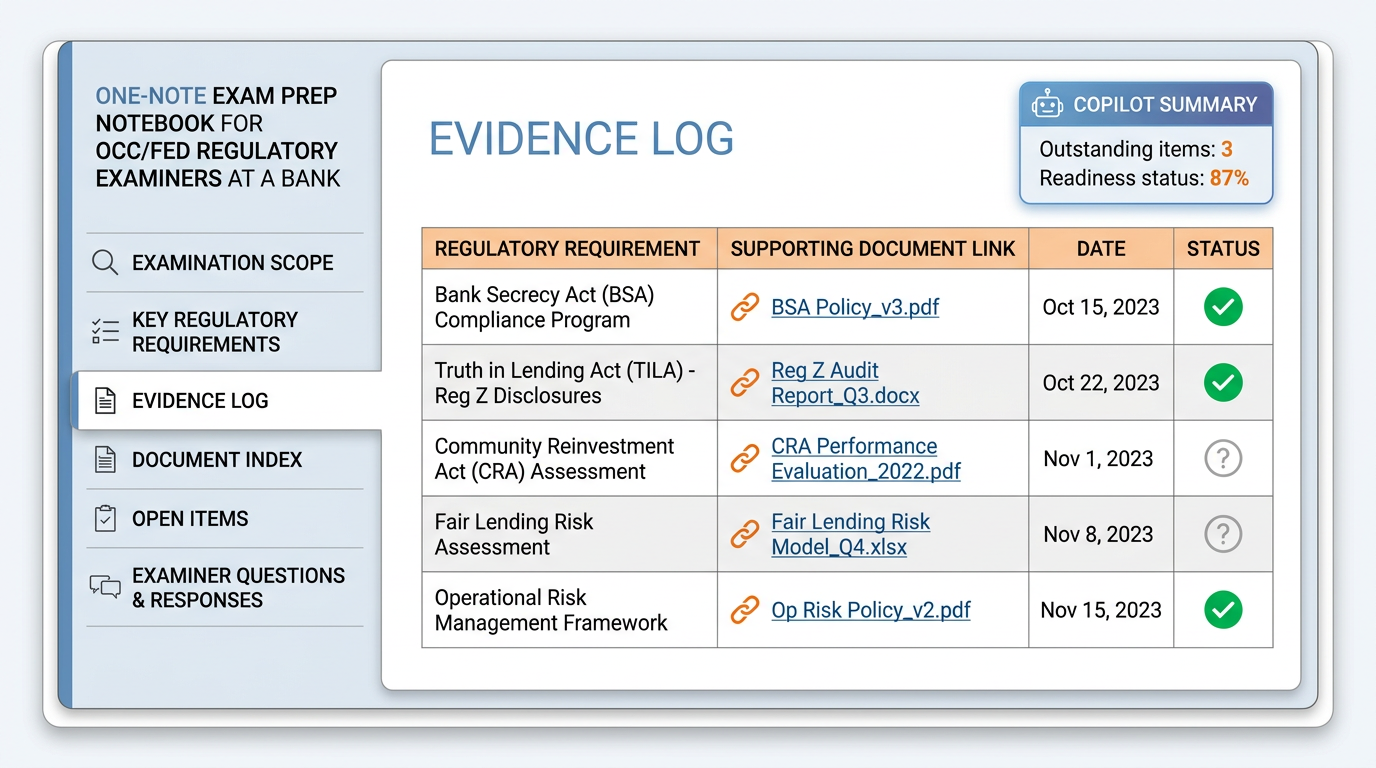
Figure 8:An Exam Prep Notebook gives BankUnited compliance and operations leaders a centralized, AI-ready knowledge base for regulatory examinations. Copilot can instantly surface outstanding evidence items, summarize the examination scope, and draft response documentation — transforming examination preparation from a reactive scramble into a proactive, structured readiness process.
Few events in a bank’s operational calendar are more consequential — or more documentation-intensive — than a regulatory examination by the OCC, the Federal Reserve, or state banking regulators. Examination preparation has historically involved enormous manual effort: tracking what examiners have requested, locating evidence documents, drafting responses to findings, and ensuring nothing falls through the cracks in what can be a weeks-long process involving dozens of people.
OneNote, with Copilot, changes the preparation dynamic fundamentally. A structured Exam Prep Notebook becomes the command center for the examination — organized, searchable, and AI-assisted in ways that significantly reduce the coordination burden.
1.10.1Recommended Exam Prep Notebook Structure
Section 1: Examination Scope
The examination’s focus areas and schedule. What are the examiners looking at? What time period does the examination cover? What business lines, processes, or risk categories are in scope? This section is established at the start and refined as the examination scope clarifies.
Copilot use case: “Summarize the Examination Scope section. What are the three to five highest-priority areas based on the scope documentation?”
Section 2: Key Regulatory Requirements
The relevant regulatory guidance, guidance documents, or supervisory expectations that apply to the examination’s focus areas. One page per regulatory topic, with the key requirements documented in plain language alongside references to the source documents.
Section 3: Evidence Log
The most critical section during an active examination. One row or entry per requested item, tracking: the regulatory requirement it relates to, the document or evidence provided, the date provided, and its current status (outstanding, in progress, submitted). This section gives the examination team a real-time view of where things stand.
Copilot use case: “Create a task list from the Evidence Log section. List all items that are still outstanding or in progress, organized by priority.”
Section 4: Document Index
A running index of all documents submitted to examiners, with their submission dates and the requests they addressed. This creates a defensible record of what was provided and when.
Section 5: Open Items
Examiner questions, requests for additional information, preliminary findings, and management responses. One page per issue, tracking the question, the response being prepared, the responsible team member, and the target response date.
Copilot use case: “Summarize all Open Items on this page. For each item, note the current status and who is responsible.”
Section 6: Examiner Questions and Responses
Formal management responses to examiner findings or requests for information. This section stores both the questions received and the responses prepared and submitted.
Copilot drafting use case: “Based on the notes in this section about the examiner’s question on our BSA monitoring process, draft a formal management response. The response should describe our current process, acknowledge the area for improvement noted, and outline our corrective action plan.”
The Exam Prep Notebook does not just reduce the administrative burden of managing an examination — it also creates a searchable institutional record that improves how the bank prepares for future examinations. The notes, evidence logs, and management responses from one examination become the baseline for the next.
1.1111. Connecting OneNote to Teams and SharePoint for Team Knowledge
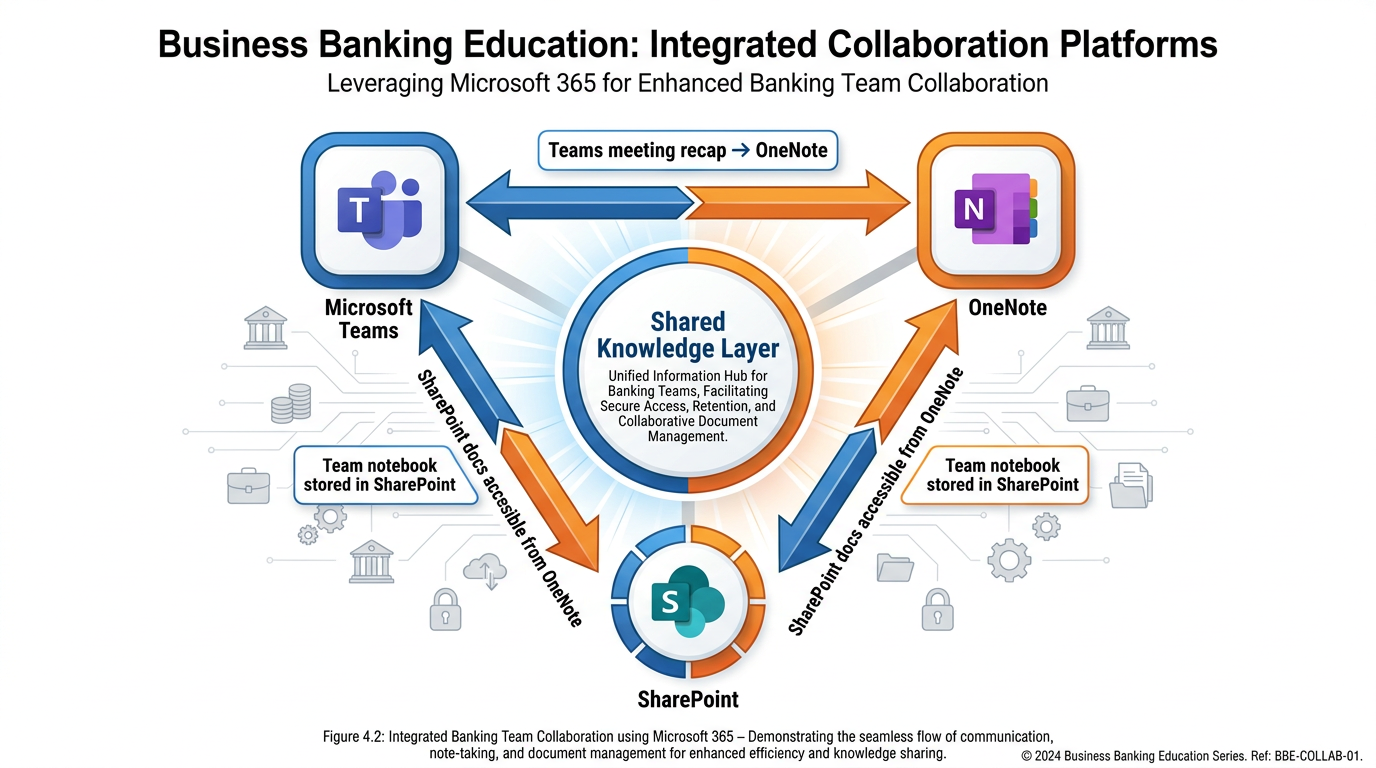
Figure 9:OneNote, Teams, and SharePoint form a triangular knowledge ecosystem — Teams generates meeting activity, OneNote captures and organizes it, SharePoint stores and shares it across the team. When a team notebook lives in SharePoint, every team member has access to the same knowledge base, and Copilot’s outputs can inform the entire team rather than staying siloed with a single individual.
Individual notebooks are powerful. Team notebooks — shared, maintained collaboratively, and stored in SharePoint — are transformative for groups that need to operate as a unified knowledge organism.
Microsoft’s M365 ecosystem is designed to support exactly this scenario. A OneNote notebook associated with a Microsoft Teams team or stored in SharePoint is accessible to every member of that team. In July 2025, according to documentation from Schneider IT (who tracks M365 enterprise deployments), Copilot Notebooks gained real-time collaboration capabilities — multiple contributors can work in a shared notebook simultaneously, with content flowing between contributors while preserving structure and annotations.
For BankUnited, the team notebook scenarios with the highest value include:
Lending Team Notebooks
A commercial lending team covering a specific market or industry sector can maintain a shared notebook organized by active deals, market observations, and competitive intelligence. When one lender learns something significant from a client conversation — a competitor pricing aggressively, a sector showing stress, an opportunity emerging — it goes into the team notebook. Other team members can ask Copilot to summarize the section or surface recent observations on a specific theme.
Compliance and Operations Notebooks
Compliance teams managing regulatory requirements across multiple business lines benefit from shared notebooks that track regulatory changes, pending implementation items, and compliance status across the organization. Copilot can summarize sections, extract open items, and help draft implementation notes.
Onboarding Notebooks
A team notebook dedicated to onboarding new employees — containing role guides, process documentation, FAQs, and accumulated institutional knowledge — benefits enormously from Copilot’s ability to help new team members navigate and synthesize the content. A new hire can ask Copilot to summarize the key processes in a section, draft a list of what they need to learn in their first 30 days, or explain how a particular workflow operates based on the team’s documentation.
The Curation Imperative
There is an important caveat that Schneider IT’s documentation highlights explicitly: “if a notebook omits crucial documents, Copilot can produce confident but incomplete answers — teams must curate notebooks.” This is not a flaw — it is a property of any knowledge system. Copilot can only synthesize what is in the notebook. A team notebook that is comprehensive and well-maintained produces comprehensive, reliable Copilot outputs. A notebook that is incomplete or outdated produces incomplete, potentially misleading outputs.
The implication is clear: team notebooks require active curation. Someone on the team needs to own the notebook’s quality — ensuring that key documents are referenced, key developments are captured, and outdated information is either updated or clearly marked as historical. This is not a burden unique to AI — it is the work of any serious knowledge management system. AI simply raises the stakes by making the quality of the notebook directly visible in the quality of its outputs.
1.1212. The Note-Taking Discipline
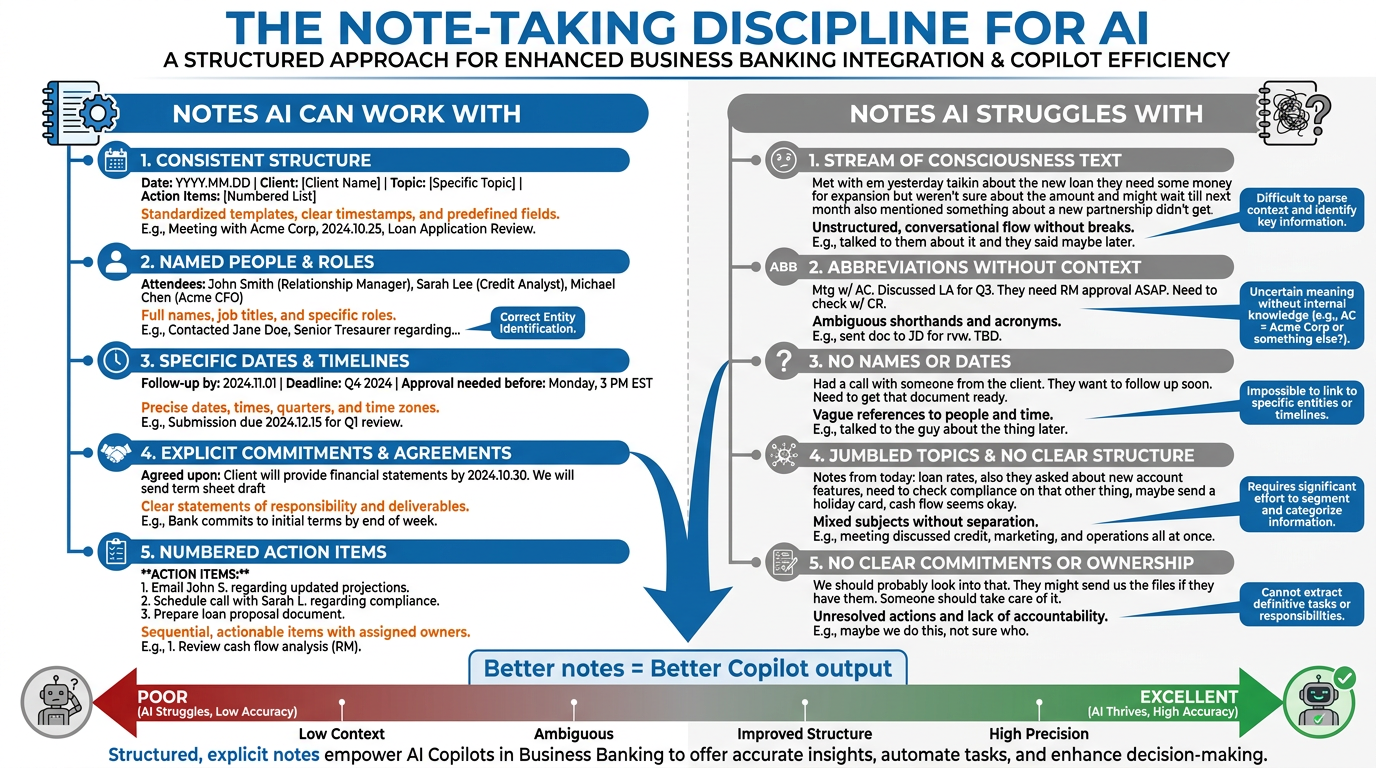
Figure 10:The note-taking discipline is not about being more bureaucratic — it is about making your notes AI-ready. Structured notes with clear context, named individuals, specific dates, and explicit commitments give Copilot the raw material to produce genuinely useful summaries and task lists. Vague notes produce vague outputs, regardless of how powerful the AI is.
Throughout this chapter, the same principle has surfaced repeatedly: Copilot’s outputs are bounded by the quality of the notes it works with. This is not a limitation of AI — it is a law of information processing that applies to human analysts as much as to artificial ones. The discipline of taking good notes is the prerequisite for getting good Copilot outputs.
Here is what “good notes for AI” actually means in practice:
Specificity over abbreviation. When you write “client OK w/ terms,” Copilot has nothing useful to work with. When you write “Client confirmed acceptance of proposed rate of 6.75% with a 5-year term amortized over 25 years,” Copilot can extract a meaningful action item and include the detail in a summary. The extra 15 seconds you spend writing the full statement pays a dividend every time Copilot works with that page.
Named individuals. Notes that reference “the CFO” or “the owner” without names lose context quickly. Notes that say “Maria Chen, CFO” give Copilot (and your future self) the context to produce useful, specific outputs.
Explicit commitments. When someone agrees to send something, schedule something, or decide something, state it explicitly in your notes: “Tom agreed to send the most recent rent roll by end of week.” Implicit commitments buried in conversational summaries are easy for Copilot to miss. Explicit statements of commitment are easy to extract as action items.
Clear section breaks. If your notes cover multiple topics — a financial discussion, a relationship conversation, an administrative matter — separate them visually with headers or blank lines. OneNote’s formatting tools make this easy. Clear structure helps Copilot understand where one topic ends and another begins.
Context at the top. Start every meeting note page with a brief header: date, attendees, purpose of the meeting. This context helps Copilot frame everything that follows. Without it, Copilot may not know what it is reading or why it matters.
Dates and deadlines where they exist. When someone mentions a deadline — “we need to be ready before the board meeting on the 15th” — note the date. Copilot can include it in the task list output, and your future self will find it invaluable.
None of these habits require significant additional time during note-taking. They require a modest shift in discipline — writing out rather than abbreviating, naming rather than pronoun-referencing, stating explicitly rather than implying. That shift compounds over time: every meeting that is well-captured becomes a permanent, AI-ready asset in your notebook.
1.1313. What Copilot in OneNote Cannot Do
A serious chapter on Copilot in OneNote would be incomplete without an honest accounting of what it cannot do — because understanding limitations is as important as understanding capabilities for using any tool effectively.
It cannot access information outside the notebook context. Unlike Microsoft 365 Copilot in Teams or Outlook, which can draw on emails, calendar items, and documents across your M365 tenant, Copilot in OneNote works within the context of the open page and notebook. It cannot independently pull a related SharePoint document, check your calendar, or reference an email thread unless that information has been captured in your notebook.
It cannot be explicitly directed to specific sections or notebooks by name (as of December 2025). According to SuperSimple365’s tracking of Microsoft’s December 2025 UI update, users can no longer explicitly refer to “this section” or “this notebook” in their prompts in the same way that was previously possible. Copilot works within the active page context by default. This means organizing your notebook so that the content Copilot needs is on the page you are working with, rather than assuming it will search across sections.
It cannot guarantee accuracy. Copilot synthesizes and summarizes, but it does not verify facts against external sources. If your notes contain an error, Copilot will faithfully reflect that error in its output. The source citation feature is designed precisely to help you verify, but the verification step is your responsibility — always.
It is not available if Windows Information Protection (WIP) is enabled. This is a Microsoft-confirmed constraint. On managed corporate devices where WIP is active, Copilot in OneNote may not be accessible. If you encounter this limitation, contact your IT administrator.
It does not replace the judgment that notes require. Copilot can extract what you wrote, but it cannot assess whether you wrote the right things. The decision about what matters in a client meeting, what risk is worth capturing, what commitment is significant — those are professional judgments that belong to you. Copilot helps you work with what you have captured. It cannot tell you what you should have captured but didn’t.
Local-only notebooks are not fully supported. OneNote notebooks that are saved only locally — not synced to OneDrive or SharePoint — may have limited or no Copilot functionality. For Copilot to work reliably across all platforms (Windows, Mac, iPad, web), notebooks should be synced to Microsoft 365 cloud storage.
1.1414. Try This — Build a Client Discovery Notebook
The best way to internalize the capabilities covered in this chapter is to build something real. This exercise creates a Client Discovery Notebook for an actual prospect or active client relationship — and then uses Copilot to demonstrate the value immediately.
1.15Glossary
Copilot Pane The sidebar panel that opens on the right side of OneNote when Copilot is activated via the Home tab. The primary interface for entering prompts, receiving Copilot responses, and copying output.
Summarize (OneNote) A confirmed Copilot capability that generates structured summaries of a page, a selection of text, or a specific topic, with cited sources indicating which parts of the notes were used.
Create Task List A confirmed Copilot capability that extracts action items, commitments, and follow-up items from notes and organizes them into a structured list, optionally with deadlines and priorities where noted.
Rewrite Page A confirmed Copilot capability that transforms rough or informal notes into clearer, more professional, and better-organized documentation without necessarily reducing the length or detail.
Source Citations A feature of Copilot’s summarization outputs in OneNote — Copilot identifies which parts of the notes it drew from when generating a summary, enabling users to verify the accuracy of the synthesis.
Team Notebook A OneNote notebook stored in SharePoint or associated with a Microsoft Teams team, accessible to all members of the team. Supports real-time collaboration as of Microsoft’s 2025 updates.
Windows Information Protection (WIP) A Windows security feature that, when enabled on a managed corporate device, prevents Copilot in OneNote from functioning. Users on WIP-enabled devices should consult IT for access options.
Client Discovery Notebook A OneNote notebook structure designed for banking Relationship Managers, organized into sections for Company Background, Key Contacts, Meeting Notes, Open Questions, and Next Steps — built to be AI-ready for Copilot summarization and task extraction.
Deal Review Notebook A OneNote notebook structure designed for commercial lenders, organized by deal lifecycle sections including Borrower Profile, Financial Analysis, Collateral, Risk Assessment, and Credit Committee Notes.
Exam Prep Notebook A OneNote notebook structure designed for compliance and operations teams managing regulatory examinations, organized by Examination Scope, Evidence Log, Open Items, and Examiner Questions and Responses.
Knowledge Capture Layer The conceptual role OneNote plays in the Microsoft 365 ecosystem — positioned between the communication tools (Teams, Outlook) and the storage infrastructure (SharePoint, OneDrive), where information from conversations and meetings is distilled into structured, searchable, persistent records.
Note-Taking Discipline The professional practice of capturing notes with specificity, named individuals, explicit commitments, and clear structure — the prerequisite for producing high-quality Copilot outputs from note-based content.
On-Canvas Icon The OneNote-integrated Copilot icon accessible directly from a notebook page, providing quick access to Summarize, Create Task List, Rewrite, and other functions without navigating to the ribbon.
1.16Discussion
Copilot in OneNote is about more than productivity — it is about the relationship between how we capture knowledge and what we are able to do with it. Before AI, the value of a note was essentially fixed at the moment of capture: what you wrote was what you had. With Copilot, the value of a note is dynamic — every note you take is now also potential raw material for summaries, action lists, new content, and analytical insight that can be generated on demand.
That shift raises a question worth exploring as a team: How does the availability of AI-assisted note synthesis change how your team should think about knowledge capture?
Consider: if a thorough, well-structured set of notes is now not just a personal reference but an asset that can be summarized, analyzed, and transformed into new content — does that change what notes are worth capturing? Does it change how they should be structured? Does it change who on a team should have access to what knowledge? Does it change how institutional knowledge should be maintained as teams evolve and people change roles?
1.17Chapter Summary and Leader’s Takeaway
OneNote has always been where knowledge goes to be organized. Copilot is what finally makes that organized knowledge work for you.
The confirmed capabilities of Copilot in OneNote — summarize, create task lists, rewrite, and draft new content — are individually useful and collectively powerful. The summarization capability, with its source citations, gives banking professionals a verified synthesis engine that turns pages of meeting notes into structured recaps in seconds. The task list capability extracts commitments buried in conversational notes and surfaces them as actionable items before they are forgotten. The rewrite capability elevates rough field captures to formal documentation without the hours of manual editing that would otherwise be required. The content drafting capability turns your accumulated notes into the starting material for everything that comes next: meeting agendas, presentation outlines, briefings, and strategy documents grounded in your actual knowledge of the relationship or deal.
The notebook structures described in this chapter — Client Discovery, Deal Review, Exam Prep — are not arbitrary frameworks. They are the result of thinking carefully about where banking professionals lose time and institutional knowledge, and designing OneNote notebooks that address those losses directly. Build them, use them, and the return on investment is visible within weeks.
The most important takeaway from this chapter is not about Copilot. It is about notes. The discipline of taking clear, specific, structured notes is now one of the highest-leverage professional skills a banking professional can develop — because every well-captured note is now an AI-ready asset that can generate value far beyond the original capture moment.