1Chapter 8: Week 3, Session A — Copilot in PowerPoint
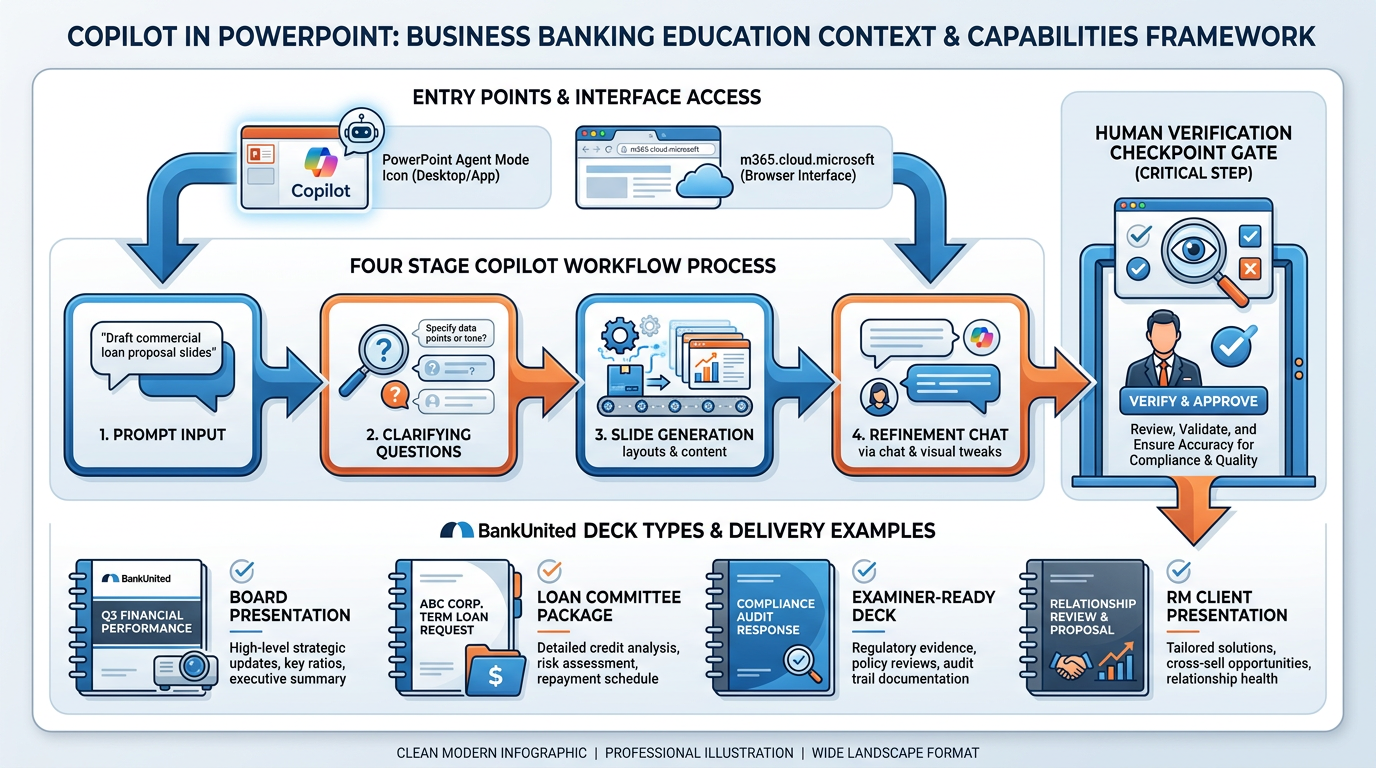
Figure 1:Copilot in PowerPoint gives BankUnited professionals two entry points, a structured generation workflow, and four mission-critical deck types. Every output passes through the same endpoint: a professional who verifies and owns every slide before it reaches the boardroom.
“The deck crunch is real. The board meeting is tomorrow. The slides are still blank. Copilot changes that math.”
Here is a scene that every senior professional at BankUnited has lived.
It is 4:30 p.m. on a Thursday. The board meeting is at 8:00 a.m. Friday. The CFO needs a 12-slide executive summary of Q2 commercial loan portfolio performance — the data lives in three different Excel files, a Word summary report, and a set of handwritten notes from a strategy session last week. The slides are not started. Building this deck from scratch — pulling the data, designing the layout, writing the talking points, checking the numbers, formatting everything to BankUnited’s brand standards — is a four-to-five-hour job. That math does not work.
Or consider the relationship manager who has just been told she will present a loan package to credit committee in 48 hours. She has the financial model, the property appraisal, the borrower’s operating history, and her own analysis. All of it needs to become a structured, professional presentation that the committee can read, question, and approve. Without AI, that is a half-day of work, minimum.
Or the compliance officer who has to brief the examination team on BankUnited’s BSA/AML framework on Monday morning. He has the policy documents. He has the documentation. He needs a clean, professional deck that presents the program clearly and survives the scrutiny of federal examiners. Building it from scratch, after already working a full week, is not where he wants to spend his weekend.
Microsoft Copilot in PowerPoint does not eliminate the work of preparing great presentations. It compresses the structural, mechanical portion of that work — generating slides, organizing content, creating speaker notes, retaining your brand template — so that the time you spend is invested in the things that actually require your expertise: reviewing the content, validating the numbers, refining the argument, and ensuring every slide earns its place in the room.
This chapter teaches you exactly how that works — based exclusively on what Microsoft has confirmed and documented — and how BankUnited professionals apply it to the four deck types that define our business: board presentations, loan committee packages, examiner-ready briefings, and client presentations.
There is one principle that runs through everything in this chapter, the same one introduced in Chapter 6 on Copilot in Word. Microsoft states it clearly in their own documentation: AI-generated content requires your verification before it goes anywhere. Not because Copilot makes things up at random — it is a genuinely powerful tool. Because every number in a board slide, every claim in a loan committee package, and every statement in front of an examiner has your name on it. That does not change because a machine helped you build the slide.
Let’s start with how the tool actually works.
1.11. Why Copilot in PowerPoint Changes the Deck Crunch
To understand why Copilot in PowerPoint matters so much for BankUnited, you need to understand what the “deck crunch” actually costs the organization.
Building a professional presentation is not a simple task. It is a composite of five distinct types of work, most of which have nothing to do with the substance of what you are trying to communicate.
Content assembly — gathering the information, data, summaries, and analysis that will go into the deck — is intellectual work. It requires judgment. It requires knowing what matters and what does not.
Structural design — deciding how many slides to have, what order they should appear in, what kind of layout fits each type of content — is creative work. It benefits from experience and pattern recognition.
Prose writing — turning raw data and bullet points into professional, readable slide text and speaker notes — is writing work. It requires skill and attention to tone and precision.
Formatting — applying brand colors, fonts, layout guidelines, logo placement, visual hierarchy — is mechanical work. It is time-consuming, repetitive, and requires no judgment whatsoever.
Verification — checking every number, every claim, every source reference against the underlying data — is critical work. It is irreplaceable and cannot be delegated.
Copilot in PowerPoint targets the structural design, prose writing, and formatting categories. It does not replace content assembly (you still need to know what you’re presenting) and it absolutely does not replace verification (you still need to check everything). But it compresses three categories of work that can together consume three to four hours of a senior professional’s time into a task that takes ten to twenty minutes of prompting and review.
For a regional bank that depends on its human talent — relationship managers, credit officers, compliance professionals, operations leaders — that compression is not trivial. It is the difference between a Sunday at home and a Sunday at the office. It is the difference between a well-rested executive at the board meeting and an exhausted one. Over hundreds of presentations per year, across dozens of professionals, it represents a measurable shift in capacity.
The blank slide is not a creative opportunity. It is an obstacle. Copilot eliminates the obstacle so you can focus on the substance.
1.22. How Copilot in PowerPoint Works — The Two Entry Points
There are two confirmed, fully operational ways to use Copilot to create and work with PowerPoint presentations. Understanding both — and when to use each — is the foundation of this chapter.
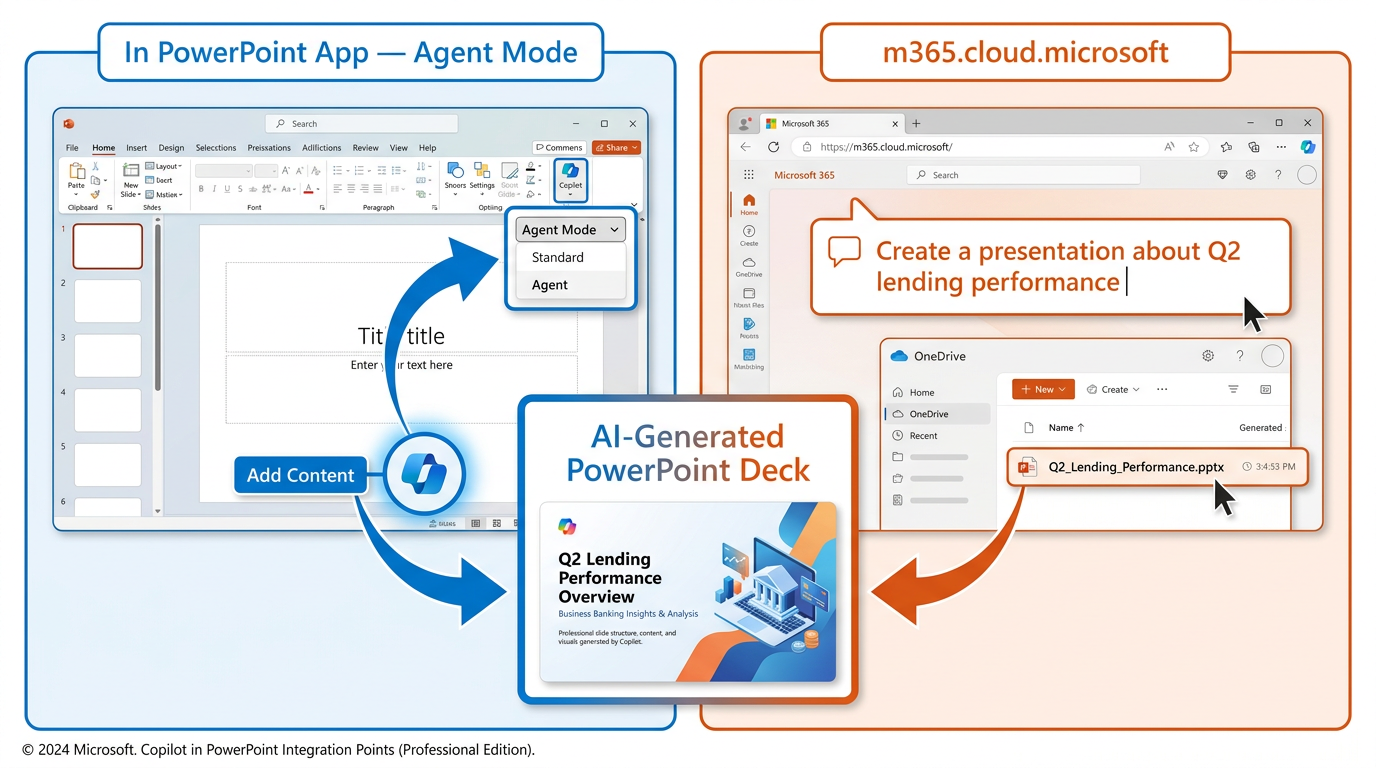
Figure 2:Two entry points, one outcome: a professionally structured PowerPoint presentation grounded in your content and retained in your BankUnited Microsoft 365 environment.
1.2.1Entry Point 1 — In PowerPoint: Agent Mode
When you open PowerPoint and start a new presentation, you will find the Copilot icon in the bottom right corner of the application. Selecting it opens the Copilot panel. Within that panel, you will see an Add Content button, and within that button’s drop-down, you will find Agent Mode.
Agent Mode is where Copilot’s presentation generation capability lives inside the PowerPoint application itself. You type a prompt describing the presentation you want — the topic, the audience, the key points to cover — and Copilot gets to work. It may ask you clarifying questions (more on this in the next section), generate an outline for you to review and refine, and then build the full slide deck.
After generation, the Copilot panel remains open. You can continue chatting with Copilot to refine the deck — asking it to add slides, adjust content, change wording, or add speaker notes — all without leaving PowerPoint.
One important qualification: As of this writing, the ability to reference specific files within Agent Mode is listed by Microsoft as “coming soon” and has not yet reached general availability for all users. If you want to ground your presentation in a specific Word document or SharePoint file using Agent Mode, check your current version of Microsoft 365 to see if this feature has rolled out to your organization. The capability to adjust presentation length, tone, style, and image preferences is also “rolling out to Frontier and Microsoft 365 Insiders,” which means it is not yet available to all users. Microsoft’s roadmap for these features is active — they are coming — but be aware of what is fully available versus what is still in rollout.
1.2.2Entry Point 2 — Microsoft 365 Copilot at m365.cloud.microsoft
The second entry point is the Microsoft 365 Copilot chat interface available at m365.cloud.microsoft. Sign in with your BankUnited Microsoft 365 account, open the Copilot chat, and ask it directly to create a presentation.
For example: “Create a presentation about BankUnited’s commercial real estate portfolio performance for Q2 2025. Eight slides. Executive audience.”
Copilot may respond with information it has gathered, offer an outline, or ask clarifying questions before proceeding. When you confirm your intent to create a presentation, Copilot generates a .pptx file and saves it automatically to your OneDrive, providing you with a direct link to open it in PowerPoint.
This entry point is particularly useful when you want to initiate the presentation workflow from a broader Microsoft 365 chat context — for instance, when you are already in Copilot researching a topic and want to convert that research directly into a deck.
The critical architectural point for both entry points: All of this operates within the Microsoft 365 service boundary. Your data does not leave Microsoft’s environment. The presentations are saved to OneDrive or SharePoint. Copilot only accesses content that you have permission to access. The security and compliance architecture that governs all of BankUnited’s Microsoft 365 work applies equally here.
1.33. Creating a Presentation from a Prompt — Step by Step
The most direct way to use Copilot in PowerPoint is to describe what you need and let the AI build from there. Here is exactly what happens, step by step.
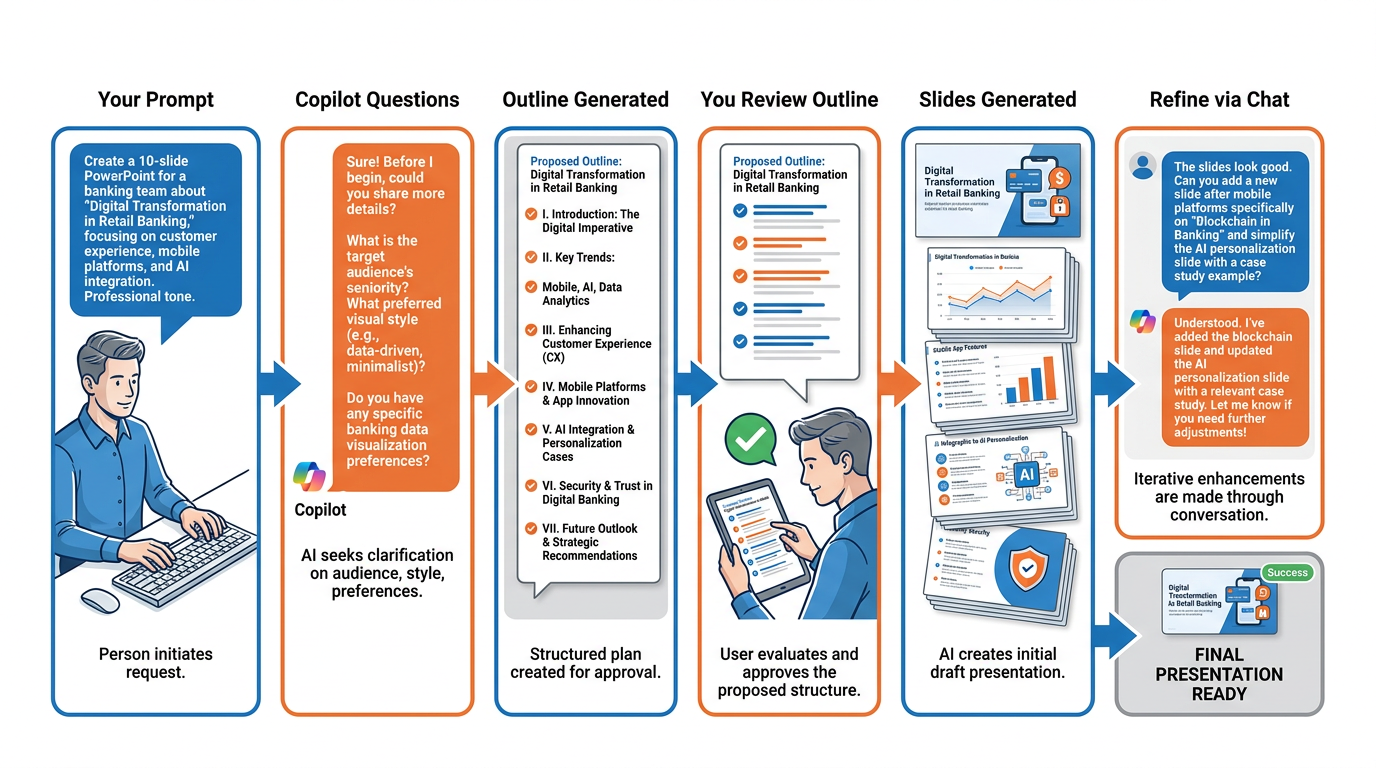
Figure 3:The prompt-to-deck workflow has six stages. Your active participation at Stages 1, 4, and 6 determines the quality of the final output. The richer your initial prompt, the fewer refinement cycles you will need.
1.3.1Stage 1: Your Prompt
Everything starts with the prompt. You describe, in natural language, the presentation you need. The more context you provide, the better the result.
A thin prompt sounds like: “Create a presentation about our lending program.”
A professional-grade prompt sounds like this: “Create a 10-slide executive presentation for BankUnited’s board of directors summarizing Q2 2025 commercial real estate loan portfolio performance. Include: an executive summary with headline metrics, a portfolio overview by property type (multifamily, office, retail, industrial), a performance metrics slide showing DSCR distribution and LTV ratios, a geographic concentration slide focused on Florida markets, a credit quality summary with delinquency rates and classified asset trends, a rate environment impact analysis, two slides on our top opportunities in the pipeline, and a closing slide with strategic priorities for Q3. Formal executive tone. BankUnited brand standards.”
The difference between these two prompts is the difference between receiving a generic template and receiving a structured first draft that your board can actually engage with. The additional context in the rich prompt takes three to five minutes to write — and consistently saves thirty to sixty minutes of post-generation revision.
What to include in a strong prompt:
The specific purpose and context of the presentation
The intended audience (board, credit committee, examiner team, client)
The number of slides (or an approximate range)
The key content areas to cover, listed explicitly
The desired tone (executive summary, formal, educational, persuasive)
Any specific data points or themes to emphasize
Reference to existing documents where relevant
1.3.2Stage 2: Copilot Asks Clarifying Questions
After you submit your prompt, Copilot will often ask clarifying questions before generating the deck. Based on Microsoft’s documented behavior, these questions may address:
Audience context: Who will be viewing this presentation? What level of familiarity do they have with the topic?
Style preferences: Should the slides be text-heavy with detailed analysis, or visual and high-level?
Image preferences: Would you like Copilot to include images or keep the deck text and chart focused?
These questions are Copilot’s way of narrowing its output to match your actual need. Answer them directly and specifically. Do not skip or rush past them — they are the mechanism by which Copilot tunes the generation to your context.
If your initial prompt was already comprehensive, Copilot may skip the questions and move directly to the outline.
1.3.3Stage 3: Outline Generation
Before building the slides, Copilot generates a proposed outline of the presentation structure. You will see the proposed slides listed — titles and brief descriptions of content for each one.
This is the most important moment in the workflow. Review the outline carefully. If the structure is not right — if slides are missing, in the wrong order, or addressing the wrong content — adjust it here, before the slides are built. It is vastly more efficient to correct the structure at the outline stage than to rebuild slides after they have been generated.
You can tell Copilot: “Add a slide on risk factors before the recommendation slide.” Or: “Combine slides 3 and 4 — they are covering the same content.” Or: “The third slide should focus specifically on multifamily concentration, not the overall portfolio.”
Once you confirm the outline — or after you have refined it to your satisfaction — Copilot builds the full slide deck.
1.3.4Stage 4: Slides Are Generated
Copilot produces the full presentation. Each slide is built according to the confirmed outline, with content drawn from its understanding of the topic and (where available) any source materials you have referenced. The slides will include titles, body content, and — if you have started with your organization’s PowerPoint template — they will adopt the visual design of that template.
The output is a starting point, not a finished product. Expect to find placeholder-level content, slide text that is directionally correct but may need tightening, and numbers that need to be replaced with your actual BankUnited data. This is not a flaw — it is the design. Copilot gives you structure and language; you provide the verified facts.
1.3.5Stage 5: Refine via Chat
After the slides are generated, the Copilot panel remains active. You can continue the conversation to refine the deck. Verified refinement capabilities include:
Adding slides: “Add a slide before the closing that summarizes the top three risks.”
Adjusting slide content: “Rewrite slide 4 to focus on multifamily performance in Miami-Dade specifically.”
Changing tone or wording: “Make slide 2 more concise — reduce to three bullet points maximum.”
Requesting speaker notes: “Add speaker notes to every slide. Each note should give the key talking point and a suggested transition to the next slide.”
Changing layout: “Change slide 6 to a two-column layout with the chart on the left and bullet points on the right.”
This iterative refinement cycle is where the workflow becomes genuinely collaborative. You are not accepting a single output — you are having a conversation that progressively improves the deck until it meets your standard.
1.44. Creating from a Word Document — The Most Powerful Workflow
If creating from a prompt is the front door to Copilot in PowerPoint, creating from a Word document is the express elevator.
This is the workflow that produces the most professionally useful results, the fastest, for BankUnited professionals who are already generating Word-based working documents — credit memos, analysis reports, policy briefs, meeting summaries, and client letters.
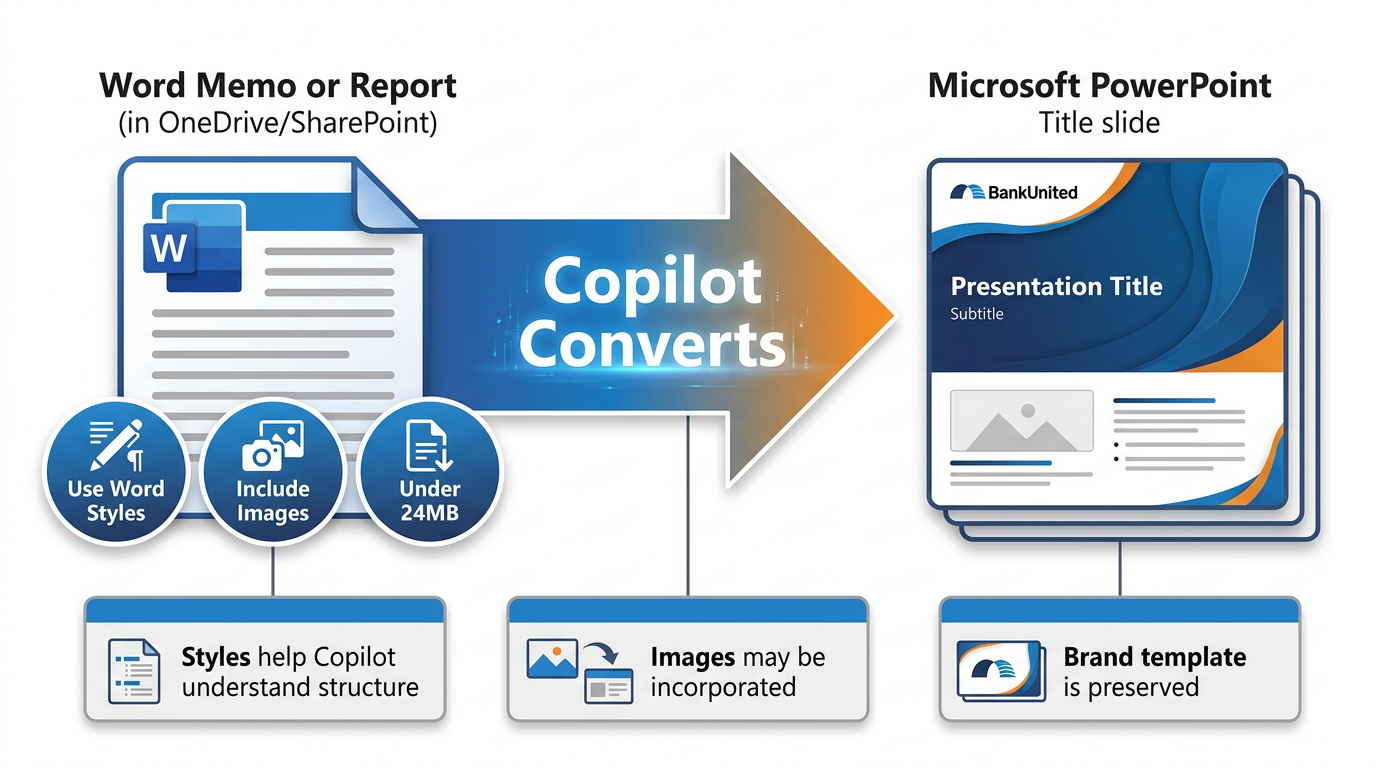
Figure 4:The Word-to-PowerPoint workflow is the highest-leverage use of Copilot for BankUnited professionals. Three best practices — Word Styles, included images, and file size — determine how well Copilot interprets and converts your working document.
The workflow is straightforward: in PowerPoint’s Copilot Agent Mode, use a prompt that references your Word document. For example: “Create a 12-slide executive presentation for our board of directors based on / [Q2 Portfolio Analysis Report].” Using the / reference (when the file referencing feature is available in Agent Mode — check your version) tells Copilot to ground its slide generation in the actual content of that document, not just its general knowledge about portfolio analysis.
Alternatively, via m365.cloud.microsoft, you can ask Copilot directly to create a presentation from a document you reference in the chat. Copilot reads the document, proposes an outline or generates slides, and saves the resulting .pptx to your OneDrive.
Why this workflow is more powerful: When Copilot generates from a prompt alone, it draws on its training knowledge of what a given type of document should look like. When it generates from your actual Word document, it draws on the specific content, language, data, and analysis you have already written. The resulting slides are grounded in your work, not in a generic template. The credit analysis in the slide is the credit analysis from your memo — not a placeholder version of one.
1.4.1The Three Best Practices (from Microsoft Documentation)
Microsoft’s own documentation identifies three specific best practices for optimizing the Word-to-PowerPoint workflow. These are not suggestions — they are the technical practices that determine how effectively Copilot can interpret and convert your document.
Best Practice 1: Use Word Styles
Word’s built-in Styles feature (Heading 1, Heading 2, Heading 3, Body Text) is not just a formatting tool. When you use Styles consistently in your Word documents, you create a structural hierarchy that Copilot can read and use as the organizational blueprint for your presentation.
Think of it this way: if your Word document uses Heading 1 for major sections, Heading 2 for subsections, and Body Text for content, Copilot can interpret each Heading 1 as a potential slide title, each Heading 2 as a slide section, and each Body paragraph as slide content. Without Styles, Copilot is reading a flat text file and guessing at structure. With Styles, Copilot is reading a document with an explicit organizational hierarchy.
The practical implication: when you write credit memos, analysis reports, or any working document you intend to convert to a presentation, apply Styles from the beginning. BankUnited professionals who adopt this discipline as a standard practice will find every Word-to-PowerPoint conversion significantly smoother.
Best Practice 2: Include Images in Your Word Document
Microsoft’s documentation states that Copilot will attempt to incorporate images from your Word document into the generated presentation. If your Word report includes charts, graphs, property photos, or other relevant visuals, they have a path into the slide deck automatically.
This matters practically: rather than separately finding and inserting your Q2 performance charts into both a Word report and a PowerPoint presentation, you can include them once in the Word document and let Copilot carry them through to the slides. You will still need to verify that the images landed correctly and in the right slides — but the manual image insertion step is reduced.
Best Practice 3: Start with Your Organization’s Template
Microsoft confirms that when you begin a presentation in PowerPoint using your organization’s established template — with its brand colors, fonts, slide master, and layout options — Copilot will retain that design when it generates content. The slides Copilot builds will use your template’s visual system, not a generic Microsoft default.
The implication for BankUnited: always start your PowerPoint file using the BankUnited corporate template before invoking Copilot. Do not let Copilot generate slides into a blank default presentation and then try to apply the template afterward. Begin with the template, then generate.
Best Practice 4: File Size
Microsoft’s documentation specifies that Word documents should be smaller than 24 MB for best results. Large documents with many embedded images or complex formatting can exceed this threshold. If you are working with a large report, consider creating a focused summary document rather than feeding the entire file — both for performance reasons and because a focused document will produce more relevant slides.
1.55. Editing and Refining Slides via Chat
One of the most practical capabilities of Copilot in PowerPoint is the ability to continue refining slides through natural language chat after the initial generation. This is not a secondary feature — it is where most of the real quality improvement happens.
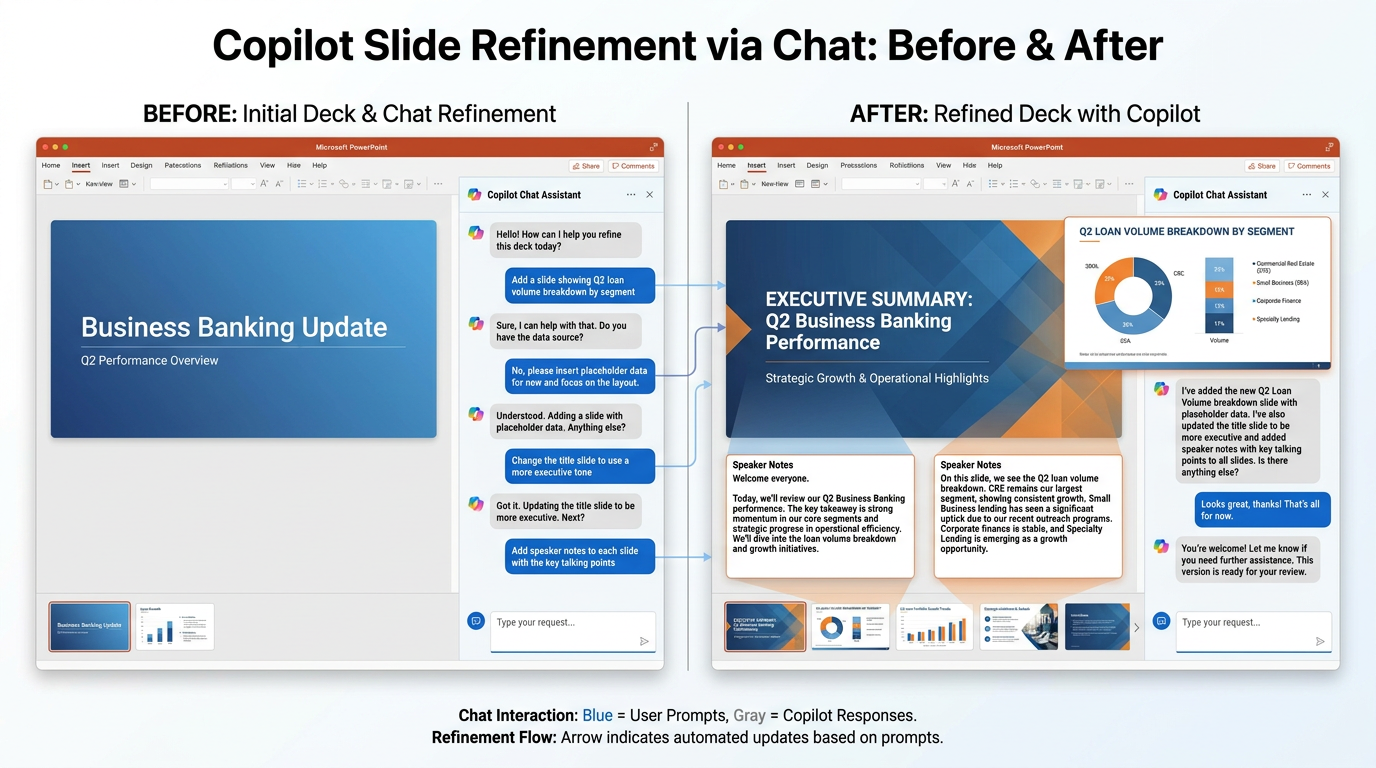
Figure 5:The refinement chat turns Copilot in PowerPoint from a one-shot generator into an iterative collaborator. The first draft is where you start — not where you finish.
The refinement chat operates through the Copilot panel in PowerPoint. After your slides are generated, you type instructions in plain English and Copilot executes them. Microsoft has confirmed the following refinement capabilities as operational:
1.5.1Adding and Removing Slides
“Add a slide after slide 3 that shows our top five commercial real estate markets by loan volume.”
“Remove slide 7 — it is redundant with the executive summary.”
“Add a title slide with the following text: ‘Q2 2025 Commercial Portfolio Review — BankUnited Board of Directors — August 2025.’”
Copilot adds or removes slides in context — it understands the surrounding deck structure and positions new content appropriately.
1.5.2Adjusting Slide Content
“Rewrite slide 4. The current version is too technical for a board audience. Simplify the language and lead with the key conclusion rather than the methodology.”
“Slide 6 has too many bullet points. Consolidate to three key points and move the detailed supporting information to the speaker notes.”
“Change the statistics on slide 5 — replace the placeholder percentages with the actual values I’m providing: DSCR average 1.38, LTV average 67%, delinquency rate 0.4%.”
These content adjustments are where your actual BankUnited data enters the deck. Copilot generates the structure and the language; you provide the verified numbers.
1.5.3Changing Layouts and Formatting
“Change slide 3 to a two-column layout — market map on the left, key metrics list on the right.”
“Make the slide titles across the entire deck more concise — they should be eight words or fewer.”
“The font on slide 8 looks inconsistent with the rest of the deck. Apply the standard heading style.”
1.5.4Requesting a Reorganization
“Move the risk analysis section to appear before the pipeline slides — the board needs to see risk before opportunity.”
“Reorganize the deck so the executive summary is on slide 2, immediately after the title slide.”
The ability to reorganize through chat — rather than manually dragging and reordering slides — is particularly valuable for complex decks where the narrative logic needs adjustment after you see the first draft assembled.
1.66. Generating Speaker Notes — Copilot Writes What You Will Say
Public speaking anxiety and the pressure of high-stakes presentations are real factors in professional life. One of the most underused capabilities of Copilot in PowerPoint is speaker note generation — and it is one of the most immediately valuable for BankUnited professionals presenting to boards, committees, and examiners.
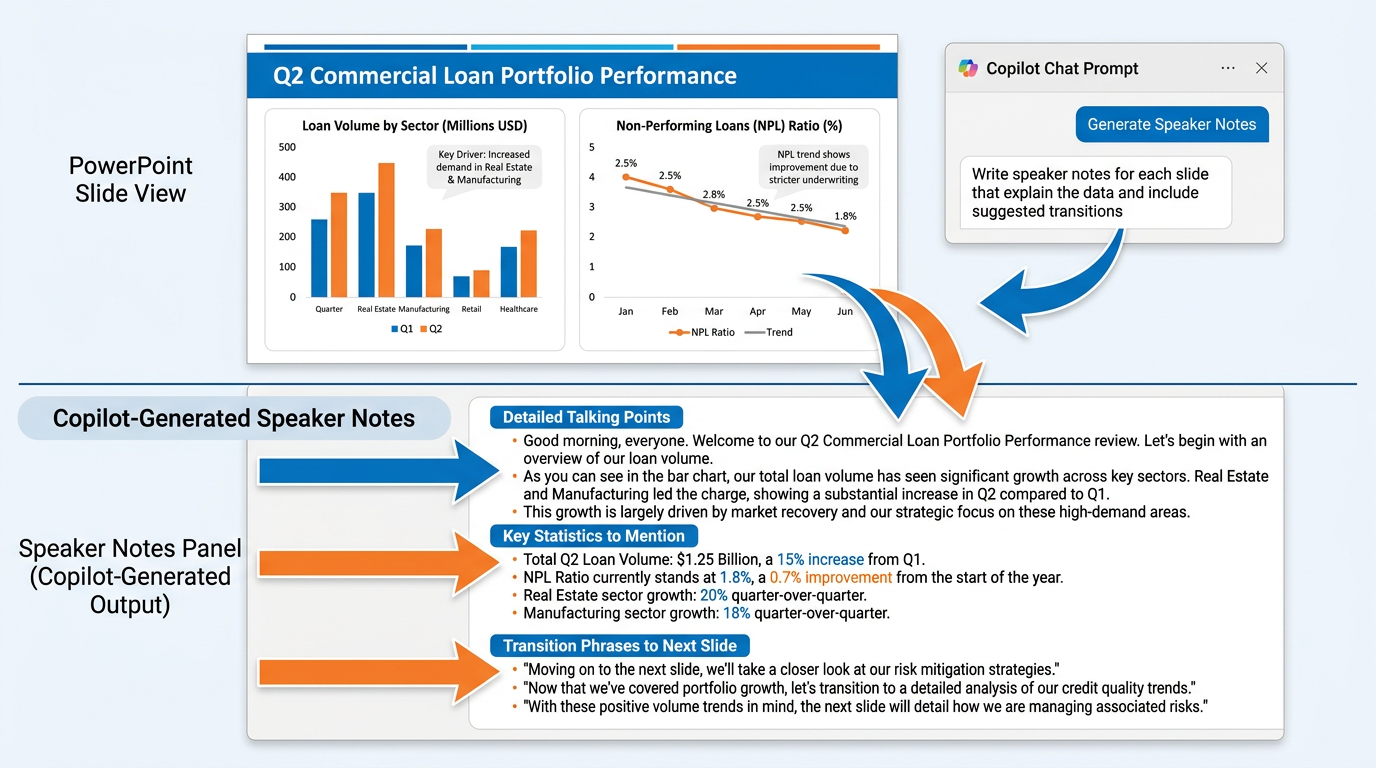
Figure 6:Speaker notes generated by Copilot give you a script to work from — not to read verbatim, but to anchor your delivery and ensure you cover the right points in the right order. For high-stakes presentations, they are a game-changer.
Microsoft has confirmed that Copilot can generate speaker notes for your slides. Here is how to invoke this capability and get useful results.
1.6.1Generating Notes for All Slides at Once
“Add speaker notes to every slide in this presentation. Each note should include: the key point the audience needs to understand from this slide, two to three supporting details I should mention verbally, and a suggested transition to the next slide.”
This single prompt produces a full set of speaker notes across the entire deck — something that, without AI, would require fifteen to thirty minutes of careful writing for a twelve-slide presentation.
1.6.2Generating Notes for a Specific Slide
“Write speaker notes for slide 4. The audience is the board of directors. The slide shows our DSCR distribution. The note should explain what DSCR means in plain language for board members who are not all from lending backgrounds, highlight the trend since Q1, and flag the two credits in the watch category without creating alarm.”
This level of specificity produces notes that are genuinely useful — not generic bullet points, but actual talking-point language calibrated to your specific audience and context.
1.6.3The Value for High-Stakes Presentations
Consider the board presentation scenario. A board of directors at a regional bank is not a monolithic audience. It includes former bankers who understand credit deeply, business leaders from other industries who need concepts explained, risk management professionals who want precision, and community leaders who want narrative and context. A good presenter reads the room and adjusts. Good speaker notes anticipate that range and give you material to draw from for each type of question.
Copilot can draft that range of notes faster than you can write them. You then refine them — adding your specific institutional knowledge, the particular dynamics of your board, the current priorities that should color how you frame each point. The result is a presentation you can deliver with confidence because the intellectual scaffolding is already built.
1.77. Summarizing an Existing Presentation — Condensing the 40-Slide Deck
Not every use of Copilot in PowerPoint involves creating something new. One of its most practically useful capabilities — confirmed by Microsoft — is the ability to summarize an existing presentation.

Figure 7:Summarization inverts the usual workflow. Instead of building up from nothing, you compress down from an existing deck. The use case is everywhere in banking: pre-meeting prep, executive briefings, and regulatory package overviews.
The scenario: you have received a 40-slide board package from another department, or from an external advisor, or from a prior quarter’s materials. You need to understand it quickly and brief your team on the key points. Reading 40 slides carefully takes time. Having Copilot summarize it takes seconds.
“Summarize this presentation. Give me the five most important points, the key decision we are being asked to make, and any risks or concerns that are flagged.”
Or, for a more directed summary: “This is a 38-slide regulatory examination report. Summarize the key findings for me. Focus on any matters requiring attention, any repeat findings from prior examinations, and the examiner’s overall assessment of our compliance program.”
Copilot reads the presentation — which must be saved in OneDrive or SharePoint — and produces the summary in the chat panel. You get the signal without having to extract it manually from all the noise.
1.7.1Use Cases for Summarization at BankUnited
Pre-meeting preparation: Before a board meeting where you will be receiving presentations from other business units, ask Copilot to summarize the board package so you walk into the room with the key points already internalized.
Senior executive briefing: Your CEO needs to understand the key points of a 35-slide regulatory examination report before a call with the examiner team. Copilot summarizes it in two minutes. The CEO reads a focused one-page digest instead of the full report.
Cross-department alignment: Another department has prepared a detailed operational report that affects your area. Copilot extracts the sections relevant to your function so you can respond quickly and accurately.
Acquisition or vendor due diligence: A 50-slide vendor proposal lands in your inbox. Before committing time to a full review, ask Copilot to summarize the key claims, pricing structure, and implementation requirements.
In each case, the summary is a starting point for your review — not a replacement for it. When the stakes are high, read the original. Use the summary to orient yourself, not to substitute for the primary source.
1.88. Working with BankUnited’s Brand Template — Keeping Visual Identity
Every presentation that leaves BankUnited carries the organization’s visual identity. The brand is not a cosmetic consideration — it is a signal of professionalism, consistency, and institutional credibility. An examiner who receives a polished, consistently branded deck is looking at a bank that has its systems together. A client who receives a beautifully designed presentation is looking at a relationship manager who takes the relationship seriously.
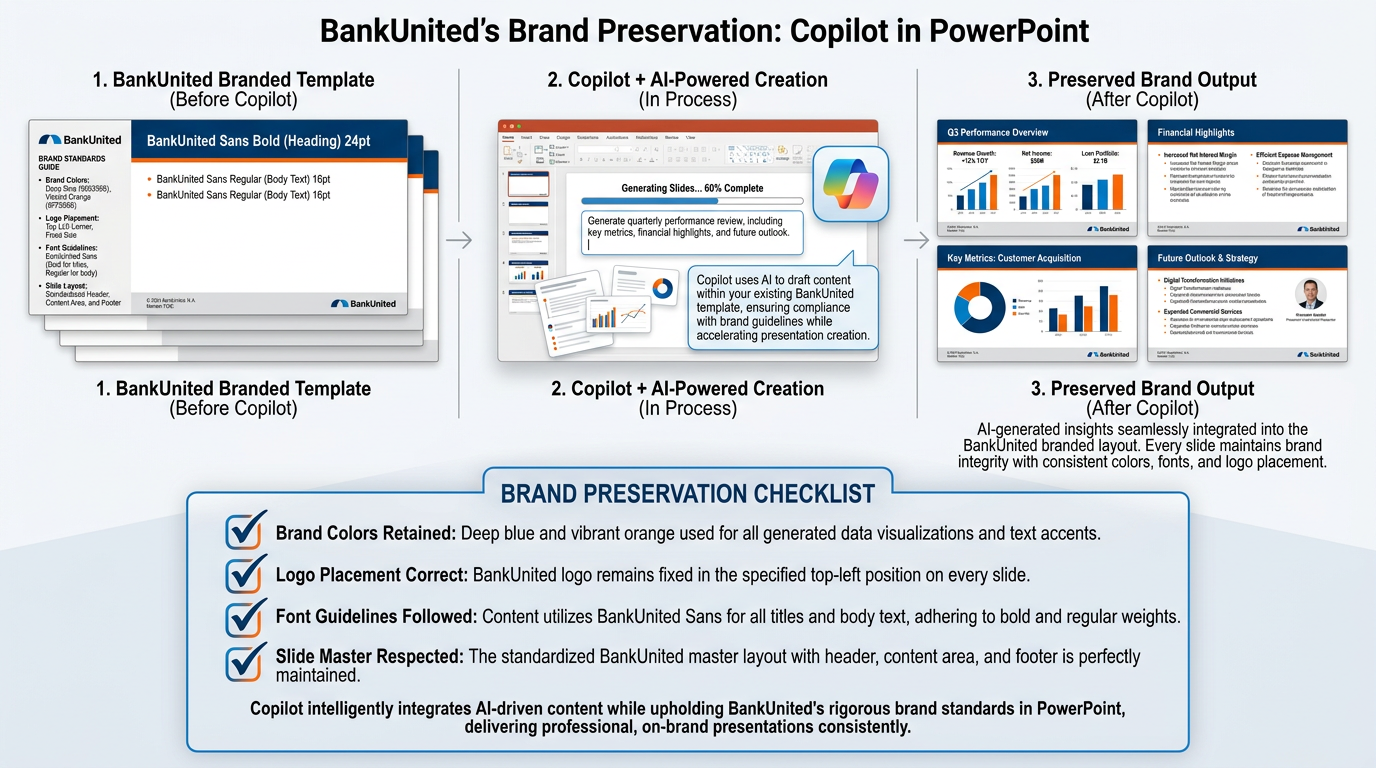
Figure 8:BankUnited’s brand template is the visual foundation that Copilot builds on. Start every Copilot presentation session inside the template — never in a blank default file. The brand is preserved when the template comes first.
Microsoft has confirmed that Copilot retains your organization’s theme and design when you start with an established PowerPoint template. The mechanism is the Slide Master — PowerPoint’s underlying design system that defines colors, fonts, layouts, and logo placement. When Copilot generates slides within a file that is using your organization’s Slide Master, the generated content adopts the Slide Master’s design.
1.8.1The Rule: Template First, Always
The single most important practice for brand-consistent Copilot presentations is this: always open the BankUnited PowerPoint template before invoking Copilot. Never start in a blank default presentation and then try to apply branding afterward.
The workflow:
Open the BankUnited corporate PowerPoint template from the approved template library in SharePoint
Save the file with your project name to your OneDrive folder
Open Copilot (Agent Mode) within that template file
Begin your prompt-based generation
Everything Copilot builds will be in the BankUnited visual system. Titles will use the approved font. Colors will be the approved palette. Logo placement and footer elements will be consistent.
1.8.2What Copilot Does and Does Not Handle
Copilot will respect your Slide Master design — colors, fonts, layout options, background elements. What it will not automatically do is select the specific slide layout most appropriate for each content type. A Slide Master typically includes multiple layout options (title slide, content slide, two-column layout, section divider, etc.). Copilot will select from these layouts, but may not always choose the one you would select for a given slide.
After generation, review each slide’s layout choice and adjust where needed. This is a ten-minute task for a twelve-slide deck — far less time than formatting every slide from scratch, and far more consistent with your brand standards than generating in a default template and reformatting manually.
1.99. The Verification Discipline — Every Deck Gets Human Review
This section is not optional. It is the professional obligation that makes everything else in this chapter responsible to use.
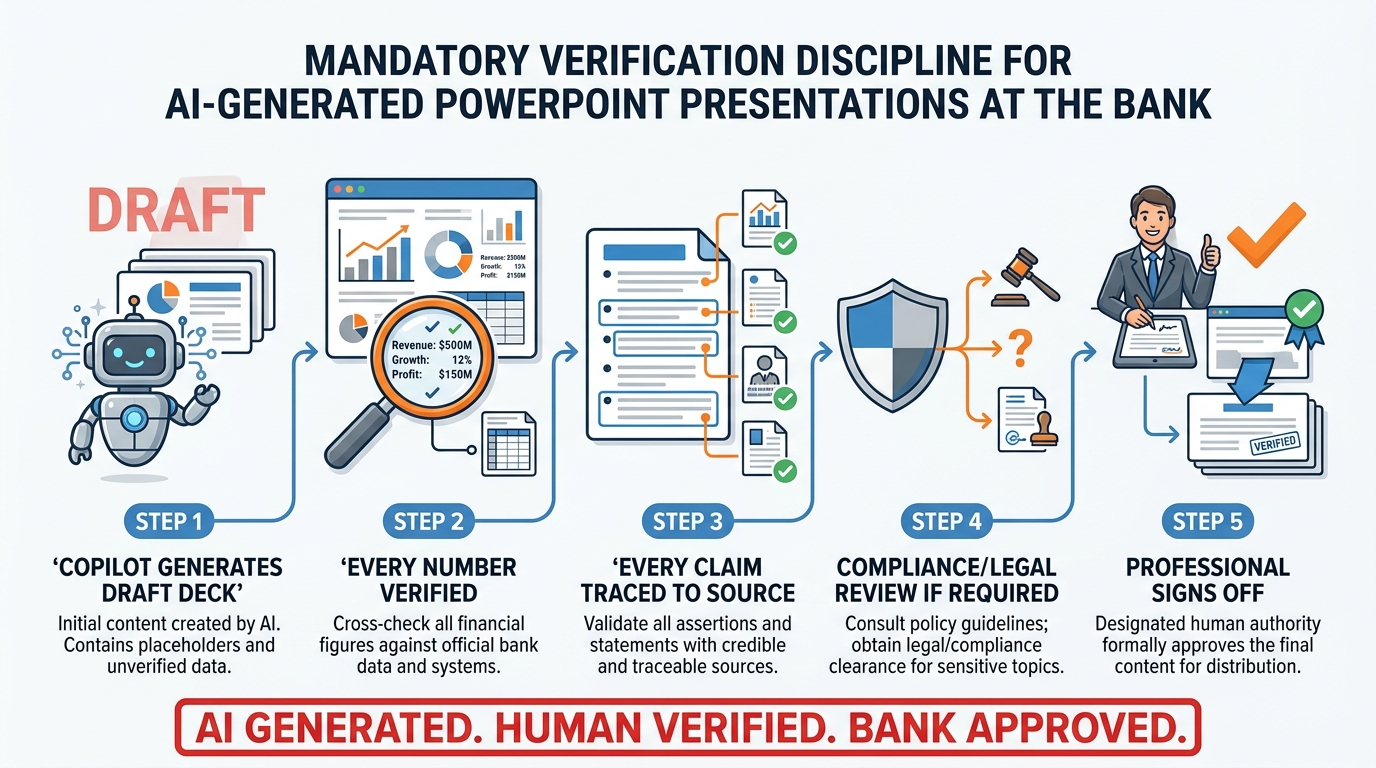
Figure 9:The verification discipline is the professional standard that makes AI-generated presentations safe to use in banking. AI generates the structure. The human verifies the substance. Every number, every claim, every slide — before it reaches any audience.
Microsoft itself is explicit about this in their documentation. Copilot generates a draft. You need to verify and modify details to make sure it is accurate and fits your tone and style. This is not a disclaimer buried in a footnote. It is the fundamental design premise of the tool.
For BankUnited professionals, the stakes of presenting inaccurate content are not hypothetical. Consider:
In a board presentation: A board member notices that the DSCR figure on slide 5 is inconsistent with the financial summary they received separately. They question it publicly. The meeting loses thirty minutes resolving a data error. Confidence in the presenter — and potentially in the data’s underlying management — is affected.
In a loan committee package: A credit officer presents a loan with an LTV ratio that Copilot populated as a placeholder. The committee approves based on the presented numbers. The actual LTV, when correctly calculated, is above policy limits. The approval needs to be revisited.
In front of an examiner: A compliance officer presents a BSA transaction monitoring slide that contains a statistic Copilot inferred from general industry data rather than BankUnited’s actual monitoring system outputs. The examiner asks for the source. The officer cannot provide one. What was meant to be a demonstration of program competence becomes a credibility problem.
None of these scenarios requires malice or negligence to occur. They require only the assumption — deadly in professional life — that because the output looks right, it is right. AI generates plausible outputs. Plausible is not the same as accurate.
1.9.1The Verification Protocol
For every Copilot-generated PowerPoint before it is presented or distributed:
Step 1 — Every number, verified. Open each slide. Find every statistic, percentage, dollar figure, ratio, count, and date. Locate the primary source for each one. Confirm that the number in the slide matches the primary source. If Copilot generated a placeholder number (which it will sometimes do), replace it with the actual figure.
Step 2 — Every factual claim, traced. Copilot may generate claims like “BankUnited’s commercial portfolio has maintained below-industry average delinquency rates for six consecutive quarters.” That claim may be accurate — or it may be something Copilot generated because it sounds plausible for a well-managed bank. Verify every substantive claim against your actual data.
Step 3 — Every attribution, confirmed. If a slide references an external source, a regulatory requirement, or a policy standard, confirm that the reference is accurate. Copilot does not cite sources in the way a research paper does — it generates content based on training data. If a slide says “per OCC guidance,” verify that the specific guidance cited exists and says what the slide implies.
Step 4 — Compliance and legal review, as required. Presentations that will be shared externally — with clients, regulators, investors, or the public — should follow BankUnited’s standard review process. Copilot does not know your legal review obligations. You do.
Step 5 — Final professional sign-off. The person who presents the deck owns it. Not Copilot. Not the tool. The professional who stands in front of the board, the committee, or the examiner and delivers the slides is responsible for their accuracy. That responsibility does not transfer to the AI that helped build the structure.
1.1010. BankUnited-Specific Workflows
The four deck types that follow represent the most frequent, highest-stakes presentation scenarios for BankUnited professionals. Each one has a specific recommended Copilot workflow that accounts for the audience, the content requirements, and the verification obligations.
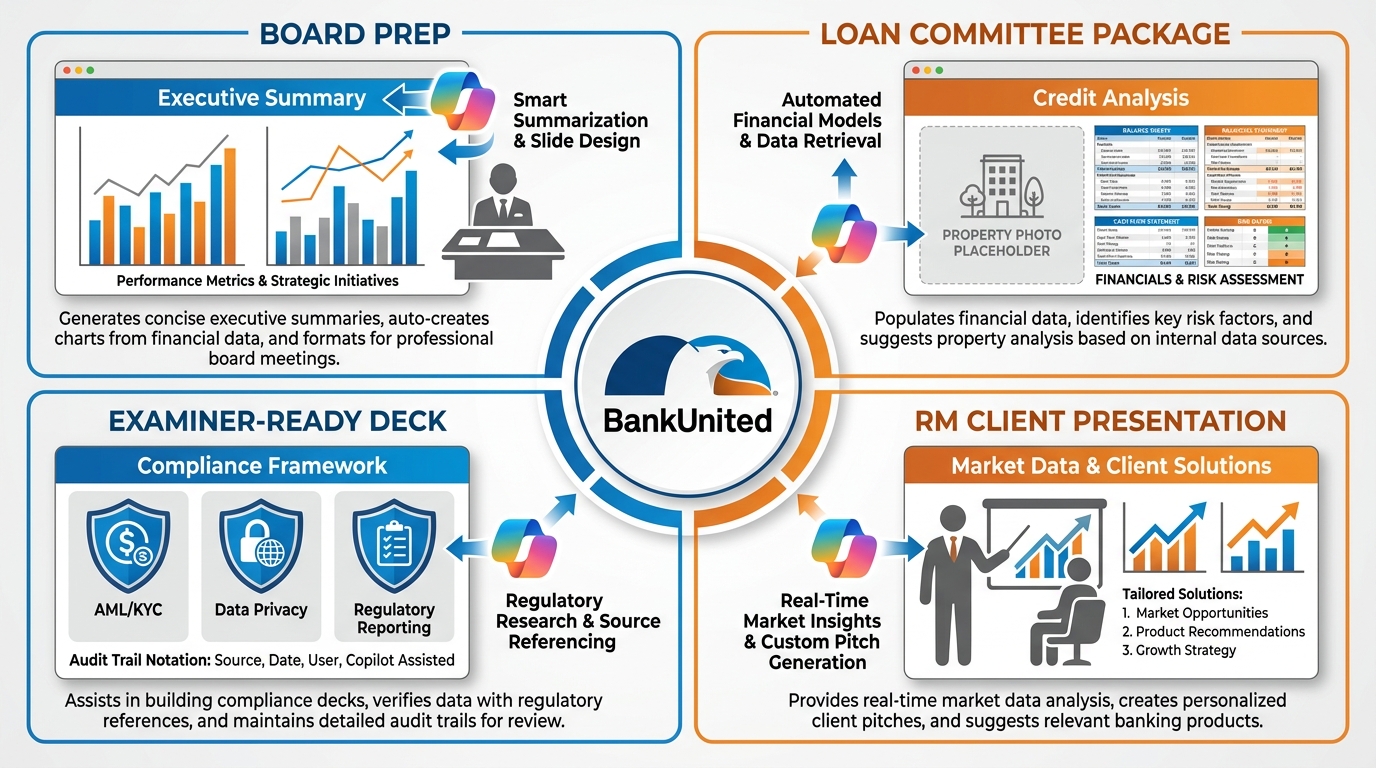
Figure 10:Four deck types, four distinct workflows. The BankUnited professional who masters all four has the AI-assisted presentation skills to operate at the highest level of the organization.
1.10.1Workflow 1 — Board Preparation Deck
The scenario: Quarterly board meeting, executive team presentation, strategic update, or special committee report.
Audience: Board of directors — mix of banking professionals, business leaders from other industries, and community representatives. High-level strategic thinkers who need clear narrative, not operational detail. Time-constrained. Focused on risk, performance, and strategic direction.
Recommended Copilot workflow:
Begin with the Word-based executive summary or strategic report that was prepared for this quarter, saved in OneDrive
Open the BankUnited board deck template in PowerPoint
Invoke Copilot Agent Mode with a prompt referencing the Word document: “Create a 12-slide board presentation based on [Q2 Executive Summary]. Structure: Executive Summary → Portfolio Performance → Risk Overview → Market Environment → Strategic Priorities → Q3 Outlook. Board-level executive tone. Lead with conclusions, support with data.”
Review and refine the outline before slide generation
After generation, ask Copilot to: add speaker notes for each slide, tighten all slide titles to eight words or fewer, and confirm the executive summary slide captures the three most important points
Verify every number against the source financial data
Review with the CFO or presenting executive before the board receives it
The board presentation verification standard: Every number goes back to a primary source. Every strategic claim is one the executive team has discussed and agreed on. Every risk factor is current as of the date of presentation. The board deck is one of the highest-visibility documents BankUnited produces — it deserves the most rigorous verification process.
1.10.2Workflow 2 — Loan Committee Package
The scenario: Credit committee review of a commercial loan request, modification, or renewal.
Audience: Credit officers, senior lenders, risk managers, and committee members with deep lending expertise. They will probe the analysis. They know what good underwriting looks like. They will find errors.
Recommended Copilot workflow:
Ensure all source documents are in OneDrive/SharePoint: the financial spreading, the property appraisal summary, the borrower operating history, your credit analysis narrative, and the proposed term sheet
Open the credit committee PowerPoint template
Prompt: “Create a 10-slide credit committee presentation based on [Credit Memo — Henderson Commercial Partners]. Structure: Borrower Overview → Loan Request Summary → Property Analysis → Financial Performance → DSCR and LTV Analysis → Risk Factors → Mitigants → Credit Committee Recommendation. Technical credit underwriting tone. Include all key ratios.”
After generation, replace every AI-generated placeholder number with actual underwriting data immediately — do not let placeholder numbers exist in the file for longer than necessary
Ask Copilot to generate speaker notes that anticipate likely committee questions for each slide
Have a second underwriter review the final deck before presentation
The loan committee verification standard: Every financial ratio — DSCR, LTV, NOI, debt yield, operating history trending — must match the spreading model exactly. Every property description detail must match the appraisal. This is the deck that determines whether credit is extended. There is no margin for error.
1.10.3Workflow 3 — Examiner-Ready Deck
The scenario: OCC, FDIC, or Federal Reserve examination preparation — presenting BankUnited’s compliance programs, risk management frameworks, or operational practices to federal regulators.
Audience: Experienced federal bank examiners who have seen hundreds of these presentations. They are looking for substance, accuracy, and evidence that the bank understands and manages its risks. They will ask follow-up questions on every claim. They know what good looks like.
Recommended Copilot workflow:
Source documents must include the actual policy documents, the most recent program assessment, audit findings, and any prior examination management responses — all in OneDrive
Start with the regulatory affairs or compliance PowerPoint template
Prompt: “Create a 15-slide examination readiness briefing for our BSA/AML compliance program. Structure: Program Overview → Governance → Risk Assessment → Customer Identification Program → Enhanced Due Diligence → Transaction Monitoring → SAR Filing Process → Training Program → Audit Coverage → Prior Exam Findings and Remediation → Program Assessment. Formal regulatory compliance tone. Every section must include program documentation references.”
Every claim about program scope, testing frequency, coverage statistics, and escalation thresholds must be replaced with actual, current, verifiable data from BankUnited’s systems
The compliance and legal teams must review the final deck before it goes to any examiner
Build an “Evidence Binder” alongside the deck — for every slide claim, document the primary source so you can produce it on request during the examination
The examiner-ready verification standard: This is the highest-stakes verification environment. Presenting inaccurate information to federal regulators — even inadvertently — has consequences that range from credibility damage to formal supervisory action. Every word in an examiner-ready deck is verified. Every claim has a source. Every source is available on demand.
1.10.4Workflow 4 — RM Client Presentation
The scenario: Relationship manager presenting market analysis, industry trends, financing options, or product overview to a commercial banking client.
Audience: Business owners, CFOs, or executive teams at BankUnited’s commercial clients. Sophisticated, but not necessarily banking experts. They want clarity, relevance to their business, and confidence that BankUnited understands their industry and their needs.
Recommended Copilot workflow:
Source materials: client meeting notes from OneNote or Word, recent industry research saved in OneDrive, BankUnited product sheets in SharePoint
Open the BankUnited relationship management presentation template
Prompt: “Create an 8-slide client presentation for [Client Name], a healthcare services company in South Florida. Structure: Welcome and Relationship Overview → South Florida Healthcare Industry Trends → Commercial Real Estate Financing Options for Healthcare Facilities → Working Capital Solutions → Treasury Management Services → Case Study — How BankUnited Helped a Similar Healthcare Client → Our Commitment to Your Business → Next Steps. Professional, relationship-focused tone. Client-centric, not bank-centric.”
Customize every slide with the client’s actual name, their specific situation, and accurate product terms from BankUnited’s current rate sheets
Ask Copilot to generate speaker notes with conversation starters and question prompts for the relationship manager
The RM reviews the final deck to confirm it matches what they know about the client’s needs and current situation
The client presentation verification standard: Accuracy matters, but relevance matters equally. The most dangerous error in a client presentation is not always a wrong number — it is a generic claim that does not reflect the client’s actual situation. Personalize every slide. Verify every product term and rate against current BankUnited guidelines.
1.11Try This — Hands-On Exercise
This exercise connects directly to the work you did in Chapter 6.
Step 1 — Initiate from m365.cloud.microsoft
Sign in at m365.cloud.microsoft with your BankUnited Microsoft 365 account. In the Copilot chat interface, type:
“I need to create an 8-slide executive deck for a board meeting based on a Word memo I have. The memo summarizes Q2 commercial lending performance. The audience is BankUnited’s board of directors. Please help me create a professional presentation.”
Observe how Copilot responds — whether it asks clarifying questions, whether it requests to see the memo, or whether it proceeds with an outline directly.
Step 2 — Reference the Word document
Once Copilot is ready, provide the reference to your Word memo (using the file picker in the chat if available, or by describing its content if direct referencing is not yet available in your version). Confirm the instruction to create the presentation.
Step 3 — Review the output
When Copilot generates the .pptx and provides the OneDrive link, open the file. Review it critically:
Does the structure make sense for a board presentation?
Are there slides that should not be there?
Are any important sections missing?
Does the visual design match BankUnited’s brand if you started in the template?
Step 4 — Three refinement prompts
Return to Copilot (in the chat or in PowerPoint’s Agent Mode) and apply these three follow-up prompts in sequence:
Prompt 1: “Add an executive summary slide as slide 2. It should include the three most important takeaways from this presentation in three concise bullet points.”
Prompt 2: “Add speaker notes to every slide. Each note should give me the key point to deliver verbally and a suggested transition to the next slide.”
Prompt 3: “The closing slide should include a clear call to action — what we need the board to decide or approve. Rewrite it with a specific recommendation and a decision point.”
Step 5 — Verify and reflect
Review the refined deck slide by slide. Apply the verification protocol from Section 9. Note how many placeholders or inaccurate details you find that would need correction before this deck could actually go to a board.
Reflect on this: how long would this eight-slide deck have taken you to build from scratch? How long did it take with Copilot? What percentage of your time was spent on structure and formatting versus verification and refinement?
1.12The Deck Crunch, Solved — and What Comes Next
The blank slide is no longer the obstacle it was. With Copilot in PowerPoint — whether through Agent Mode inside the application or through the Microsoft 365 Copilot interface at m365.cloud.microsoft — BankUnited professionals have access to a genuinely powerful tool for converting working documents, data, and analysis into professional presentations in a fraction of the time it previously required.
But the tool is only as valuable as the discipline surrounding it. The verification protocol is not bureaucratic overhead. It is the professional standard that makes AI-assisted presentations trustworthy in the environments where BankUnited operates — in front of boards, credit committees, federal examiners, and clients who depend on the accuracy of what they are shown.
The professionals who master Copilot in PowerPoint — who learn to write rich prompts, who maintain their Word documents with Styles, who always start in the brand template, who run every Copilot output through rigorous verification — those professionals gain a real competitive advantage in how they prepare, present, and communicate inside and outside the organization.
Chapter 9 continues the application-specific training with Copilot in Teams — where AI transforms how you run meetings, capture notes, and follow up on decisions. The tools keep building. The discipline stays the same.
1.13Glossary
Agent Mode The presentation generation interface within Copilot in PowerPoint, accessible via the Copilot icon in the lower right corner of the application and the Add Content button dropdown. Agent Mode allows users to create presentations through conversational prompts and iterative refinement.
Slide Master PowerPoint’s underlying design template system that defines the visual rules for a presentation — colors, fonts, logo placement, layout options, and background elements. Copilot retains the Slide Master’s design when generating slides within a template file.
Deck Crunch The time pressure banking professionals experience when professional presentation demands — board meetings, committee reviews, regulatory examinations — require high-quality slide decks on compressed timelines.
Speaker Notes Text associated with each PowerPoint slide that is visible to the presenter but not displayed to the audience. Copilot can generate speaker notes containing talking points, data context, and suggested transitions.
Word Styles Microsoft Word’s structural formatting system (Heading 1, Heading 2, Body Text, etc.) that creates a document hierarchy Copilot can read and use as an organizational blueprint when converting Word documents to PowerPoint presentations.
Slide Refinement Chat The ongoing conversational interface within Copilot in PowerPoint that allows users to refine, adjust, add to, or reorganize slides through natural language prompts after the initial generation.
OneDrive Microsoft’s cloud file storage service, integrated with Microsoft 365. Files must be saved in OneDrive or SharePoint for Copilot to access them during presentation generation or summarization.
m365.cloud.microsoft The browser-based Microsoft 365 Copilot interface where users can initiate presentation creation through chat, with Copilot generating a .pptx file saved automatically to OneDrive.
Verification Discipline The mandatory human review process applied to every AI-generated presentation before it reaches an audience — checking every number, claim, and attribution against primary source data to ensure accuracy and accountability.
Placeholder Content Text, numbers, or statistics generated by Copilot as stand-ins for actual data. Placeholders look professional but require replacement with verified, real information before a presentation is shared.
Prompt Engineering (Presentations) The practice of writing detailed, context-rich prompts for Copilot in PowerPoint that specify audience, purpose, content requirements, slide count, and tone — producing higher-quality first drafts that require less revision.
BankUnited Brand Template The corporate PowerPoint template file containing BankUnited’s approved Slide Master, color palette, fonts, logo placement, and layout options. Starting every Copilot presentation session within this template ensures consistent visual identity across all AI-generated decks.
Examiner-Ready Deck A presentation prepared for federal bank examiners (OCC, FDIC, Federal Reserve) that presents BankUnited’s compliance programs, risk management practices, or operational procedures. Subject to the highest verification standard of any presentation type.
Loan Committee Package A PowerPoint presentation summarizing a commercial loan credit analysis for review and approval by BankUnited’s credit committee. Contains underwriting data, financial analysis, risk factors, and a credit recommendation.
1.14Leader’s Takeaway
The question is not whether to use Copilot in PowerPoint. Every BankUnited professional who prepares presentations — and that is most of us — will find measurable value in this tool. The real question is whether you will use it well.
Using it well means three things: writing prompts that give Copilot the context it needs to produce relevant output, maintaining the document disciplines (Word Styles, OneDrive storage, template-first workflow) that maximize the quality of generation, and applying the verification discipline that ensures every number and claim that reaches an audience is accurate.
The competitive advantage in AI-assisted presentations does not go to the person who uses Copilot to produce the fastest draft. It goes to the person who uses Copilot to produce the best-prepared, most accurate, most compelling presentation — in the time that previously only allowed for a good one.
The blank slide is gone. The standard it leaves behind is higher than ever.