Chapter 6: Week 3, Session B — Copilot in Word
Drafting, Summarization, and the End of the Blank Page
1Chapter 6: Week 3, Session B — Copilot in Word
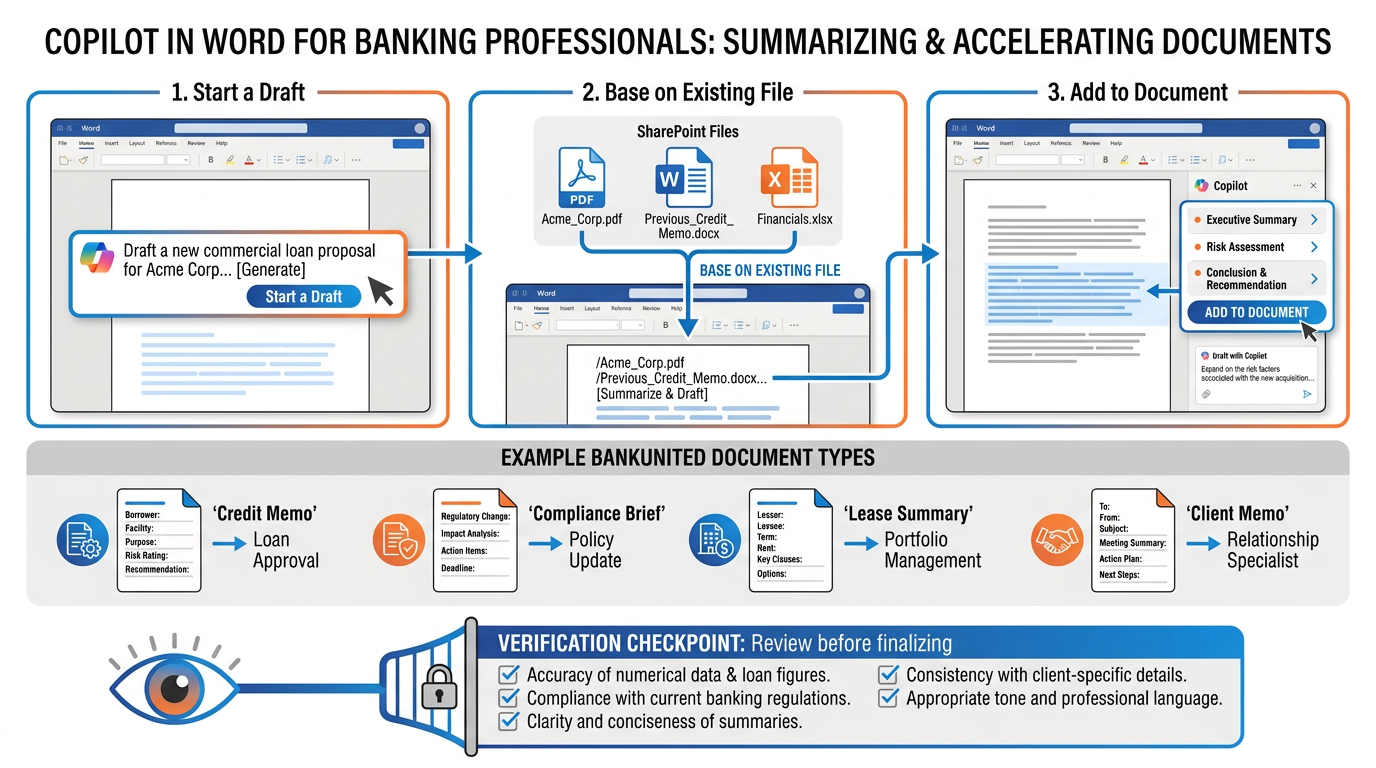
Figure 1:Copilot in Word gives banking professionals three distinct capabilities for document creation. Each one addresses a specific moment in the writing process — and all three share the same endpoint: a human professional reviewing every word before it leaves the bank.
“The blank page is the enemy. Copilot kills the blank page.”
Here is a scene that plays out at BankUnited dozens of times every day.
A relationship manager has just finished a two-hour site visit with a commercial real estate client. She has notes in her phone, a lease abstract on her laptop, three bullet points scribbled on a notepad, and the mental clarity that only comes from being inside a property with the owner and understanding exactly what the deal is. She sits down at her desk, opens Microsoft Word, and stares at a blank white document.
Her task: write a credit memo for a $4.2 million commercial real estate loan. Clear, precise, professional. Something a credit committee can approve. Something that could survive an OCC examiner’s review.
She knows exactly what needs to be said. She knows the property, the borrower, the numbers. She just needs to say it — and saying it professionally, in the right structure, at the right length, in the right language, will take her three hours. Because that’s how long it has always taken.
Now she opens Copilot in Word.
She describes what she needs in a prompt. She references the financial summary already saved in SharePoint. Copilot produces a structured first draft in under a minute. Not a finished document — a serious starting point. The structure is right. The sections are labeled. The tone is professional. Now she is not writing from a blank page. She is editing from a solid foundation.
Her three-hour task becomes 45 minutes of focused revision and verification.
This chapter is about that shift. It is about how Copilot in Word works — based on Microsoft’s own documented capabilities — what it can and cannot do, and how BankUnited professionals apply it to the documents that define our business: credit memos, compliance briefs, lease summaries, client communications, policy updates, and everything in between.
There is one rule that Microsoft itself has built into the product’s design — and that we will return to throughout this chapter: every draft Copilot generates requires your verification before it leaves your hands. Microsoft states this explicitly in their own documentation: “Remember that Copilot generates a draft. You’ll need to verify and modify details to make sure it’s accurate and fits your tone and style.” Not because Copilot is unreliable — it is genuinely impressive. Because the professional who sends the document is responsible for it. No AI changes that.
Let’s start with the three capabilities.
1.11. The Three Capabilities of Copilot in Word
Copilot in Word is not a single button. It is three distinct capabilities, each designed for a different moment in the document lifecycle. Understanding which one to use — and when — is the first competency to develop.
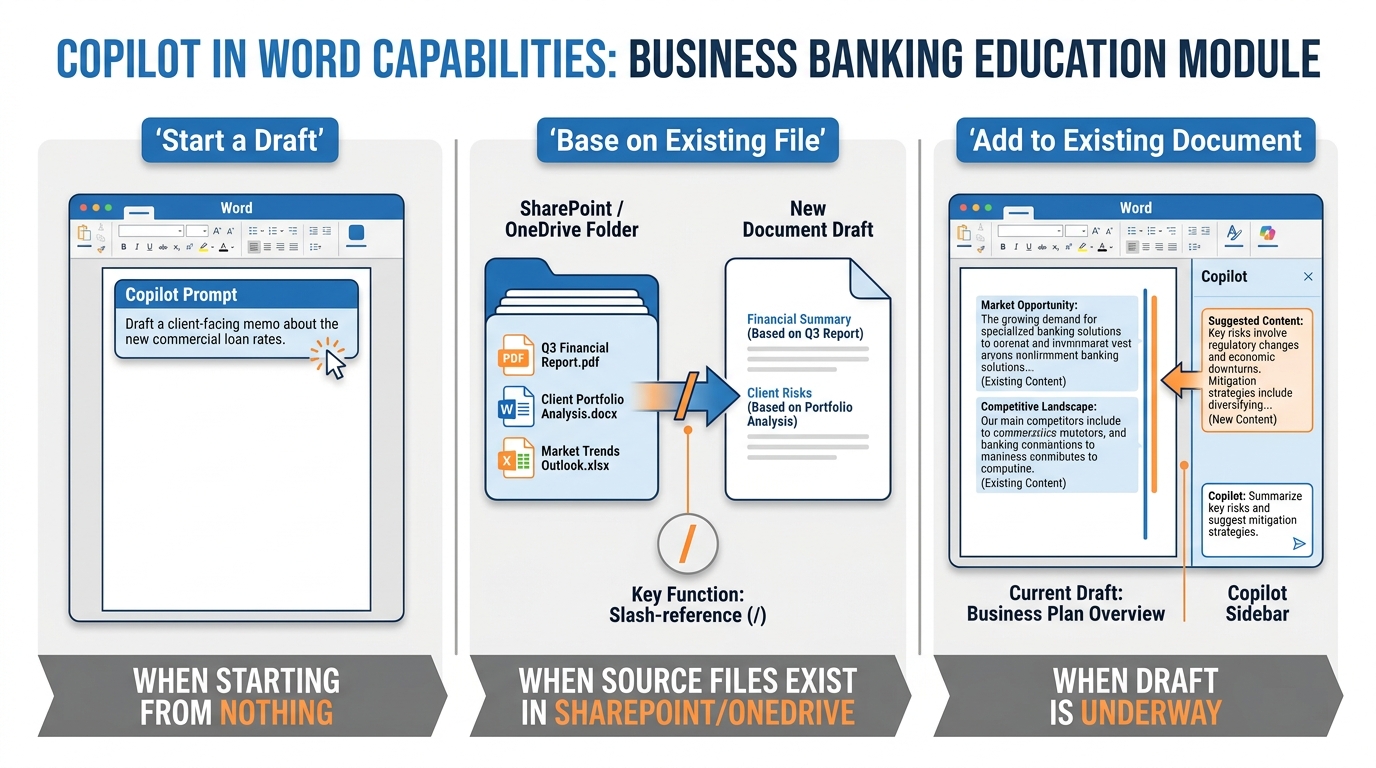
Figure 2:Three capabilities, three moments in the document workflow. Start a Draft when you have a blank page. Base on Existing File when you have source material already stored in SharePoint or OneDrive. Add to Existing Document when your draft is underway and needs more content.
1.1.1Capability 1: Start a Draft
This is the blank-page killer. When you open a new Word document — or click the Copilot icon in your document — you will see an option to draft with Copilot. Type a prompt describing what you need, and Copilot generates a full structured draft.
After Copilot produces its output, you have four choices: Keep it, Regenerate (ask Copilot to try again), Discard (start over), or refine with a follow-up prompt — for example, “Make it more concise” or “Add a section on risk mitigation” or “Change the tone to be more formal.” This iterative refinement loop is where Copilot becomes genuinely powerful: you do not have to get the perfect draft on the first try. You and Copilot work toward it together.
The critical insight about Start a Draft is that prompt quality is the primary driver of output quality. A thin prompt produces a generic draft. A rich prompt — one that includes the document’s purpose, intended audience, key points to cover, required structure, and tone — produces a draft that requires substantially less revision.
Compare these two prompts for the same document:
Thin prompt: “Write a credit memo for a commercial real estate loan.”
Rich prompt: “Write a formal credit memo for BankUnited’s credit committee. Borrower: Henderson Commercial Partners LLC, a Florida-based CRE company with 12 years of operating history. Loan request: $4.2 million. Property: 24,000 sq ft medical office building in Coral Gables, 94% occupied, two anchor tenants on five-year NNN leases, DSCR 1.42, LTV 68%. Loan term: 5 years amortized over 25 years, Prime + 1.25%. Key risks: tenant concentration (two anchors are 78% of revenue) and geographic exposure. Structure the memo with these sections: Borrower Overview, Loan Request, Property Description, Financial Analysis, Risk Factors, and Recommendation. Formal credit underwriting language.”
The thin prompt produces a template. The rich prompt produces a first draft that a credit officer can actually work with. The difference is three minutes of additional prompt work — consistently the highest-leverage investment in Copilot productivity.
1.1.2Capability 2: Base a Draft on an Existing File, Email, or Meeting
This is where Copilot in Word becomes a different kind of tool entirely. Rather than generating content from a prompt alone, you can instruct Copilot to ground its draft in specific source material you already have — a SharePoint document, a OneDrive file, or a meeting transcript.
The mechanism is the slash reference (/). When composing your Copilot prompt in Word, type / and a file picker appears. You can reference up to 20 items in a single prompt — and those items become the factual foundation for what Copilot writes.
For example: “Summarize the key financial trends from / [borrower’s three-year financial package] and write a financial analysis section suitable for a credit memo. Focus on revenue trajectory, DSCR trend, and liquidity position.”
Copilot reads the referenced file, extracts the relevant content, and grounds its draft in what is actually in that document — not in what it generally knows about borrower financial analysis.
The requirement: Files must be saved in SharePoint or OneDrive to be referenceable. Local files saved only to your desktop or C: drive cannot be pulled into a Copilot prompt. If you are working with documents that live on a local drive, save them to your OneDrive first.
This capability is particularly powerful for:
Credit memos drafted from actual financial statements already in SharePoint
Compliance briefs grounded in the actual regulatory guidance document
Client letters based on specific meeting notes or prior correspondence
Lease summaries drawn from the actual lease document
Policy updates based on the existing policy document being revised
The output is not Copilot’s general knowledge about what a financial analysis looks like. It is Copilot’s synthesis of what is actually in your documents. That distinction matters enormously for accuracy.
1.1.3Capability 3: Add Content to an Existing Document
The third capability addresses a different moment in the writing process: your document is already underway, and you need to add to it. Rather than starting over or switching contexts, you can position your cursor in the document, invoke Copilot, and ask it to add a new section, expand an existing section, or generate content that fits naturally with what is already written.
This is particularly useful for:
Adding a risk analysis section to a credit memo that was started without one
Drafting an executive summary for a long document after the body is complete
Adding a “Next Steps” section to a client letter
Expanding a bullet-point section into full narrative paragraphs
Adding boilerplate disclosures or standard policy language to a draft
Copilot in this mode is context-aware: it reads what you have already written and matches the tone, structure, and register of your existing content. If your document is formal and technical, Copilot’s additions will be formal and technical. If it is client-facing and conversational, additions will match that register.
1.22. Drafting from Scratch — Real BankUnited Examples
Nothing teaches Copilot drafting better than watching it applied to the documents you actually write. Here are three scenarios drawn from BankUnited’s real professional environment: a credit memo, a compliance brief, and an internal policy update.
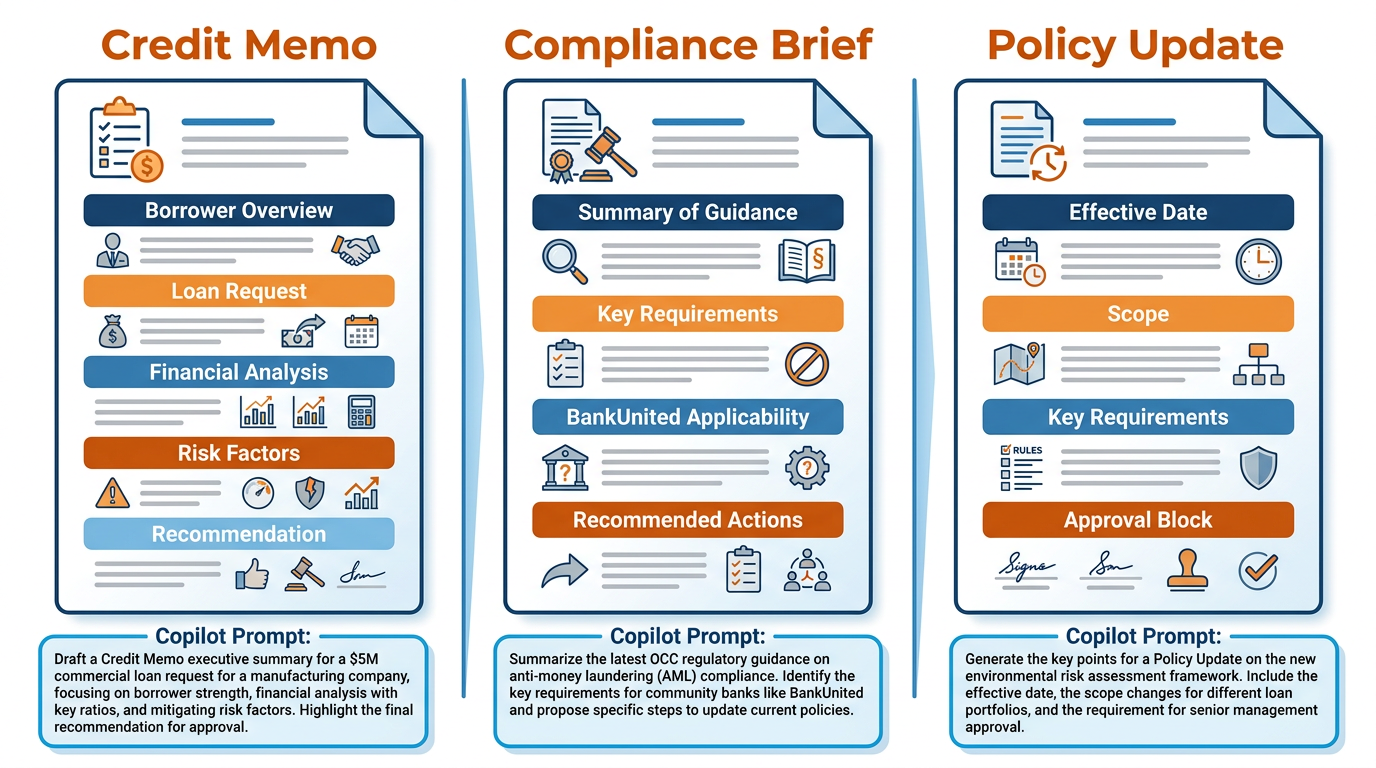
Figure 3:Three of the most common document types in banking — each with a distinct structure, register, and audience. The Copilot prompting pattern is consistent across all three: name your role, the document’s purpose, the required sections, and the audience.
1.2.1Example 1: The Credit Memo for a Commercial Loan
The credit memo is the centerpiece document of commercial banking. It is the formal narrative that supports every credit decision — the document that tells the borrower’s story, the property’s story, and the numbers’ story in a structured format that enables a credit committee to make an informed decision.
Writing a credit memo from scratch is skilled work. It requires understanding the deal, knowing what the credit committee needs to see, organizing complex financial information into a coherent narrative, and doing all of this in the formal register that banking requires.
Copilot does not replace that skill. It eliminates the scaffolding problem — the time spent setting up the structure, writing the section headers, and producing the boilerplate before the real work of analysis and judgment can begin.
Prompting approach:
Open a new Word document. Invoke Copilot (click the Copilot icon or select Draft with Copilot). If you have the borrower’s financial summary in SharePoint or OneDrive, reference it with /. Then use this prompt structure:
“Write a formal credit memo for BankUnited’s credit committee. Base the financial analysis section on / [borrower financial package]. Borrower: [Legal name], [entity type], [years in business]. Loan amount: $[amount]. Property or collateral: [description, key metrics]. Key strengths: [list]. Key risks: [list]. Recommended action: [Approve / Decline / Approve with conditions]. Use formal credit underwriting language. Include these sections: Borrower Overview, Loan Request, Collateral Description, Financial Analysis, Risk Factors, Recommendation and Conditions.”
Copilot produces a structured draft in under a minute. Your work then becomes:
Verifying every financial figure against the actual source documents
Reviewing every factual claim about the borrower
Adding the analytical narrative that comes from your direct knowledge of the deal
Adjusting the risk section to reflect nuances Copilot could not know
Confirming the recommendation language meets BankUnited’s credit policy standards
Applying the five-point verification checklist before the memo goes to committee
The division of labor is clear: Copilot handles structure. You handle facts, judgment, and accountability.
1.2.2Example 2: A Compliance Brief
Compliance professionals at BankUnited regularly produce briefing documents: summaries of new regulatory guidance, assessments of how that guidance applies to BankUnited’s specific practices, or response documentation for regulatory inquiries. These documents require a specific structure and register — formal, precise, defensible, and grounded in the actual regulatory text.
Copilot handles this document type well when you reference the actual regulatory source material using /. Here is the recommended approach:
Step 1: Download the regulatory guidance document (an OCC bulletin, a Fed guidance letter, a CFPB circular) and save it to your OneDrive or a SharePoint folder you have access to.
Step 2: Invoke Copilot in a new Word document. Reference the saved guidance with /.
Step 3: Prompt:
“I am a compliance officer at BankUnited, subject to OCC supervision. Using the regulatory guidance document / [OCC bulletin], write a compliance brief suitable for senior management review. Include these sections: (1) Summary of the Guidance — plain-language description of what it requires; (2) Key Requirements — the specific obligations it creates; (3) Applicability to BankUnited — how these requirements map to our current practices; (4) Recommended Internal Actions — what the bank needs to do; (5) Implementation Timeline — realistic sequencing. Formal compliance register.”
Step 4: Review the draft critically, section by section:
Summary of the Guidance — compare Copilot’s characterization against the actual guidance text. Verify nothing was omitted or reframed in a way that changes meaning.
Applicability to BankUnited — Copilot will make reasonable assumptions about current practices. Each assumption must be verified by someone who knows what BankUnited actually does.
Recommended Actions — these require compliance and legal review before internal distribution. Copilot’s suggestions are a starting point, not authoritative guidance.
Compliance briefs are high-stakes documents. Copilot gives you a professional structure and a strong first draft. Human expertise validates every substantive claim.
1.2.3Example 3: An Internal Policy Update
Policy documents are among the most tedious to write — long, carefully structured, laden with defined terms and cross-references. They are also typically written by a single person working alone, which creates both efficiency problems (one person doing everything) and quality problems (one person self-editing without a second perspective).
Copilot in Word significantly accelerates policy drafting when you reference the existing policy using /. This grounds the revision in the actual current policy rather than in Copilot’s general sense of what a banking policy looks like.
“I am updating BankUnited’s AI Acceptable Use Policy. Using the existing policy in / [current AI use policy draft], revise and expand it to address the following additions: (1) Microsoft 365 Copilot is the bank’s approved enterprise AI tool — describe approved uses (drafting, summarizing, research assistance) and prohibited uses (AI-driven credit decisions without human review, sharing client PII in non-approved AI tools); (2) Add a verification requirement: all AI-generated content in external documents requires human review before distribution; (3) Add a reporting requirement for employees who encounter unexpected AI outputs. Maintain the existing policy’s formal register and section structure. Effective date: [date].”
The result is a policy revision that builds on your actual existing document rather than starting from scratch — which means section numbers, defined terms, and cross-references stay consistent.
1.33. Summarization at Scale — Condensing 40 Pages into One
Here is one of the most underappreciated capabilities in Copilot for Word, and one of the highest-leverage use cases in commercial banking: document summarization at scale.
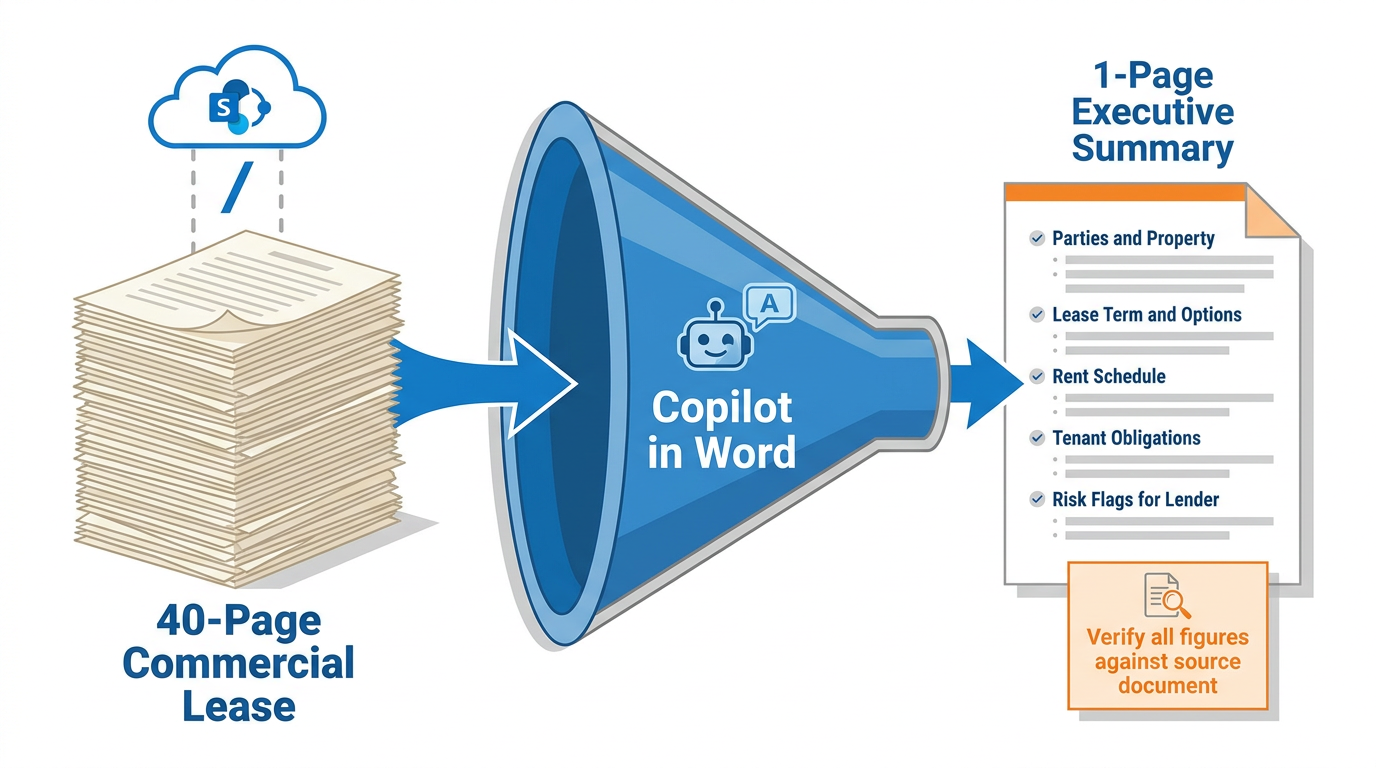
Figure 4:A 40-page commercial lease condensed to a one-page executive summary — referencing the actual lease document with / so Copilot works from the real text, not general knowledge. The extraction takes under a minute. The verification — checking key provisions against the source — takes a professional another 20 minutes.
1.3.1The 40-Page Lease Scenario
BankUnited’s commercial real estate team reviews hundreds of lease documents each year. A commercial lease for a retail or office property can run 40, 60, even 80 pages. Reading one thoroughly — extracting the rent schedule, renewal options, tenant obligations, co-tenancy clauses, force majeure provisions, and assignment restrictions — is a 90-minute minimum task for a trained professional.
Multiply that by the volume of deals in the pipeline, and you begin to see the scale of the opportunity.
Here is how to do it:
Step 1: If the lease is a PDF, convert it to Word (File → Open → select the PDF — Word converts automatically). Save the converted document to SharePoint or OneDrive.
Step 2: Open a new Word document. Invoke Copilot.
Step 3: Reference the lease with / and prompt:
“Summarize this commercial lease document for a BankUnited credit analyst reviewing a loan application. Base your summary on / [lease document]. Extract and organize: (1) Property identification and parties; (2) Lease term — commencement, expiration, extension options; (3) Rent schedule — base rent, escalation provisions, percentage rent clauses; (4) Tenant obligations — CAM, insurance, property taxes; (5) Landlord obligations; (6) Co-tenancy or kick-out provisions; (7) Assignment and subletting restrictions; (8) Default and cure provisions; (9) Material risk flags — anything unusual or potentially problematic for a lender. Format as a structured one-page executive summary.”
Copilot processes the referenced document and produces the extraction. What you receive is a roadmap: a structured summary that surfaces the material provisions and flags potential risk areas for deeper investigation.
The verification step — non-negotiable: Review every extracted provision against the source document. Check the rent figures against the actual rent schedule. Verify lease term dates against the document itself. Confirm extension option terms and co-tenancy triggers. Copilot’s summarization is highly reliable on well-structured documents, but numerical details — rent amounts, dates, percentages — must always be verified against the source. A credit decision made on a misread rent schedule is an error regardless of which tool produced it.
1.3.2Summarization Beyond Leases
The same workflow applies across the document types BankUnited professionals work with:
Financial statements saved in SharePoint:
“Using / [borrower three-year financial package], identify trends in revenue, operating margin, and debt service coverage. Flag any metrics that fall outside typical thresholds for a commercial real estate operator of this scale. Write a financial narrative suitable for inclusion in a credit memo.”
Regulatory guidance saved in OneDrive:
“Using / [OCC guidance document], write a one-page summary of the key requirements and their effective dates. Identify the three actions a supervised institution most urgently needs to take.”
Environmental site assessments:
“Using / [Phase 1 ESA report], summarize the key findings. Identify any recognized environmental conditions or recommendations that would be material to a commercial real estate lender.”
Prior meeting notes or call transcripts:
“Using / [meeting notes — Henderson site visit], extract the key points that are relevant to a credit memo: borrower representations about the property, financial commitments discussed, open items requiring follow-up.”
In every case, the Copilot output is grounded in your actual document — not in general knowledge — because you referenced it with /. That grounding is what makes summarization useful in a professional context where accuracy matters.
1.44. Tone Adjustment — Same Content, Three Audiences
This is where Copilot in Word earns its highest praise from experienced banking professionals. The ability to take a single set of facts and express them in the right voice for three different audiences is a skill that separates good communicators from exceptional ones. Copilot accelerates this navigation dramatically — without replacing the professional judgment that makes it reliable.
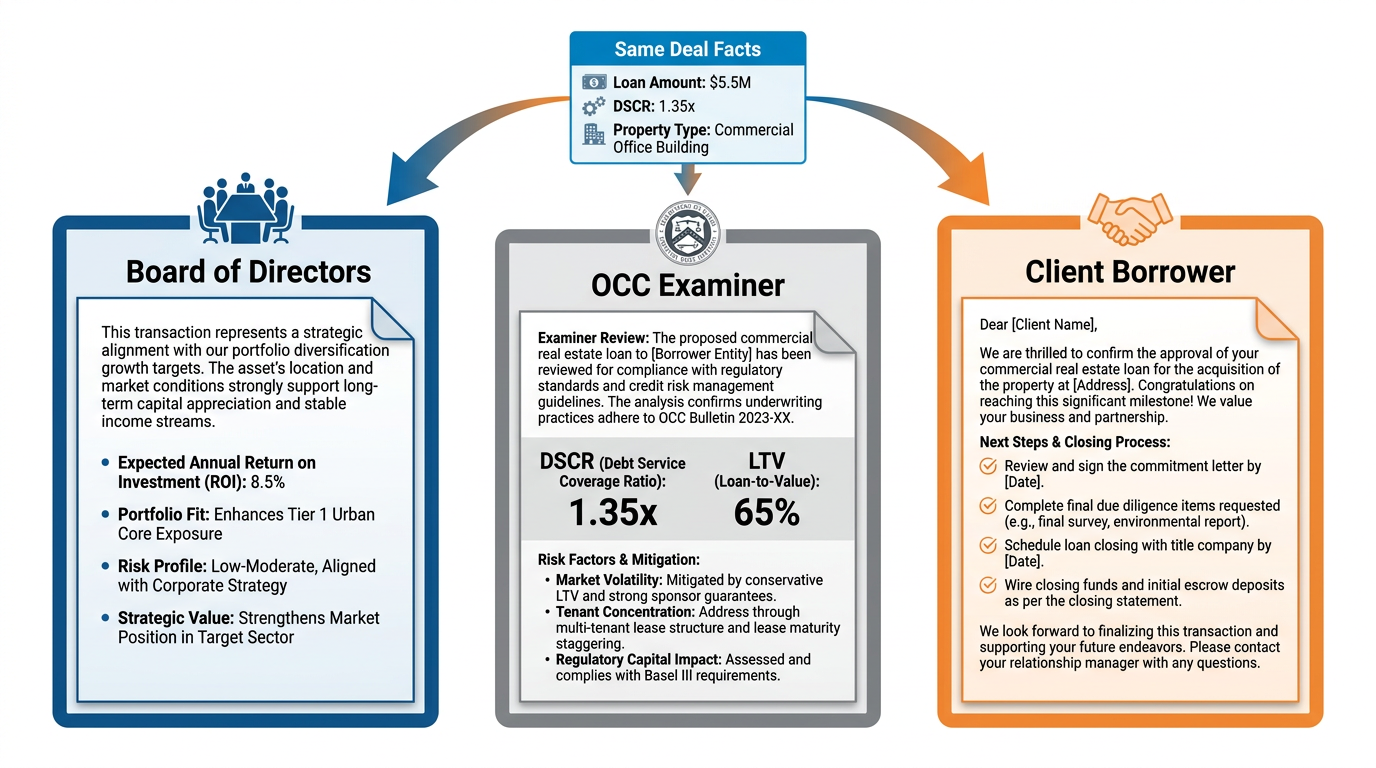
Figure 5:One deal, three audiences, three completely different documents. Copilot navigates the structural and tonal differences quickly. The professional’s judgment ensures that each version is not just tonally appropriate but factually accurate and contextually complete.
1.4.1The Three-Audience Challenge
Consider a commercial real estate loan BankUnited has just approved — a $7.5 million loan for a mixed-use development in Doral. The same deal needs to be described three different ways:
For the Board of Directors: The board wants strategic context. They want to understand how this deal fits BankUnited’s CRE portfolio strategy, what the returns look like, what the risk profile is relative to the bank’s appetite, and whether this represents the kind of credit the bank should be pursuing more aggressively. They do not want to read DSCR — they want to know what it means for the bank’s overall exposure.
For an OCC Examiner: The examiner wants precision, documentation, and defensibility. They want to see every risk identified, every mitigant described, every policy compliance confirmed. They want the DSCR, the LTV, the stress test results, the loan classification, and the monitoring plan. They want language that survives scrutiny.
For the Client (Borrower): The client wants to feel that BankUnited is committed to their project. They want to know what happens next, what they need to provide, and when they can close. They want confidence, warmth, and clarity — not regulatory language that makes them feel like a risk to be managed.
1.4.2Using Copilot to Navigate Tone
Step 1: Write — or have Copilot draft — a neutral factual summary of the deal. All the facts, no audience-specific framing. Save it to OneDrive so you can reference it.
Step 2: Open a new document. Prompt Copilot for the first audience version, referencing the factual summary:
“Using / [deal fact summary], write a one-paragraph description of this loan for BankUnited’s board of directors. Emphasize strategic fit with our CRE portfolio objectives, the return profile, and the key risks at a portfolio level. Avoid granular underwriting metrics. Formal but accessible register.”
Step 3: Repeat for each audience, each time referencing the same source document:
“Using / [deal fact summary], write a regulatory examination narrative for an OCC examiner reviewing this credit. Include loan classification, DSCR, LTV, identified risk factors and mitigants, stress test summary, and the bank’s monitoring plan. Precise, defensible regulatory language.”
“Using / [deal fact summary], write a client communication to the borrower confirming loan approval. Express BankUnited’s enthusiasm for the partnership, outline the next steps in the closing process, and tell them who their primary contact is. Warm, professional, clear. No regulatory or underwriting language.”
Step 4: Review each version against its intended audience:
The board version needs your judgment about what is strategically material for your specific board’s priorities
The examiner version needs independent verification of every number and policy reference
The client version needs your personal knowledge of the relationship — Copilot can write professional language but cannot know the history between this RM and this borrower
Copilot gets each version to 80–90% of where it needs to be. The final 10–20% is yours — and it is the part that makes the document genuinely excellent rather than merely competent.
1.55. Document Restructuring — Turning Bullets into Narrative
One of the most common writing tasks in a professional’s queue is the reformed bullet list — the email, the meeting notes, the rushed internal update written in bullets because that was the fastest way to capture the content, but that now needs to become a formal report, a client memo, or a structured briefing.
Copilot in Word handles this conversion with impressive consistency.
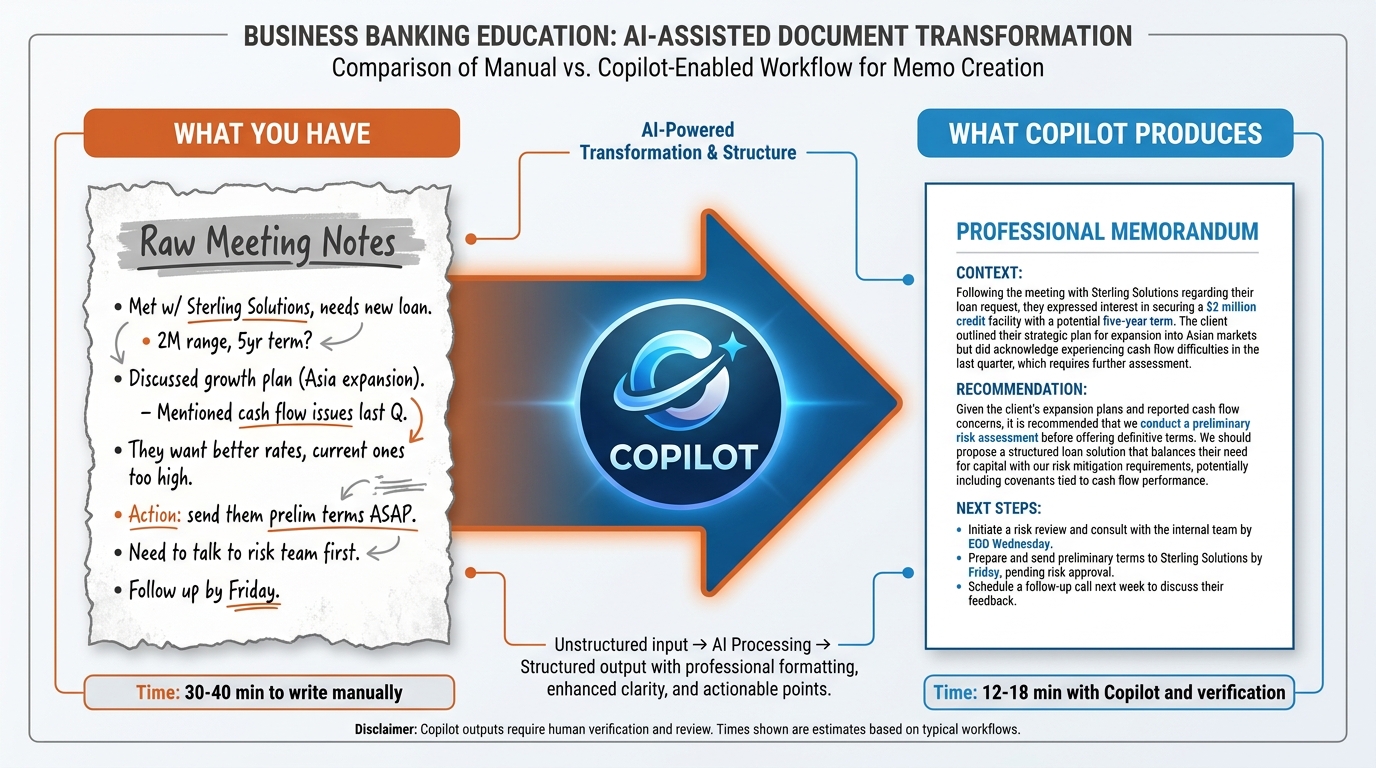
Figure 6:Bullets capture thinking. Narrative communicates it. Copilot converts the capture format into the communication format — preserving all the content while adding the structure, transitions, and professional flow that formal documents require.
1.5.1Why This Matters in Banking
Banking professionals are expert bullet-point writers. Bullets are fast, scannable, and great for internal communication. But external documents — client memos, credit narratives, regulatory submissions, board presentations — require narrative flow. They require transitions, logical connectors, and a prose structure that guides the reader from context through analysis to conclusion.
The gap between “what the banker knows” and “what the document says” is often a formatting gap, not an information gap. Copilot closes that gap in under a minute — and the Rewrite capability lets you refine the result with follow-up prompts until it lands exactly right.
1.5.2The Conversion Workflow
Step 1: Copy your bullet-point content. If it is from an email already in Outlook or SharePoint, save it to OneDrive and reference it with /.
Step 2: Invoke Copilot in a new Word document.
Step 3: Prompt:
“Convert the following bullet points into a formal, client-facing memo for BankUnited with three clearly labeled sections: (1) Context — a brief paragraph establishing the background and purpose of this communication; (2) Recommendation — a clear, direct statement of what BankUnited is recommending and why; (3) Next Steps — a numbered list of specific actions with responsible parties and target dates. Professional tone suitable for sending directly to a senior commercial banking client. Bullets: [paste bullets]”
Step 4: Review the output. Use a follow-up refinement prompt if needed: “Make the recommendation section more direct” or “The context section is too long — condense to two sentences.”
Step 5: Apply the verification checklist. Then read the final version from the client’s perspective: does it answer their most important question, which is almost always “What do you need from me and when?”
1.5.3Rewrite — The Related Capability
The Rewrite capability in Copilot in Word is the specialized version of this for existing text. Select any passage in a document you have already written, invoke Copilot, and choose Rewrite. Copilot offers alternative versions of the selected text — and you can keep any one of them, ask it to try again, or combine elements from multiple suggestions.
Rewrite is the mode for:
Making dense regulatory language more readable for a non-expert audience
Sharpening an executive summary that is running too long
Tightening a credit narrative that has become repetitive
Converting passive constructions to active voice throughout a section
Adjusting a single paragraph’s register without rewriting the whole document
The important thing to understand about Rewrite is that it revises within the boundaries of the meaning you have already established. It is principled editing, not creative reinvention. The facts do not change. The structure does not change. The prose quality improves.
1.5.4The Restructuring Prompt Library
These prompts cover the most common restructuring tasks in banking:
Meeting notes → formal minutes:
“Convert these meeting notes into formal meeting minutes with sections for: Attendees, Key Decisions, Action Items (with owner and due date), and Next Meeting date. Formal register suitable for institutional record-keeping.”
Internal update → executive briefing:
“Convert this internal project update into a one-page executive briefing. Lead with the key decision or finding, follow with supporting context, end with recommended action. Two paragraphs maximum. C-suite audience.”
Data points → narrative analysis:
“I have these financial data points from a borrower’s last three years. Write a coherent three-paragraph financial narrative suitable for a credit memo — covering trend, interpretation, and implications for the lending decision.”
Compliance checklist → employee-facing summary:
“Convert this compliance checklist into a clear, readable policy summary for business unit employees with no compliance background. Plain language, no jargon, highlight the three most important requirements they need to know.”
1.66. Multi-File Grounding — Referencing Up to 20 Sources in a Single Draft
One of the most powerful and least-understood capabilities of Copilot in Word is the ability to reference multiple source files simultaneously — up to 20 items — in a single draft prompt. This multi-file grounding is what separates Copilot from a general-purpose writing assistant and makes it genuinely useful for complex banking documents.
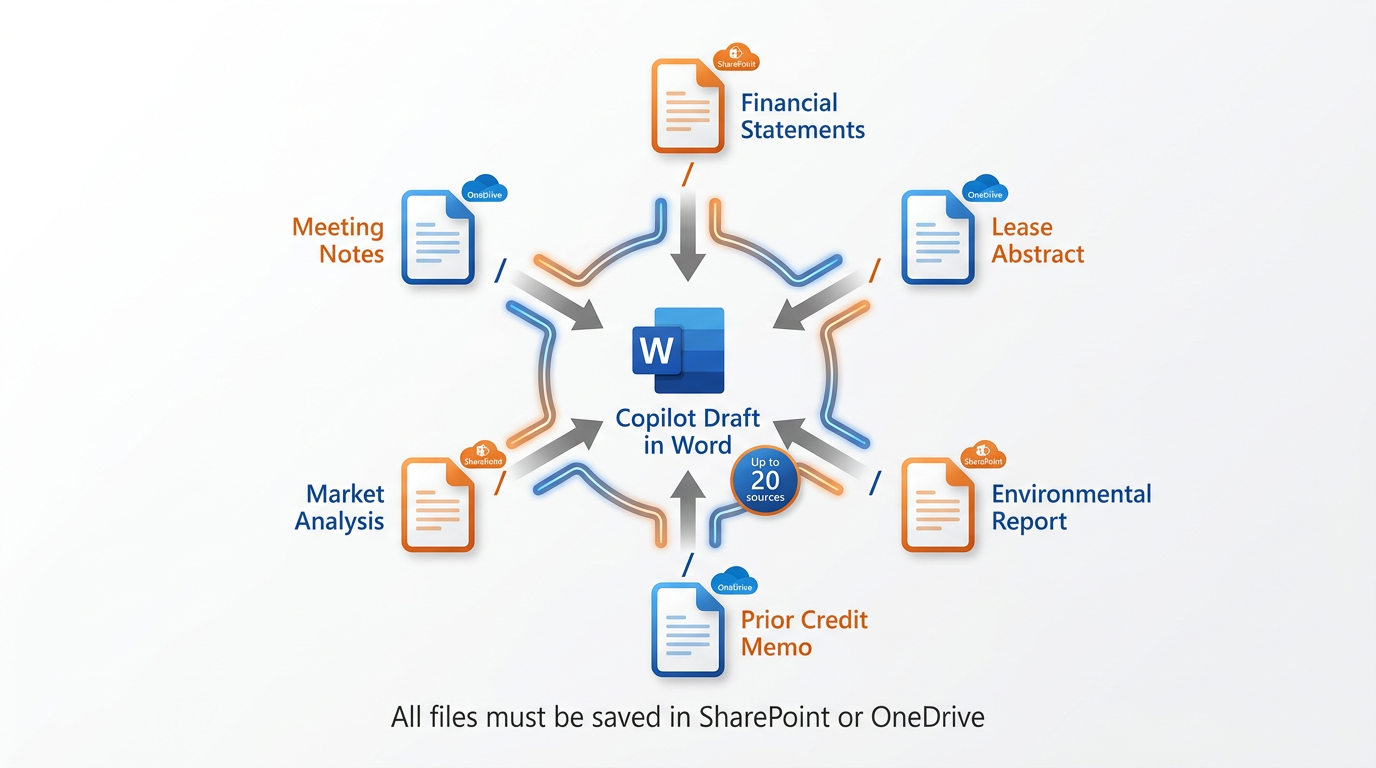
Figure 7:Up to 20 source files referenced in a single Copilot prompt — financial statements, lease abstracts, environmental reports, meeting notes — all grounding the draft in actual documents rather than general knowledge. This is the capability that makes complex credit memos, due diligence summaries, and multi-source client briefs genuinely efficient to produce.
1.6.1Why Multi-File Grounding Matters
Consider what a complex credit memo actually requires:
The borrower’s three-year financial statements
A lease abstract for the collateral property
An environmental site assessment
Prior correspondence with the borrower (meeting notes, emails)
A market analysis for the property’s submarket
The bank’s existing credit file on this relationship (if it is a renewal)
Previously, a credit analyst would open each of these documents, read them, take notes, and then write the memo from those notes and their memory of what each document contained. The process was accurate — skilled analysts are good at this — but it was slow, and the quality depended heavily on the analyst’s ability to hold multiple complex documents in mind simultaneously.
With multi-file grounding, you reference all relevant documents in your prompt. Copilot synthesizes across them in real time, producing a draft that is grounded in all of the source material simultaneously.
1.6.2The Workflow in Practice
Setup: Ensure all relevant documents are saved in SharePoint or OneDrive. Create a deal folder in SharePoint for significant loan transactions — this discipline of organizing deal documents in SharePoint pays dividends not just for Copilot but for team collaboration and document management generally.
Prompting: When you are ready to draft the credit memo, invoke Copilot and use / to reference each source:
“Write a comprehensive credit memo for BankUnited’s credit committee for the Henderson Commercial Partners loan renewal. Use the following sources: / [three-year financials], / [lease abstract], / [Phase 1 ESA], / [prior site visit notes], / [current credit file]. Structure the memo with: Borrower Overview, Relationship History, Loan Request, Collateral Description, Financial Analysis (covering the three-year trend from the financial package), Environmental Summary (from the ESA), Risk Factors and Mitigants, Recommendation. Formal credit committee language.”
Copilot produces a draft that draws from all six referenced documents. The financial analysis section will reflect the actual numbers from the financial package. The environmental section will reflect the actual ESA findings. The collateral description will draw from the actual lease abstract.
Your verification work: Compare each section against its source document. Verify every financial figure against the actual statements. Confirm every ESA finding against the actual report. Check that the relationship history matches the actual credit file.
The multi-file grounding reduces the likelihood of Copilot hallucinating details, because it is working from your actual documents rather than its general training. But it does not eliminate the need for verification — it makes verification faster and more targeted, because you know exactly which source document to check for each section.
1.77. The Verification Discipline — Every Paragraph Gets Human Eyes
We have covered five distinct capabilities. Now we come to the principle that makes all of them safe to use at a bank — and one that Microsoft has built directly into the product’s design philosophy.
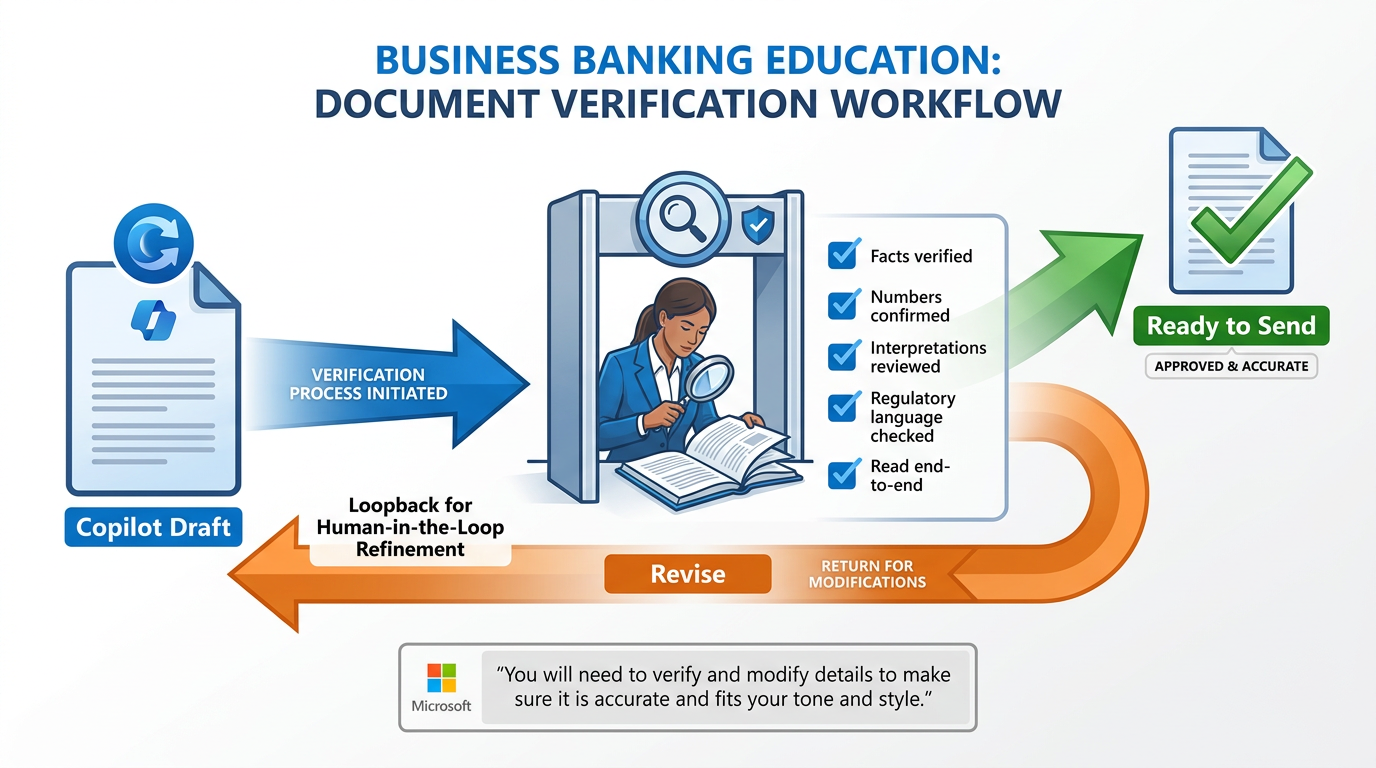
Figure 8:The verification discipline is the professional standard that makes AI-assisted work trustworthy. Microsoft explicitly calls for it in their own documentation. Every Copilot draft at BankUnited gets human eyes before it leaves the bank — not as bureaucracy, but as professional responsibility.
1.7.1Microsoft’s Own Words
It is worth pausing on something important: Microsoft itself has built the verification requirement into the product’s design documentation. Their guidance on Copilot in Word states explicitly: “Remember that Copilot generates a draft. You’ll need to verify and modify details to make sure it’s accurate and fits your tone and style.”
This is not a legal disclaimer buried in fine print. It is the core message of how Microsoft explains the product to users. The AI generates the draft. The human verifies and owns the final document. This is the intended workflow — not a workaround for AI limitations, but the correct division of labor between human expertise and AI assistance.
At BankUnited, the stakes make this more than a best practice. They make it a professional and institutional imperative.
1.7.2Why Verification Is Non-Negotiable
Hallucination is real. Copilot can generate plausible-sounding financial figures, regulatory citations, or document provisions that are inaccurate. This is more likely when prompts are vague, when source documents are complex, or when Copilot is working from general knowledge rather than grounded source material. A credit memo with an incorrect DSCR or a compliance brief with a mischaracterized regulatory requirement is not a productivity win. It is a professional liability — and potentially an institutional one.
Multi-file grounding reduces hallucination but does not eliminate it. When you reference documents with /, Copilot works from real source material. This significantly improves accuracy for factual details. But Copilot can still misread a table, misattribute a figure to the wrong year, or mischaracterize a legal provision. Verification remains essential regardless of how well-grounded the prompt was.
Nuance is yours to supply. Copilot cannot know the relationship history between BankUnited and this specific borrower. It cannot know that the compliance team has a standing concern about a particular covenant structure. It cannot know that this examiner had a specific focus area during the last review. Professional judgment supplies the context that makes documents reliable — not just grammatically correct.
The signatory is responsible. In banking, documents carry the implicit or explicit endorsement of the professional who sends them. The relationship manager who submits a credit memo owns that document — whether Copilot wrote the first draft or not. The compliance officer who distributes a regulatory briefing is accountable for its accuracy. AI assists the process. It does not transfer the responsibility.
1.7.3The Five-Point Verification Checklist
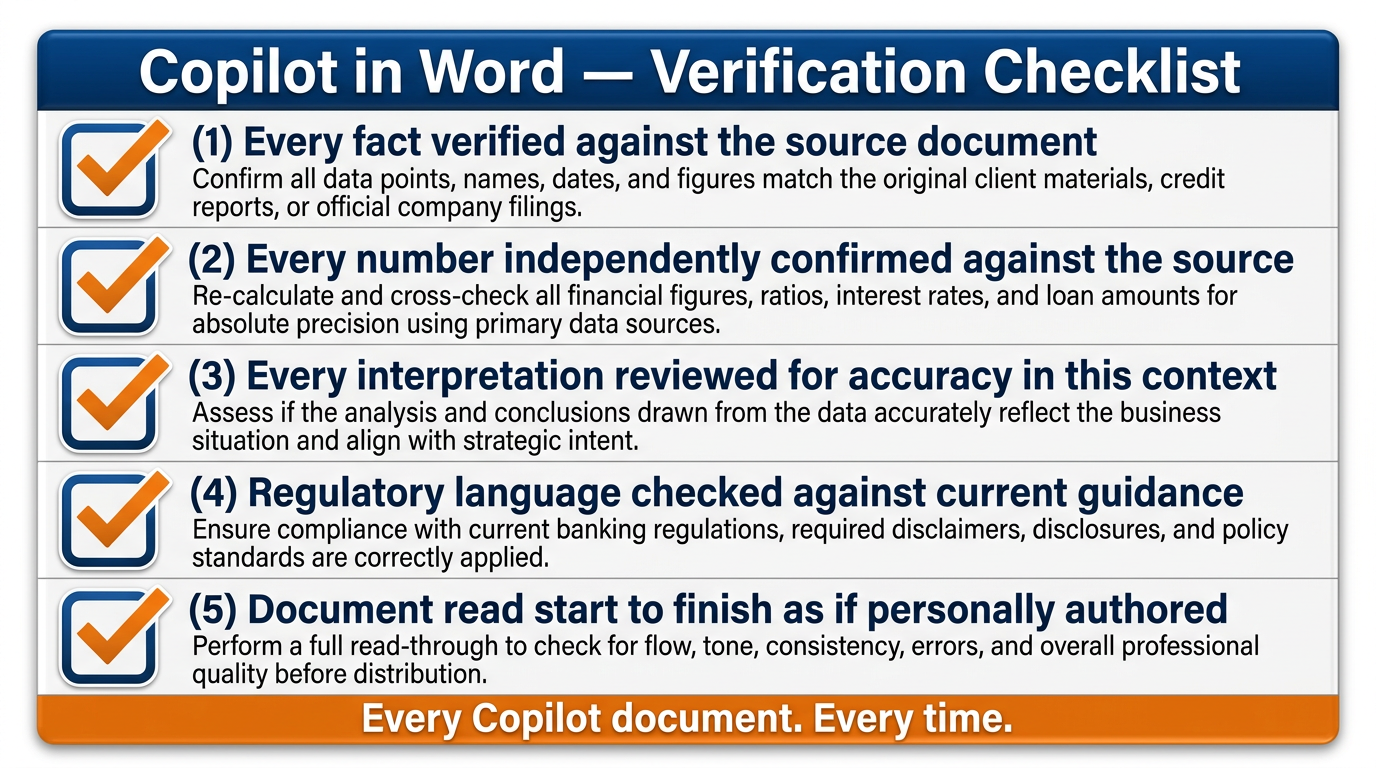
Figure 9:Five items. Every document. Every time. Post this at your desk, add it to your checklist template, or save it in your OneDrive. The professional who applies this consistently is not slower than one who skips it — they are protected.
Apply this checklist to every Copilot-drafted document before it leaves your hands:
1. Every fact verified against the source. Specific facts — numbers, dates, entity names, addresses, loan amounts, occupancy rates — have been checked against the actual source document or data. No fact is assumed correct because it appeared in the Copilot draft.
2. Every number independently confirmed. Financial figures — DSCR, LTV, loan amounts, interest rates, rent schedules, percentage calculations — have been verified against the actual source. Numbers are the most likely element to be misread or miscalculated in a Copilot draft. Verify them every time.
3. Every interpretation reviewed. Where Copilot has added analytical language — “the borrower’s financial trajectory is positive,” “this lease structure presents elevated concentration risk” — you have confirmed that the interpretation is accurate for this specific situation, not just generically reasonable.
4. Regulatory language validated. Where the document references regulatory requirements, guidance, or policy, a qualified professional has confirmed the reference is accurate and current. Regulatory language is high-stakes; a nuance that gets the characterization slightly wrong can misrepresent an obligation.
5. The document is yours. Before sending or filing: read the document from beginning to end as if you wrote every word. If something does not sound right, does not read right, or does not feel defensible — revise it. The document leaves your desk under your professional reputation. It should represent your judgment, not just Copilot’s first attempt.
1.7.4Building the Habit
The verification discipline is a habit, and like all habits, it must be built deliberately before it becomes automatic.
For your first 30 days of using Copilot in Word, commit to applying the five-point checklist explicitly — checking each item consciously, not just scanning through the document once. This will feel slower than you expect at first. That is normal. You are building the mental model for what kinds of outputs Copilot produces reliably and where your verification attention needs to concentrate.
After 30 days of consistent verification, you will have developed professional intuition for Copilot’s patterns: document structure is almost always right; prose quality is generally high; tone calibrations are usually close; specific numbers, dates, and regulatory citations require careful independent confirmation every time.
That intuition is what makes you an effective Copilot user. Not blind trust, and not blanket skepticism — calibrated professional judgment. The same judgment you apply to any tool in your professional toolkit.
1.88. Putting It All Together — The BankUnited Copilot in Word Workflow
Let’s put the entire chapter into a practical workflow that a BankUnited professional can begin using on Monday morning.
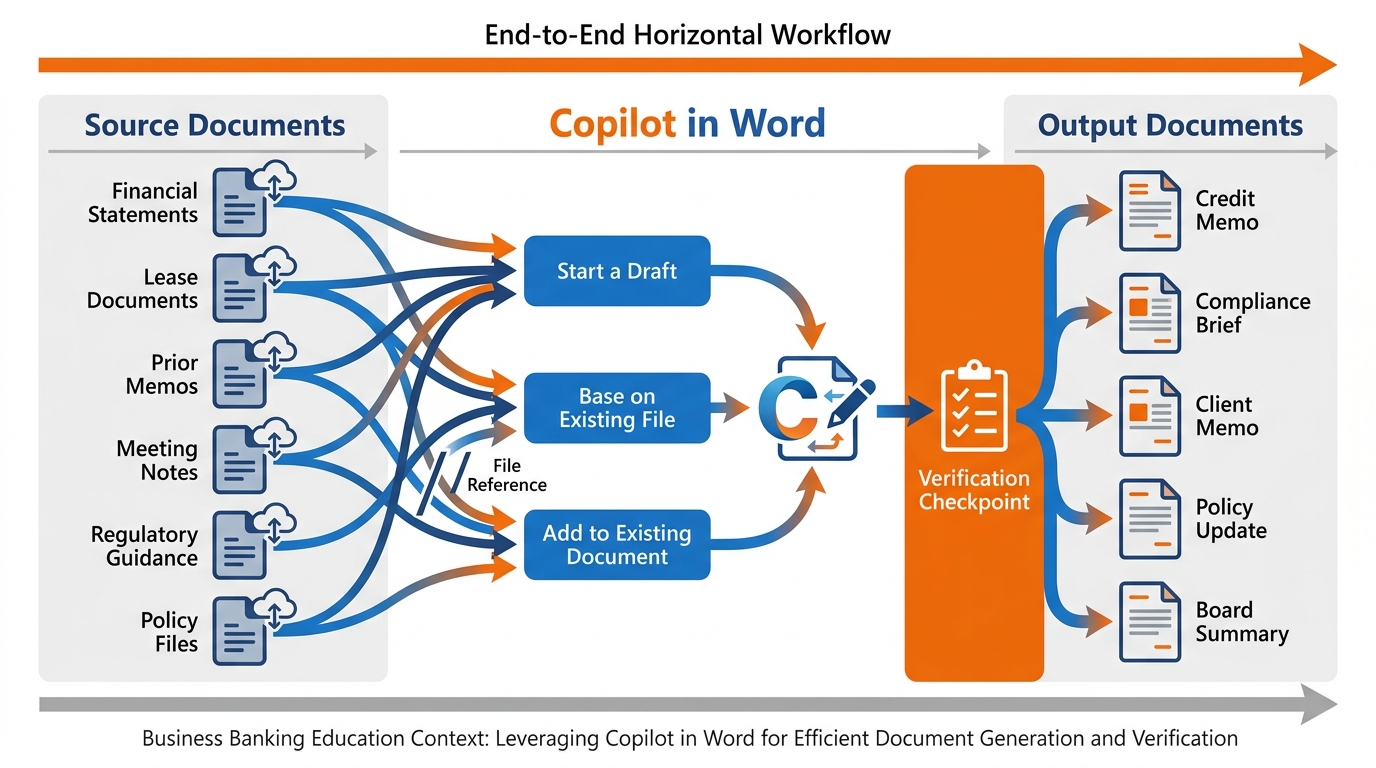
Figure 10:The complete Copilot in Word workflow: source documents flow in through slash references, Copilot produces grounded drafts, and the verification discipline ensures that every document reaching its audience is accurate, professional, and owned by the professional who sends it.
1.8.1The Monday Morning Protocol
Before you start: Make sure the relevant source documents are saved to SharePoint or OneDrive. If you are working from a deal folder, confirm it is organized and up to date. Documents that live only on your local drive cannot be referenced by Copilot.
Choosing the right capability:
Starting from nothing with only a set of facts in your head → Start a Draft, with a rich five-element prompt
Starting from notes, financial statements, prior documents already in SharePoint → Base on Existing File, referencing up to 20 items with
/Your document is underway and needs a new section or an expanded section → Add to Existing Document
You have a paragraph that isn’t working → Rewrite the selected text with a follow-up prompt
The refinement loop: After Copilot produces its first output, use follow-up prompts rather than editing manually where possible. “Make the recommendation section more direct” or “The financial analysis section is too long — condense to three paragraphs” or “Adjust the tone to be warmer — this is going to a long-term client” — each of these gives Copilot a chance to improve the draft before you invest editing time.
The verification gate: Before any document moves to its next stage — credit committee review, client distribution, regulatory filing, internal distribution — apply the five-point checklist. Every time.
The time math: A credit memo that previously required three hours now requires 45–60 minutes: five minutes of prompt preparation, two minutes of generation, and 40–50 minutes of verification, analysis enrichment, and refinement. The time is not eliminated — it is reallocated from scaffolding to judgment. That reallocation is the real productivity gain.
1.9📋 Try This — Bullets to Formal Memo in 15 Minutes
This is the hands-on exercise for this session. It is based on a realistic BankUnited scenario and can be completed with any set of bullet-point notes from your current workflow.
1.10Chapter Summary
The blank page is no longer the enemy. Copilot in Word provides three verified, production-ready capabilities: Start a Draft when you are beginning from nothing; Base on Existing File when you have source material already in SharePoint or OneDrive, referenceable with / for up to 20 items; and Add to Existing Document when your draft is underway and needs expansion. The Rewrite capability handles the revision side — transforming selected passages, adjusting tone, and tightening prose through a simple refinement prompt.
Multi-file grounding — referencing multiple documents simultaneously in a single prompt — is the capability that makes complex banking documents efficient to produce. A credit memo that previously required reading six source documents independently and synthesizing from notes can now be drafted from those six documents referenced directly, with Copilot synthesizing across all of them in real time.
Summarization at scale gives commercial banking professionals a 90-minute task back: a 40-page lease condensed to a structured one-page executive summary, with every key provision extracted and organized for review. The analyst’s work shifts from reading to verification — which is a better use of trained professional time.
Tone adjustment enables the same facts to reach a board, an examiner, and a client in the language each audience needs. The professional’s judgment ensures that the register is not just structurally correct but contextually accurate — that the board summary reflects what this board needs, not what boards generically need.
And underlying all of it: the verification discipline. Microsoft itself states in their documentation: “You’ll need to verify and modify details to make sure it’s accurate and fits your tone and style.” At BankUnited, the stakes make this more than a guideline. The five-point checklist — facts, numbers, interpretations, regulatory language, end-to-end ownership — is the professional standard that makes AI-assisted work trustworthy, defensible, and excellent.
The AI generates the draft. The professional generates the judgment. That division of labor is the design. And it is the right one.
Start a Draft (Copilot in Word) The Copilot in Word capability that generates a full structured document draft from a user prompt in a new or empty document — addressing the blank-page starting challenge for professional documents.
Base on Existing File (Copilot in Word)
The Copilot in Word capability that grounds a new document draft in specific source files — Word documents, emails, meeting transcripts, and other content saved in SharePoint or OneDrive — referenced using the / slash command.
Add to Existing Document (Copilot in Word) The Copilot in Word capability that generates new content within an already-started document — adding sections, expanding existing sections, or producing content that matches the register and structure of what is already written.
Rewrite (Copilot in Word) The Copilot in Word capability that generates alternative versions of selected text — enabling tone adjustment, register improvement, and prose refinement through iterative follow-up prompts.
Slash Reference
The / mechanism in Copilot prompts that opens a file picker, allowing users to reference up to 20 SharePoint or OneDrive files as grounding sources for a Copilot-generated draft.
Multi-File Grounding
The practice of referencing multiple source documents in a single Copilot prompt using / — producing a draft that synthesizes across all referenced sources simultaneously rather than relying on general AI knowledge.
Verification Discipline The professional practice of applying a five-point checklist — facts, numbers, interpretations, regulatory language, and end-to-end ownership — to every AI-generated document before it leaves the professional’s hands, as explicitly recommended by Microsoft’s own product documentation.
Hallucination The AI phenomenon in which a model generates factually incorrect information with apparent confidence — including inaccurate figures, mischaracterized provisions, or fabricated citations — requiring human verification of all factual outputs regardless of how grounded the prompt was.
Refinement Loop The iterative process of improving a Copilot draft through follow-up prompts (such as “Make it more concise” or “Adjust the tone to be more formal”) before committing to manual editing — a more efficient path to a high-quality draft than editing the first output directly.
Register The level and style of language appropriate to a specific professional context or audience — from formal regulatory examination language to executive strategic summary to client relationship communication.