Chapter 9: Week 3, Session B — Copilot in Teams
Meeting Intelligence, Communication, and the End of 'Did Anyone Take Notes?'
1Chapter 9: Week 3, Session B — Copilot in Teams¶
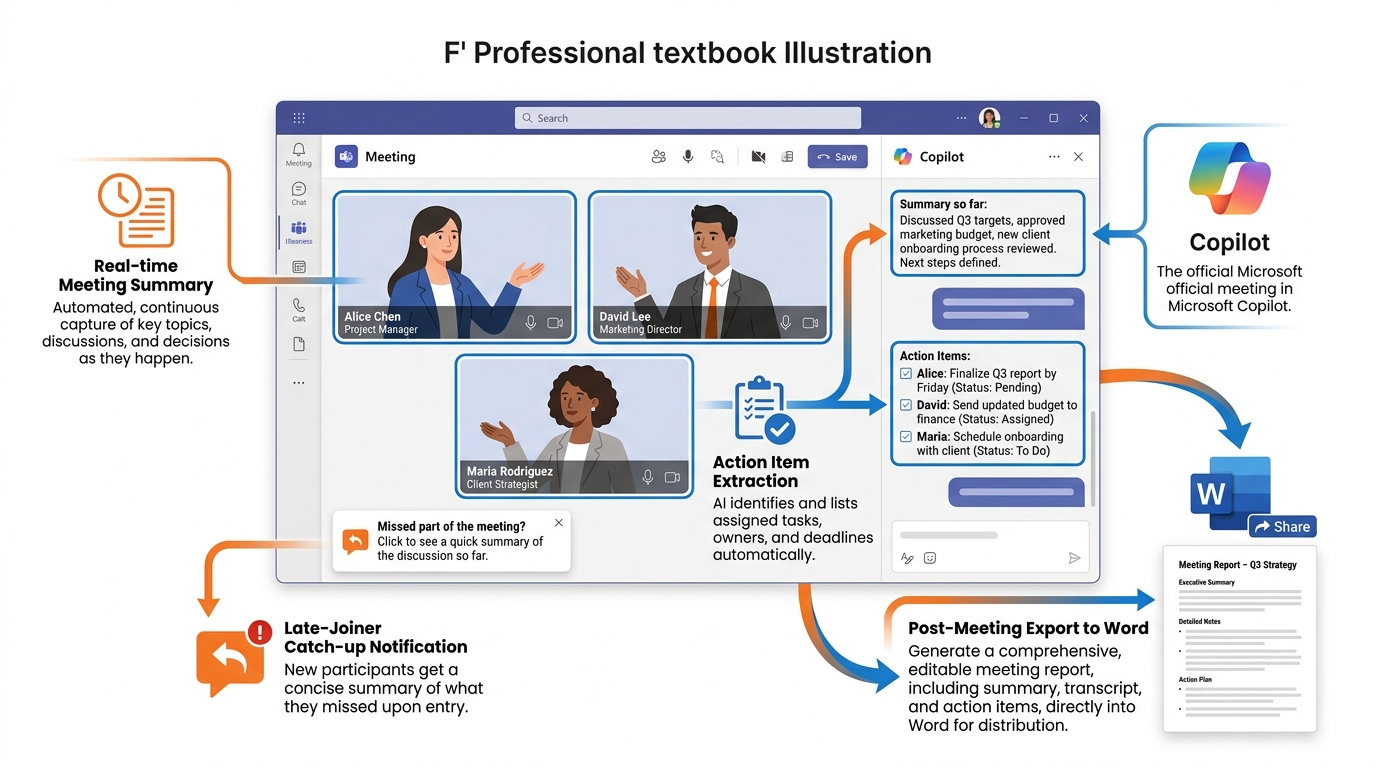
Figure 1:Copilot in Teams transforms every meeting into a structured intelligence asset — capturing who said what, surfacing decisions, extracting action items, and giving late joiners an instant catch-up. The meeting itself becomes the source document.
“The most expensive thing we do every day is meet. The least productive thing we do every day is try to remember what was decided.”
Here is a scene that plays out at BankUnited — and at every institution like it — hundreds of times every week.
A loan committee meeting runs for ninety minutes. Seven people are in the room, two more are dialed in remotely. The credit officer leads. The relationship manager presents. The chief credit officer asks hard questions. Decisions are made. Conditions are attached. Action items are assigned. Somebody commits to pulling updated financials. Somebody else agrees to reach out to the borrower about the title issue. The meeting ends.
Now the race begins: whoever gets back to their desk first tries to reconstruct what just happened while it is still fresh. Someone types notes into an email. Someone else takes their own version. Inevitably the two versions differ slightly — not because anyone was careless, but because memory is imperfect and attention during a fast-moving meeting is divided. The relationship manager who was actively speaking for most of the meeting has the worst notes of anyone present. By end of day, the institutional record of a ninety-minute decision is a three-paragraph email summary that captured maybe sixty percent of what was actually decided.
This is not a technology problem. It is a human cognitive limitation problem. And Microsoft Copilot in Teams is built precisely to solve it.
What Copilot does is deceptively simple on its surface: it listens to the meeting, and it answers questions about what happened. But the practical implications of that capability — in a banking environment where decisions are documented, compliance is scrutinized, and the cost of miscommunication is measured in dollars and regulatory exposure — are genuinely transformative.
This chapter covers everything you need to know to use Copilot in Teams meetings effectively and responsibly at BankUnited. We will work through how Copilot functions, the two operating modes and their critical differences, how organizers configure it, how to use it well during a live meeting, what it can produce after the meeting ends, the consent and transparency practices that must accompany its use in a regulated financial institution, and the specific BankUnited workflows where it delivers the most value.
We will also be honest about what Copilot in Teams cannot do — because understanding the limits is as important as understanding the capabilities.
1.11. Why Meetings Are the Biggest Time Drain in Banking — and What Copilot Changes¶
Before we get into mechanics, it is worth spending a moment on the underlying problem Copilot in Teams is solving — because if you understand the problem clearly, you will use the tool far more purposefully.
Knowledge workers in financial services spend an estimated 40 to 50 percent of their working hours in meetings. For relationship managers, credit officers, compliance professionals, and senior leaders at BankUnited, the proportion is likely higher. That is not intrinsically bad — meetings are where complex problems get resolved, where competing perspectives get tested, where decisions get made that require more than a single person’s judgment.
The problem is not the meeting itself. The problem is what happens — and what fails to happen — after the meeting ends.
Meeting output degrades rapidly. Studies of organizational memory consistently show that meeting participants forget approximately 40 percent of what was discussed within 24 hours, and more than 70 percent within a week. This is not a reflection of individual capability. It is how human memory works: we remember the emotional valence of a conversation (it was tense, it was productive, it ran long) better than we remember the specific content (exactly what was decided about the rate structure, which document was requested, who was supposed to follow up with the borrower by Friday).
For BankUnited, this degradation has direct costs:
Decision documentation: Credit decisions, policy exceptions, and compliance determinations need to be documented accurately. When the documentation relies on fallible human memory, gaps emerge — and those gaps create audit risk.
Action item completion: Research consistently shows that action items without clear ownership, specificity, and deadlines are completed at far lower rates than those that are written down explicitly. When someone says “I’ll follow up on that” in a meeting and no one captures it precisely, follow-up often does not happen.
Meeting recurrence: A significant percentage of recurring meetings exist not because they are necessary, but because the previous meeting’s outcomes were so poorly captured that the group has to reconvene to re-establish shared understanding. Fix the documentation, and you fix the recurrence.
Onboarding late arrivals: In a complex financial institution, people join ongoing projects partway through. They attend their first meeting about a deal that has been in process for six months. The amount of catch-up required — and the proportion of meeting time spent on it — is enormous.
Copilot in Teams addresses each of these directly. It creates a documented record of the meeting in real time. It extracts action items at the end. It gives late joiners an instant summary when they arrive. And it does all of this without requiring anyone in the meeting to shift their attention away from the conversation.
Here is the key reframe: Copilot does not attend the meeting instead of you. It attends the meeting alongside you, so that you can be fully present in the conversation instead of furiously typing notes in the corner of your attention. The intellectual work — listening actively, asking hard questions, making sound credit judgments — remains entirely human. Copilot handles the documentation layer.
That distinction matters for how you show up in meetings where Copilot is active. You do not need to be the scribe. You can be the thinker.
1.22. How Copilot in Teams Meetings Works — The Two Modes¶
Copilot in Teams meetings operates in one of two fundamental modes, and the difference between them is not cosmetic. It determines what Copilot can do before, during, and after your meeting. Understanding this distinction is the single most important technical concept in this chapter.
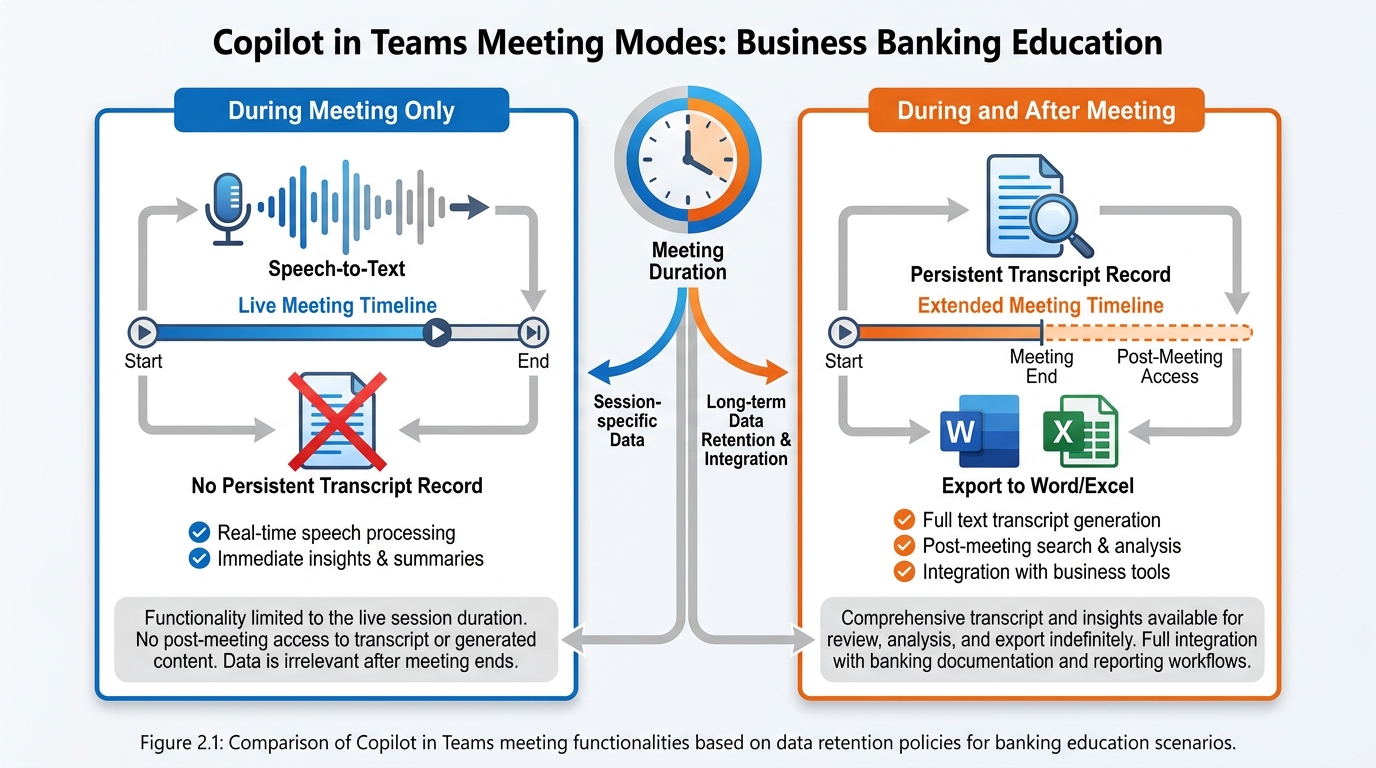
Figure 2:The two Copilot modes represent fundamentally different commitments: “Only during the meeting” leaves no persistent record; “During and after” creates a transcript that enables post-meeting intelligence — but requires explicit activation of live transcription.
1.2.1Mode 1: Only During the Meeting¶
When a meeting is configured for “only during the meeting,” Copilot uses speech-to-text technology to follow the conversation in real time. You can ask Copilot questions, request summaries, and get answers about what has been said so far — but only while the meeting is active.
The critical characteristic of this mode: there is no persistent transcript. When the meeting ends, Copilot’s access to the speech-to-text data ends with it. You cannot return to the meeting afterward and ask Copilot what was decided. You cannot generate a recap thirty minutes after everyone has hung up. The intelligence is available in the moment, and only in the moment.
This mode is appropriate for certain types of conversations — particularly those involving sensitive personnel matters, confidential negotiations, or situations where participants have not been informed that a transcript is being created and the organizer wants to limit the data footprint. The trade-off is clear: more privacy protection, less post-meeting utility.
1.2.2Mode 2: During and After the Meeting¶
When a meeting is configured for “during and after the meeting,” Copilot works in conjunction with live transcription. The transcript is the foundation. When transcription is turned on, Copilot activates and can answer questions in real time during the meeting AND after the meeting ends.
This mode unlocks the full power of Copilot in Teams: full meeting summaries, comprehensive action item extraction, the ability to revisit specific exchanges (“What did Maria say about the documentation requirement?”), and the ability to export Copilot’s output to Word or Excel for further use.
The requirement is explicit and important: transcription must be running during the meeting. If transcription was not turned on — even if Copilot was available during the meeting in speech-to-text mode — the post-meeting capabilities are not available. There is no retroactive option. If you end a meeting and realize you did not have transcription on, you cannot go back.
There is also an important organizational boundary: Copilot will not work in meetings hosted outside your organization. If a BankUnited employee is invited to a meeting hosted by an external party — a borrower, a law firm, a regulatory agency — Copilot’s in-meeting capabilities are not available to that participant.
1.2.3The Practical Implication for BankUnited¶
For any meeting where the documentation of decisions and action items matters — which is most internal BankUnited meetings — the “during and after” mode with transcription is the right choice. The post-meeting intelligence is where the productivity gain is most concrete and measurable.
For sensitive conversations where all parties have not been informed of transcription, use “only during” mode or turn Copilot off entirely. We will return to the consent and transparency requirements in Section 7.
1.33. Setting Up Meetings with Copilot — Organizer Controls¶
The person who schedules the meeting controls how Copilot works in that meeting. This is by design: Microsoft has placed the consent and configuration decision with the organizer, not with participants. Understanding these controls is essential for anyone who regularly chairs meetings at BankUnited.
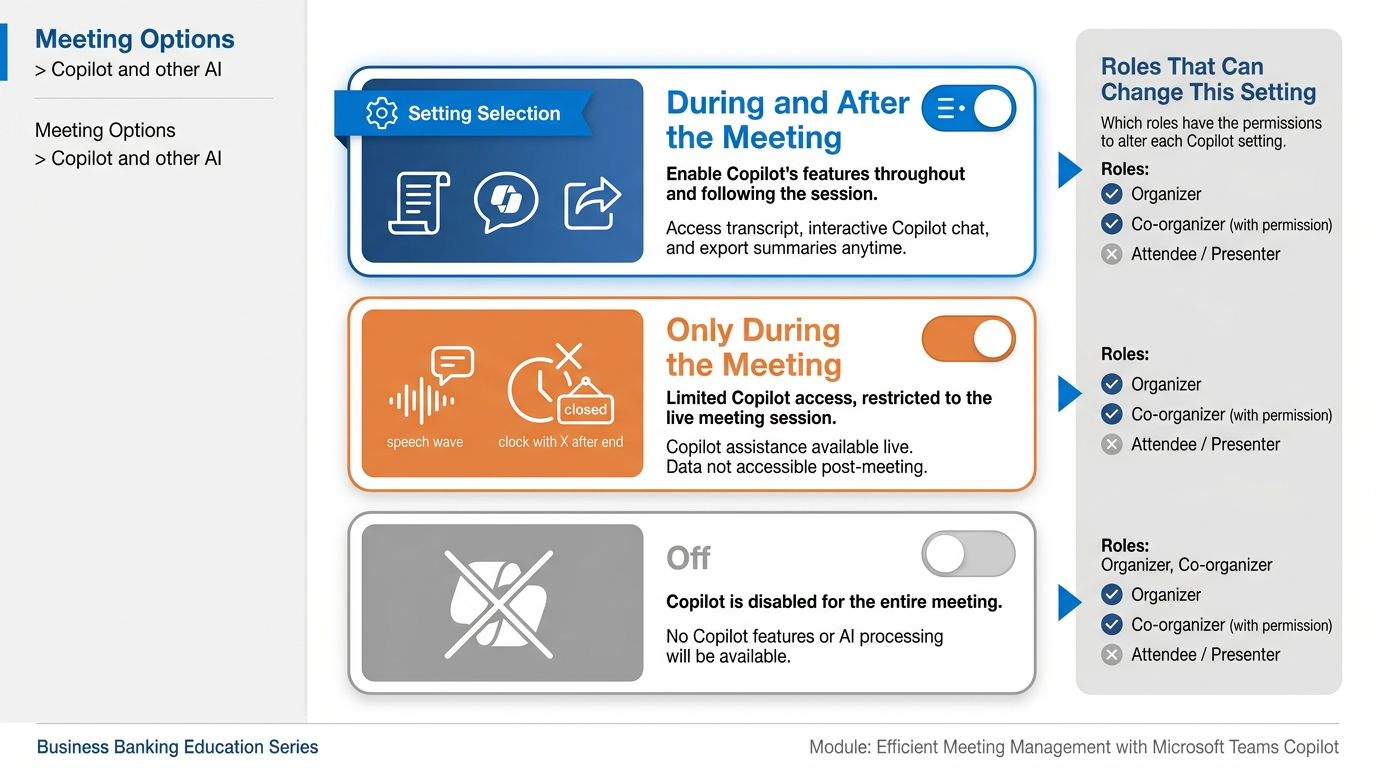
Figure 3:The meeting organizer controls Copilot access via Online meeting options. Three settings determine whether participants can use Copilot at all, and whether post-meeting intelligence is available.
1.3.1Accessing the Setting¶
In Teams, when you create or edit a meeting:
Open the meeting in your calendar
Select Edit to open the meeting details
Select Meeting options (this opens a browser-based settings panel)
Find the section labeled Copilot and other AI
Under Allow Copilot and Facilitator, select one of the three options
The three settings are:
Best for: Loan committee meetings, deal reviews, team standups, any meeting where post-meeting documentation matters.
How it works: Copilot is available from the moment transcription begins. When you start the meeting and turn on live transcription, Copilot activates. Participants with a Microsoft 365 Copilot license can open the Copilot pane and interact with it throughout the meeting.
Critical detail: If you stop transcription mid-meeting, Copilot stops with it. The transcript up to that point remains available for post-meeting use, but Copilot will not capture anything said after transcription stops.
Post-meeting access: The meeting transcript and Copilot capabilities persist after the meeting ends. Participants can return to the meeting in Teams, open the recap section, and ask Copilot questions or generate summaries.
Requirement: Live transcription must be explicitly started during the meeting. Copilot does not activate on its own — someone (typically the organizer) must start transcription.
Best for: Sensitive discussions, meetings with external participants where transcription is not appropriate, preliminary conversations where the meeting is exploratory and formal documentation is premature.
How it works: Copilot uses speech-to-text in real time and answers questions during the meeting. No transcript is created or stored.
Post-meeting access: None. When the meeting ends, the speech-to-text data is no longer available. Copilot cannot be used after the meeting in this mode.
Participant awareness: Even in this mode, participants should be informed that Copilot is active. The visual indicator in the meeting controls shows when Copilot is being used.
Best for: Highly confidential meetings, personnel discussions, situations where the presence of any AI capability is inappropriate or where all forms of recording and transcription must be disabled.
How it works: Copilot is fully disabled. Recording and transcription are also disabled when this setting is active — the organizer cannot selectively disable Copilot while keeping recording enabled.
Note: This is the most restrictive setting. It should be used when the nature of the discussion requires it, not as a default out of habit.
1.3.2Who Can Use Copilot in a Meeting¶
An important nuance: the organizer can allow participants to use Copilot even if they do not personally have a Microsoft 365 Copilot license. The organizer’s license and the meeting’s configuration determine availability. A participant without a Copilot license may still be able to interact with Copilot during a meeting if the organizer has configured it appropriately. For specific license requirements in BankUnited’s configuration, consult your Microsoft 365 administrator.
1.44. Using Copilot During a Live Meeting — Real-Time Intelligence¶
Once a meeting is underway and Copilot is active, the way you engage with it during the session is what separates people who get marginal value from it and people who find it genuinely indispensable.
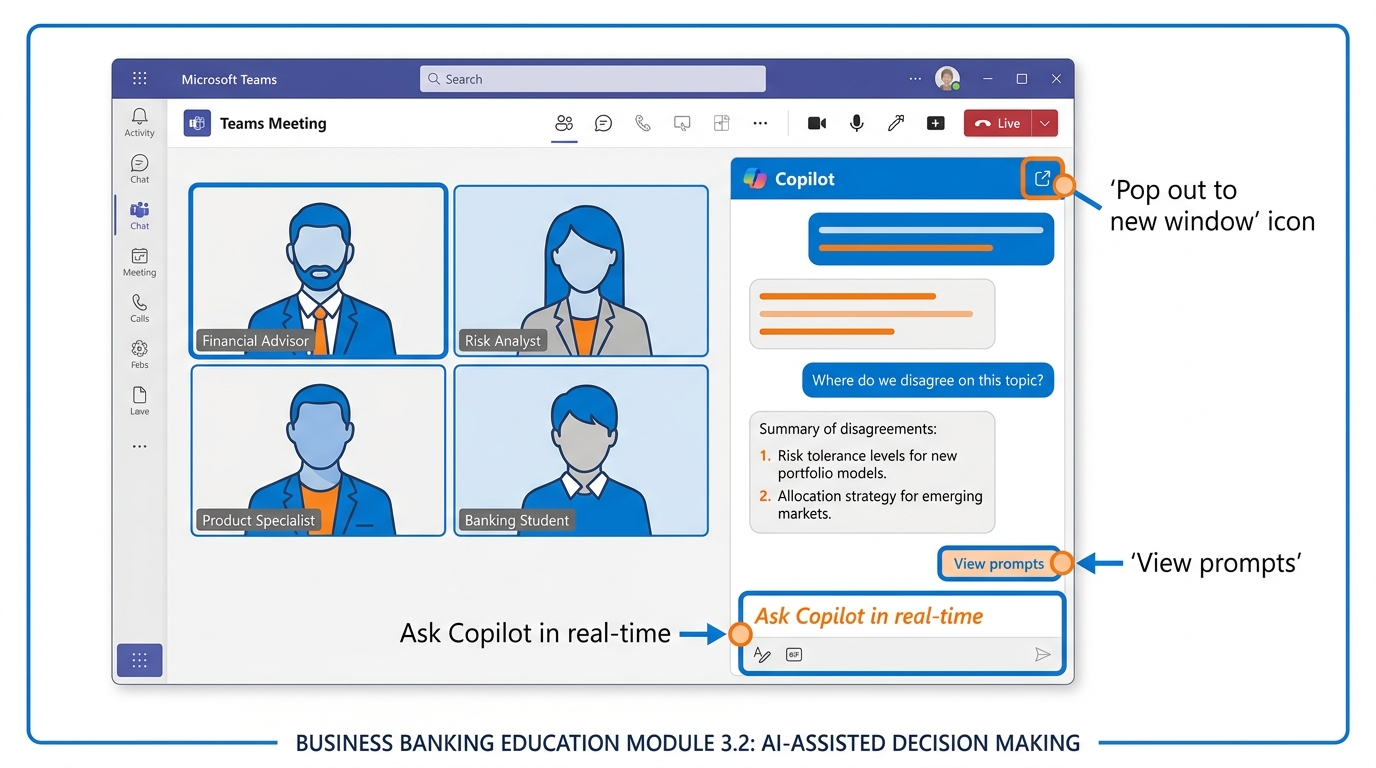
Figure 4:During a live Teams meeting, Copilot opens as a private chat panel on the right side of your screen. Your conversation with Copilot is visible only to you — other participants cannot see your questions or Copilot’s responses.
1.4.1Opening Copilot During a Meeting¶
During an active Teams meeting:
In the meeting controls (the bar at the bottom of your screen), select the Copilot button — it looks like the familiar Copilot sparkle icon
A private chat panel opens on the right side of your screen
You can type questions or prompts in the text box at the bottom
Select View prompts to see a set of suggested questions organized by category
Your conversation with Copilot during the meeting is private. Other participants cannot see your questions or Copilot’s responses. This matters for how you use it: you can ask Copilot to check your understanding of what was just said, ask for clarification on a point you may have missed, or get a quick summary of the discussion so far — all without interrupting the flow of the meeting or revealing that you needed clarification.
1.4.2What to Ask Copilot During a Meeting¶
Microsoft has documented a specific set of question types that Copilot in Teams handles particularly well during live meetings. These are not invented capabilities — they are documented in Microsoft’s support materials and represent what the model is designed to do:
Understanding the conversation:
“Summarize the discussion so far.”
“What have we decided in this meeting?”
“What is the main topic we are currently discussing?”
Surfacing disagreement and tension:
“Where do we disagree on this topic?”
“What are the competing perspectives on this issue?”
Understanding individual contributions:
“How did [participant name] respond to this proposal?”
“What concerns has [participant name] raised so far?”
Moving the conversation forward:
“What questions can I ask to move the meeting forward?”
“What has not been addressed yet that was on the agenda?”
Analyzing the discussion:
“Where are there holes in the argument being made?”
“Create a table with the ideas discussed and their pros and cons.”
The last prompt — asking for a structured comparison table — is particularly powerful in BankUnited contexts. Imagine a deal review where multiple financing structures have been discussed verbally over forty-five minutes. A single Copilot prompt can produce a table that organizes the trade-offs you have been discussing in your head, ready to share or use as the basis for a recommendation.
1.4.3Popping Out the Copilot Pane¶
On the Teams desktop application, you have one additional option that significantly improves the usability of Copilot during complex meetings: “Open private Copilot in new window.”
This detaches the Copilot pane from the main Teams window and floats it as a separate panel — which is especially useful if you have a dual-monitor setup. You can keep the meeting video and presentation on your primary screen and work with Copilot on a secondary screen without the two competing for space. For anyone who regularly participates in meetings while simultaneously working in documents or spreadsheets, this feature is worth knowing.
1.4.4The Late Joiner Catch-Up¶
One of the most immediately useful features of Copilot in Teams is what happens when you join a meeting that has already been running for more than five minutes.
If Copilot is active when you join late, Teams sends you a notification: “Copilot can catch you up — Open Copilot.” You click the notification, Copilot generates a summary of what has been discussed so far, and within about thirty seconds you know: what the meeting is about, what has been decided, and what is currently being discussed.
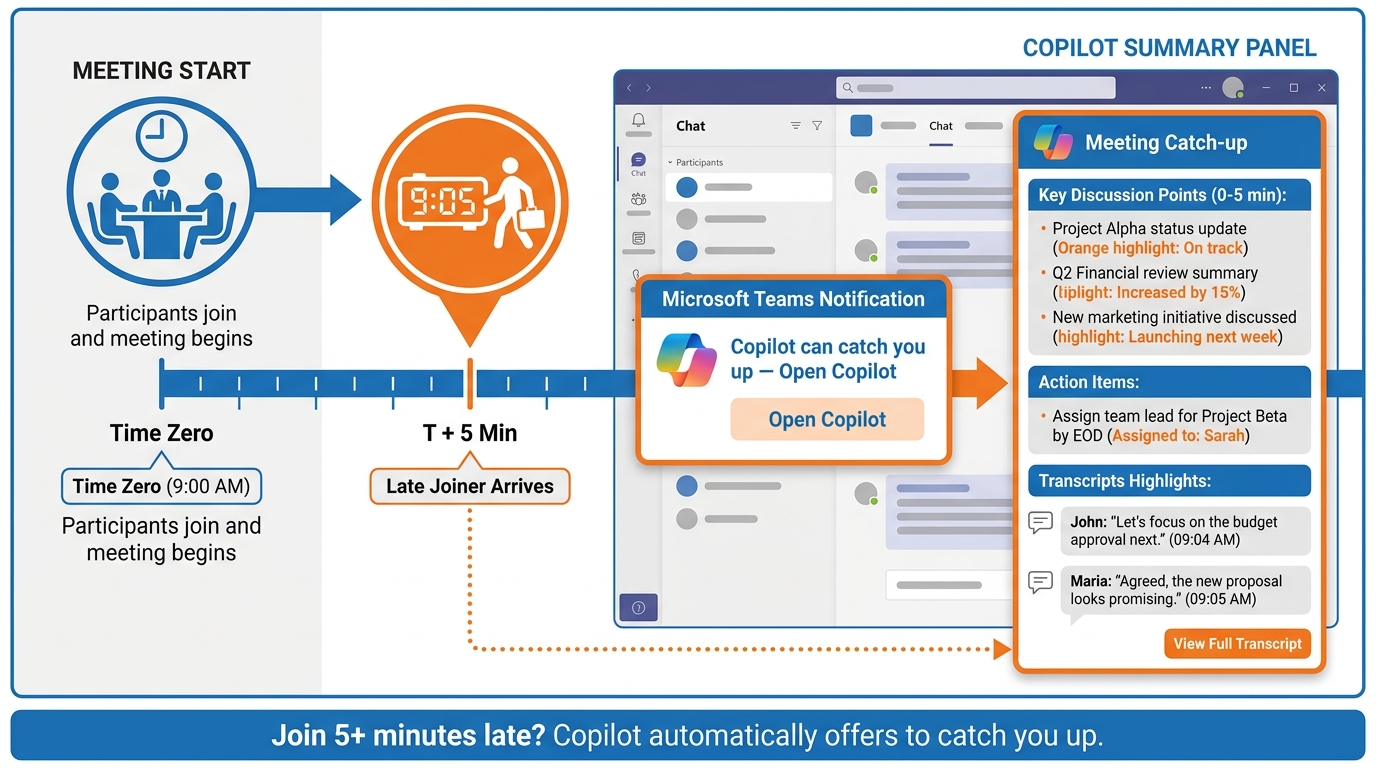
Figure 5:When you join a meeting more than five minutes late and Copilot is active, Teams automatically offers to catch you up. One click generates a summary of everything discussed before you arrived.
Think about what this eliminates. In current practice, joining a meeting late typically means either: sitting in confusion while you try to figure out the context, or interrupting to ask someone to recap the last thirty minutes of a discussion they just had. Both options have costs. The first costs your effective participation for the early part of the meeting. The second costs everyone else’s time and disrupts the flow.
The catch-up feature means that a relationship manager who gets pulled into a loan committee discussion forty minutes in — because another call ran long — can get oriented in thirty seconds without asking anyone to stop and explain. That is a meaningful quality-of-life improvement in an environment where schedules are compressed and meetings overlap.
1.55. After the Meeting — The Recap, Action Items, and Exporting¶
The post-meeting capabilities of Copilot in Teams — available only when transcription was active during the meeting — are where the tool’s impact on institutional productivity becomes most concrete and measurable.
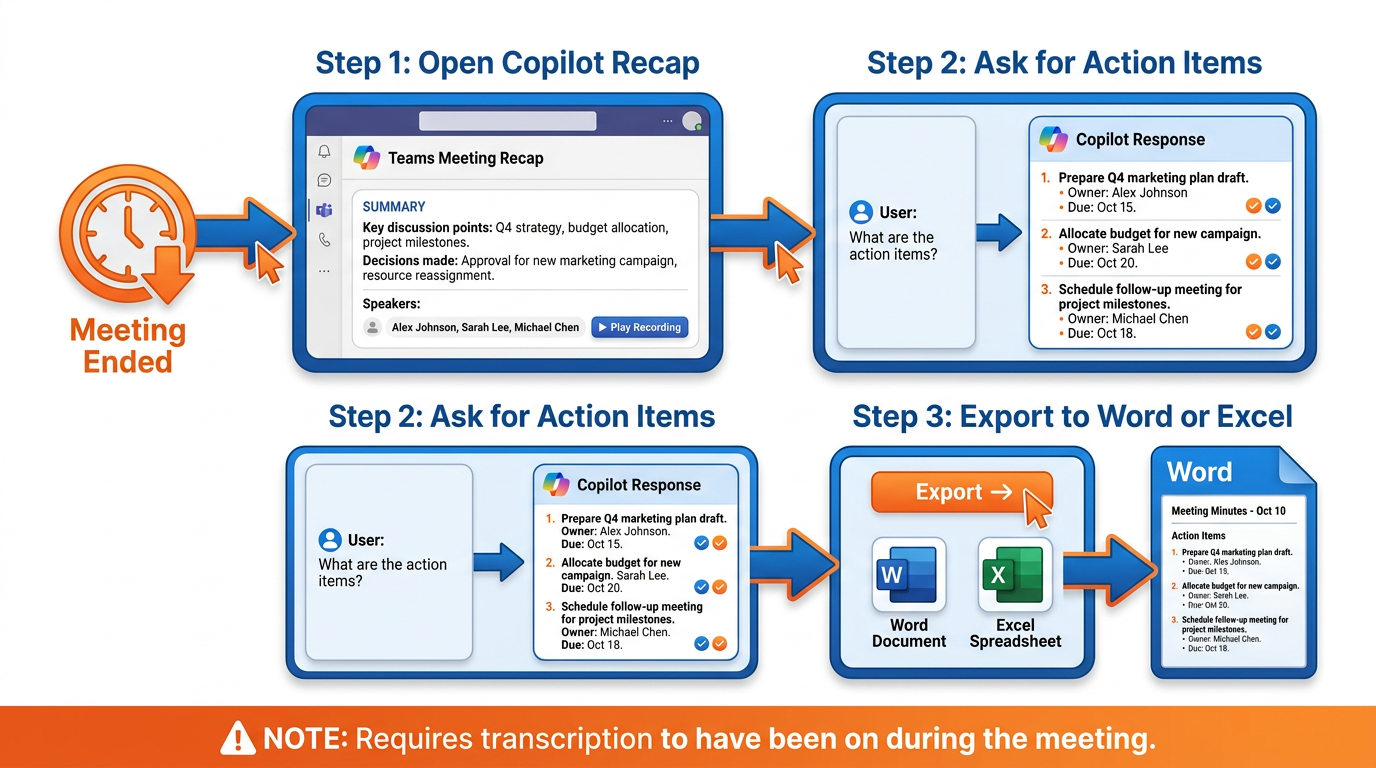
Figure 6:After a meeting with transcription enabled, Copilot can generate comprehensive summaries, extract action items with owners, and export its output to Word or Excel — transforming the conversation into a structured, distributable document.
1.5.1Accessing Post-Meeting Copilot¶
After a meeting with transcription ends:
In Teams, navigate to your Calendar and find the meeting in your history
Open the meeting and look for the Recap tab (in Teams, past meetings have a recap section)
The Copilot chat interface is available there
Type your post-meeting questions or prompts
You are not limited to a single question. You can have an extended conversation with Copilot about the meeting — asking follow-up questions, requesting different formats, drilling into specific parts of the discussion.
1.5.2What You Can Ask After the Meeting¶
The prompts you can use after the meeting are similar to during-meeting prompts, but the full meeting is now available as context, which makes them more powerful:
“Summarize the entire meeting in three paragraphs.”
“List all decisions made in this meeting.”
“List all action items from this meeting, with the person responsible for each.”
“What were the unresolved issues at the end of the meeting?”
“What did we decide about the loan structure?”
“What conditions were attached to the approval?”
“Who committed to following up on the title issue?”
“Create a timeline of the key topics discussed, in order.”
“What questions were raised but not fully answered?”
For BankUnited’s credit and compliance workflows, this last prompt is particularly valuable. In a loan committee meeting, it is common for issues to be raised without being fully resolved in the session — the group agrees to gather more information before making a final determination. A post-meeting prompt asking “what questions were raised but not fully answered” can surface those open items before they fall through the cracks.
1.5.3The 1,300-Character Export Feature¶
When Copilot generates a response that is more than 1,300 characters — which will happen routinely when asking for comprehensive summaries or action item lists from substantive meetings — Teams displays an export option. You can send that response directly to Word or Excel with a single click.
This is not a trivial convenience. It means that within minutes of a meeting ending, a relationship manager can have a formatted Word document containing: the meeting summary, the decisions made, the action items with ownership, and the open questions. That document can then be sent to the deal file, distributed to participants, or used as the basis for a follow-up email.
The alternative — writing that document manually from notes — typically takes thirty to sixty minutes. The Copilot version takes three minutes, plus the time required to review and verify its accuracy.
1.5.4The Try This Prompt¶
At the end of your next internal meeting — with all participants’ awareness and consent — try this single comprehensive prompt:
“Summarize the meeting, list every decision, list every action item with owner and date, and flag anything that requires follow-up before the next meeting.”
This one prompt produces the complete meeting output package that currently takes thirty to sixty minutes to write manually. The output may need light editing, but the structure is there, the decisions are documented, and the action items are named. That is the productivity shift in its most concrete form.
1.66. Sample Prompts That Work — The BankUnited Prompt Gallery¶
The effectiveness of Copilot in Teams is significantly influenced by the quality of the prompts you use. Microsoft maintains a Copilot Prompt Gallery at copilot
Below is a curated set of prompts developed specifically for the meeting types and workflows that matter most at BankUnited.
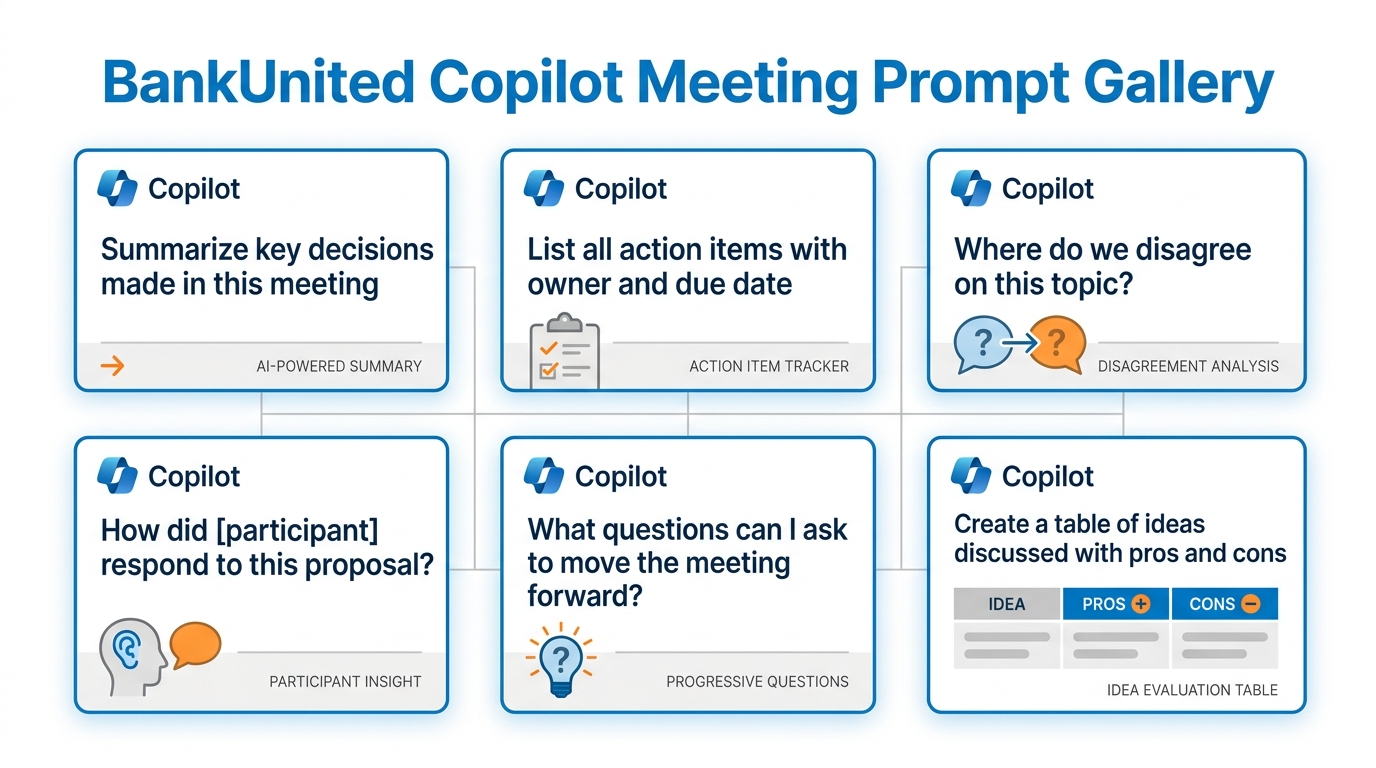
Figure 7:Six categories of Copilot meeting prompts that BankUnited professionals use most frequently. The goal is always to extract structured, actionable intelligence from what was said — not to replace the judgment applied to it.
1.6.1During the Meeting¶
For understanding the current state:
“What are the key points that have been discussed so far, and what decisions have we reached?”
For surfacing tensions:
“Where do we disagree on this proposal? List the specific points of disagreement.”
For understanding a specific participant’s position:
“What concerns has [name] raised about the loan structure? Summarize their specific objections.”
For generating a comparison:
“Create a table comparing the two financing options we have been discussing — rows for rate, term, structure, key risks, and likelihood of borrower acceptance.”
For facilitating the meeting:
“What questions could I ask right now to help the group reach a decision on the rate structure?”
For checking completeness:
“What agenda items have we covered, and which are still unaddressed?”
1.6.2After the Meeting¶
The comprehensive output prompt:
“Summarize the meeting, list every decision made, list every action item with the name of the person responsible and any deadline mentioned, and flag anything that requires follow-up before the next meeting.”
For the deal file:
“Write a concise summary of today’s loan committee discussion for the deal file. Include: the loan request reviewed, the key issues discussed, the decision reached, any conditions attached to the approval, and the next steps.”
For the follow-up email:
“Draft a follow-up email to all meeting participants summarizing what was decided, who is responsible for what, and when we meet next. Use a professional tone appropriate for a financial institution.”
For the examiner meeting log:
“Summarize the topics discussed with the examination team today. List every document they requested, every question they asked that we could not answer on the spot, and every commitment we made regarding timing or deliverables.”
For the team standup recap:
“Summarize the standup. List each team member’s update in one or two sentences, any blockers mentioned, and any cross-team dependencies flagged.”
For surfacing open items:
“What questions or issues were raised in this meeting but not resolved? List them so I can address them before the next meeting.”
1.77. Consent and Transparency — The Professional and Legal Framework¶
In a regulated financial institution, the use of AI that records, transcribes, and summarizes conversations is not merely a technology decision. It carries professional obligations, regulatory considerations, and legal dimensions that every BankUnited professional needs to understand before activating Copilot in a Teams meeting.
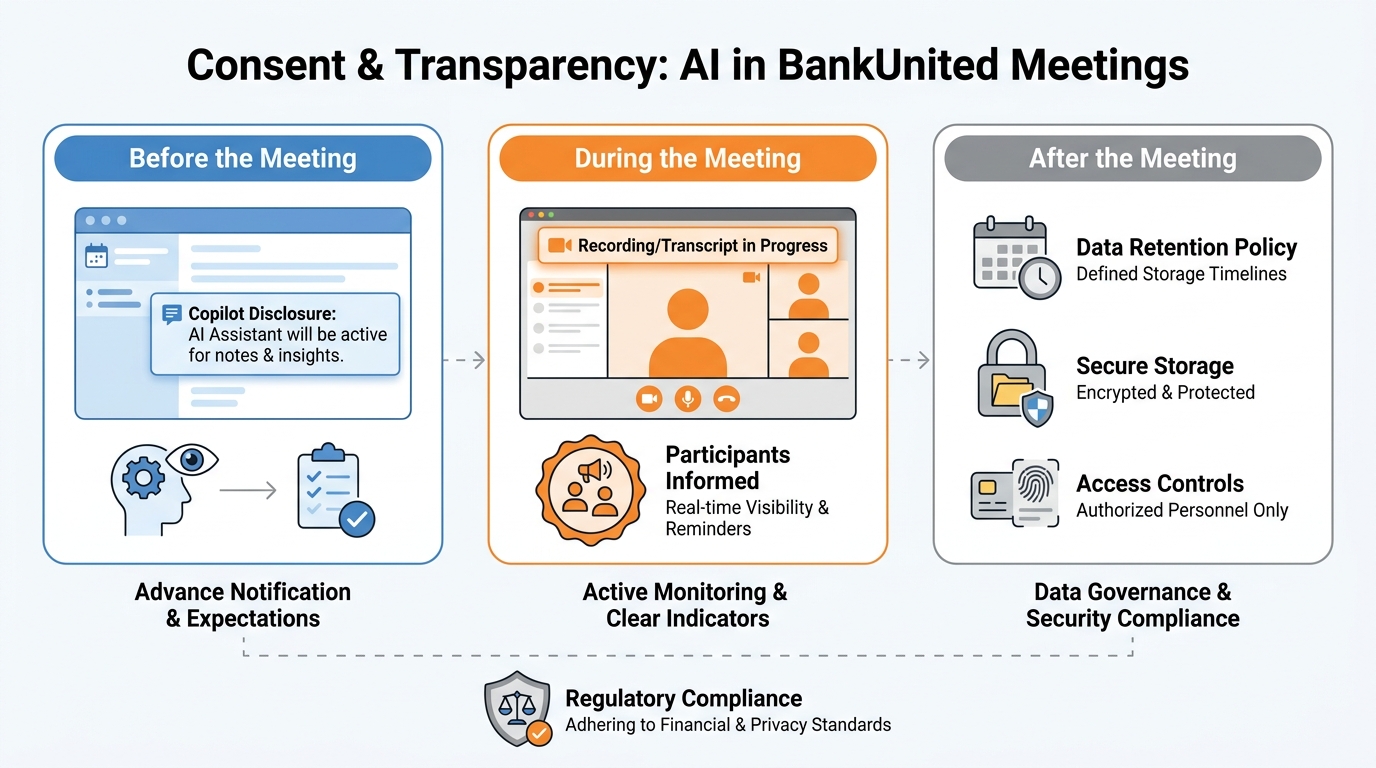
Figure 8:Consent and transparency are not optional features of professional AI use — they are foundational to its legitimacy in a regulated environment. The framework covers disclosure before the meeting begins, visible indicators during, and responsible data handling after.
1.7.1The Core Principle¶
When Copilot is active and transcription is running in a Teams meeting, participants are talking while their words are being recorded, transcribed, and processed by AI. The professional obligation is straightforward: participants should know this is happening.
This is not just an ethical position. It has legal dimensions in several jurisdictions relevant to BankUnited’s operations. Florida’s wiretapping statute (Florida Statute § 934.03) requires all-party consent for recording conversations in many circumstances. Federal financial regulations require careful attention to how client communications are recorded and retained. Meeting transcripts created by Copilot become records that may be subject to regulatory examination.
Teams does display a visual indicator when transcription is active — participants in the meeting can see that it is running. But the visible indicator in the meeting controls is not a substitute for explicit disclosure. Best practice is proactive communication before the meeting begins.
1.7.2The Three Moments of Transparency¶
Before the meeting: When scheduling a meeting where you plan to use Copilot with transcription, include a note in the meeting invitation. A simple statement is sufficient: “Note: This meeting will use Microsoft Teams live transcription to support Copilot note-taking and action item documentation. The transcript will be reviewed by the meeting organizer and is subject to BankUnited’s standard data retention policies.” This gives all participants awareness and the opportunity to raise concerns before the meeting begins.
During the meeting: At the start of the meeting — before you start transcription — briefly announce that you will be using Copilot and that transcription will be active. This takes fifteen seconds. It is not a legal formality; it is professional courtesy. People work differently when they know their words are being transcribed. Giving them that information respects their agency.
After the meeting: Understand where the transcript and Copilot output go. In BankUnited’s Microsoft 365 environment, meeting transcripts are stored in SharePoint and subject to retention policies governed by your IT and compliance teams. You are responsible for handling the output of Copilot appropriately — not sharing it beyond the appropriate audience, not using it in ways that violate the purpose for which the meeting was held, and following BankUnited’s policies on document retention for different meeting types.
1.7.3Special Considerations for Client Meetings¶
When a BankUnited professional uses Teams to conduct a meeting with a borrower, guarantor, or other external client, additional care is warranted:
The client should be explicitly told that the meeting is being transcribed before transcription begins
The client should have the opportunity to decline transcription, with an understanding of what that means for meeting documentation
Transcripts of client conversations may become records subject to disclosure in certain legal contexts
Some client relationships involve confidential negotiations where a transcript creates unintended risk — assess this on a meeting-by-meeting basis
The principle is not that Copilot should never be used in client meetings. It is that the decision to use it should be deliberate and disclosed, not automatic and assumed.
1.7.4External Meetings¶
One important technical limitation has an important practical implication: Copilot in Teams does not work in meetings hosted by other organizations. If a BankUnited employee joins a meeting hosted by an external party — a regulatory body, a law firm, a borrower’s team — they cannot activate Copilot for that meeting regardless of their license status. This eliminates one potential consent issue, but it also means BankUnited professionals should not assume Copilot is available in all of their meetings.
1.88. BankUnited-Specific Workflows¶
Copilot in Teams delivers different kinds of value in different meeting contexts. The following section examines five specific BankUnited meeting types and the particular ways Copilot changes the experience — and the output — of each.
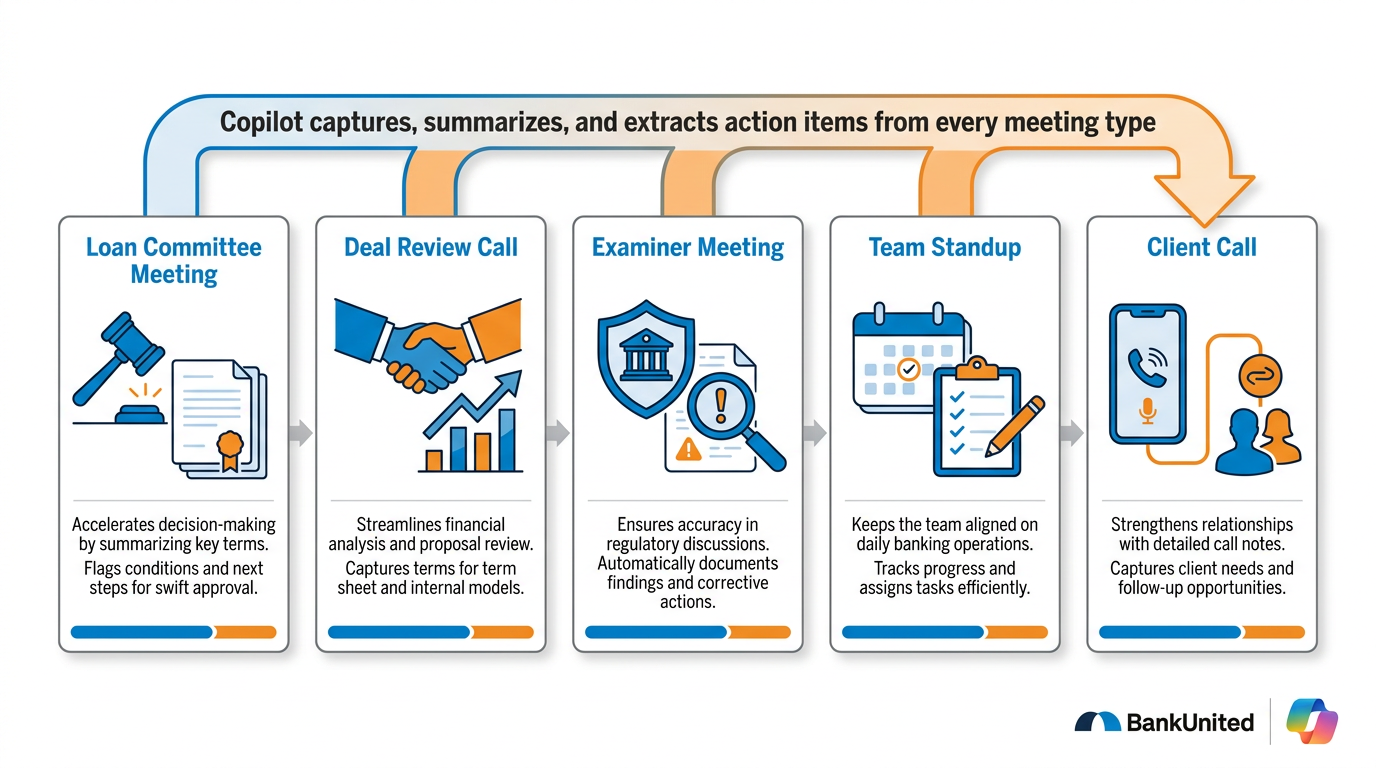
Figure 9:Five BankUnited meeting types, each with a distinct Copilot use case. The goal in each case is the same: transform the conversation from a time-bounded event into a persistent, actionable intelligence asset.
1.8.1Loan Committee Meetings¶
Loan committee meetings are among the most consequential regular meetings at BankUnited. Significant credit decisions are made. Conditions are attached. Exceptions to policy are granted or denied. The documentation of what was decided — and why — is a regulatory imperative.
Current challenge: The discussion in a loan committee meeting is fast-moving and multilateral. The credit officer, relationship manager, risk officer, and senior leadership each contribute. The formal credit memo captures the pre-meeting analysis, but it does not capture the deliberation that led to the final decision. Post-meeting documentation of that deliberation relies entirely on human memory and manual note-taking.
Copilot’s role: With transcription active, the full deliberation is captured. After the meeting, a single Copilot prompt can produce a structured summary suitable for the deal file: the loan reviewed, the key issues discussed, the concerns raised, the decision reached, the conditions attached, and the next steps required. This output is not a substitute for the formal credit approval document — it is a supplement to it, capturing the reasoning that went into the decision.
The meeting record: In an OCC examination, examiners may ask why certain credit decisions were made — particularly if loans subsequently perform poorly. A well-documented record of the committee’s deliberation, including the concerns raised and how they were addressed, is an asset in that examination. Copilot makes creating that record significantly less burdensome.
Recommended setting: During and after the meeting, with transcription required. All participants should be informed in the meeting invitation.
1.8.2Deal Review Calls¶
Deal review calls — where a relationship manager presents a potential transaction to internal partners for early-stage feedback — are often informal and fast-moving. Good ideas get discussed, risks get identified, and commitments get made about who will look into what before the transaction proceeds.
Current challenge: Because these calls are often informal, documentation is often informal too — or absent. Important concerns raised in a deal review can be forgotten by the time the full credit memo is written. Commitments to “check on the borrower’s existing debt structure” or “get an independent appraisal before we go further” get lost between the call and the next formal review.
Copilot’s role: A post-call Copilot summary captures every concern raised, every conditional commitment made, and every open question that needs resolution before the deal can advance. This does not create additional bureaucracy — it captures what was already said and makes it retrievable.
Prompt that works particularly well:
“Summarize this deal review call. List: (1) the transaction overview as presented, (2) all concerns and questions raised by reviewers, (3) all commitments made regarding next steps or additional due diligence, and (4) any conditions required before this deal advances to full underwriting.”
1.8.3Examiner Meetings¶
When regulatory examiners — OCC, FDIC, or state banking regulators — are at BankUnited, they conduct meetings with various staff to review policies, practices, loan portfolios, and controls. These meetings have a unique character: what is asked, what is answered, what is committed, and what is left unresolved all matters. The examination record is a formal artifact.
Current challenge: Examiner meetings are often high-pressure and fast-moving. Examiners ask pointed questions. Staff may not always be certain of the exact answer and may make commitments to provide follow-up information. Tracking exactly what was asked, what was answered, what documents were requested, and what follow-up was committed is critical — and it is exactly the kind of detailed factual tracking that is difficult to maintain accurately under pressure.
Copilot’s role: With appropriate disclosure to examiners that transcription is active (which should always be the case in these meetings — do not activate transcription without informing examiners), Copilot can produce a complete log of the session. The post-meeting prompt for an examiner meeting:
“Create a comprehensive log of today’s examiner meeting. Include: (1) every topic area discussed, (2) every document or data request made by the examiners, (3) every question that could not be answered in the session and was noted for follow-up, (4) every commitment made by BankUnited staff regarding timing or deliverables, and (5) any preliminary findings or observations shared by the examiners.”
This log becomes the foundation for the post-examination response process — and for ensuring that every commitment made to examiners is tracked and fulfilled.
Important: Always confirm with your supervisor and compliance team that Copilot use in examiner meetings is consistent with BankUnited’s examination management protocols before activating it in that context.
1.8.4Team Standups¶
Daily or weekly team standups — the brief check-ins where team members share updates, flag blockers, and coordinate — seem too informal to warrant sophisticated documentation. In practice, they often contain important coordination signals that get lost.
Copilot’s role: For a fifteen-minute standup, the value of Copilot is not comprehensive documentation — it is lightweight capture of blockers and cross-team dependencies. A single post-standup prompt:
“Summarize each team member’s update in one sentence, list any blockers mentioned, and note any items that require action from someone outside this team.”
The resulting summary takes thirty seconds to produce and sixty seconds to read. For a team leader, it is a useful status artifact. For team members who missed the standup, it is a complete catch-up. Filed in the team’s SharePoint or Teams channel, it creates a lightweight institutional memory of the team’s week-by-week progress.
Recommended setting for standups: “Only during the meeting” may be appropriate if the team is comfortable with informal discussion without a persistent transcript. If the team prefers full recap capability, “during and after” with transcription is the better choice.
1.8.5Client Calls¶
Client calls — whether initial discovery conversations, ongoing relationship check-ins, or issue resolution sessions — are foundational to BankUnited’s business. They contain commitments, concerns, and relationship intelligence that drives future decision-making.
The consent requirement in this context is non-negotiable: Before activating transcription on a client call, inform the client explicitly. Do this at the start of the call, not buried in meeting invite fine print. “I want to let you know that I’ll have Teams transcription running during our call today, which helps me take accurate notes. Is that okay with you?” Most clients will say yes. Some may have concerns — and they have the right to. If a client prefers not to be transcribed, respect that preference and use the “only during the meeting” mode or take manual notes.
What Copilot captures from client calls: With the client’s consent and transcription active, a post-call Copilot summary can capture the client’s stated priorities, concerns, and preferences — the relationship intelligence that drives how BankUnited serves them. This is more accurate and more complete than hand-written notes, and it can be saved to the CRM or deal file to ensure continuity across the relationship team.
Prompt that works well for client calls:
“Summarize today’s client conversation. Include: (1) the client’s current priorities and concerns, (2) any commitments made by BankUnited staff, (3) any new information provided by the client about their business or financial situation, (4) the client’s sentiment about the relationship, and (5) agreed next steps with timing.”
1.99. What Copilot in Teams Cannot Do — Important Limitations¶
A complete professional picture of Copilot in Teams requires a clear-eyed assessment of its limitations. These are not bugs — they are design boundaries. Understanding them prevents the kind of over-reliance that creates its own risks.
Copilot cannot work across meeting boundaries in real time. During a live meeting, Copilot’s context is the current meeting. It cannot retrieve information from previous meetings while a current meeting is in progress. If you ask “What did we decide about this loan in last week’s committee meeting?” during a live meeting, Copilot does not have access to that prior session. Post-meeting, you can open a prior meeting’s recap separately.
Copilot is not available in meetings hosted outside your organization. As noted earlier, if a BankUnited employee is a guest in an externally-hosted Teams meeting, Copilot is not available to them. This is important for meetings with regulators, borrowers, or counsel who host their own Teams environments.
Transcription accuracy is not perfect. Meeting transcripts — and the Copilot summaries based on them — reflect the quality of the audio and the clarity of speech. Meetings with multiple people speaking simultaneously, heavy accents, technical jargon, or poor audio quality will have lower transcription accuracy, which affects Copilot’s output. Proper names, financial figures, and technical terms may be misheard. Always verify specific figures and names in any Copilot output against your own knowledge of what was said.
Copilot cannot make credit decisions. This should be obvious, but it bears stating explicitly: Copilot summarizes the deliberation. It does not replace it. The professional judgment about whether a loan is sound, whether a risk is acceptable, or whether a policy exception is warranted belongs entirely to the people in the meeting.
The post-meeting capability requires transcription to have been on. There is no retroactive option. If transcription was not activated during the meeting — even if Copilot was available in speech-to-text mode — the post-meeting recap is not available. The only solution is to remember to start transcription before the meeting begins.
Copilot’s output requires human verification before official use. A Copilot-generated meeting summary is a starting point, not a finished record. Before it becomes part of an official deal file, examination record, or distributed communication, it should be reviewed by someone who was in the meeting and can verify its accuracy.
1.1010. The Discipline: What to Do with Copilot’s Meeting Output After the Meeting¶
Getting Copilot’s output is the easy part. What distinguishes professionals who extract lasting value from those who find Copilot occasionally useful is the discipline that comes afterward — the process of turning Copilot’s output into action.
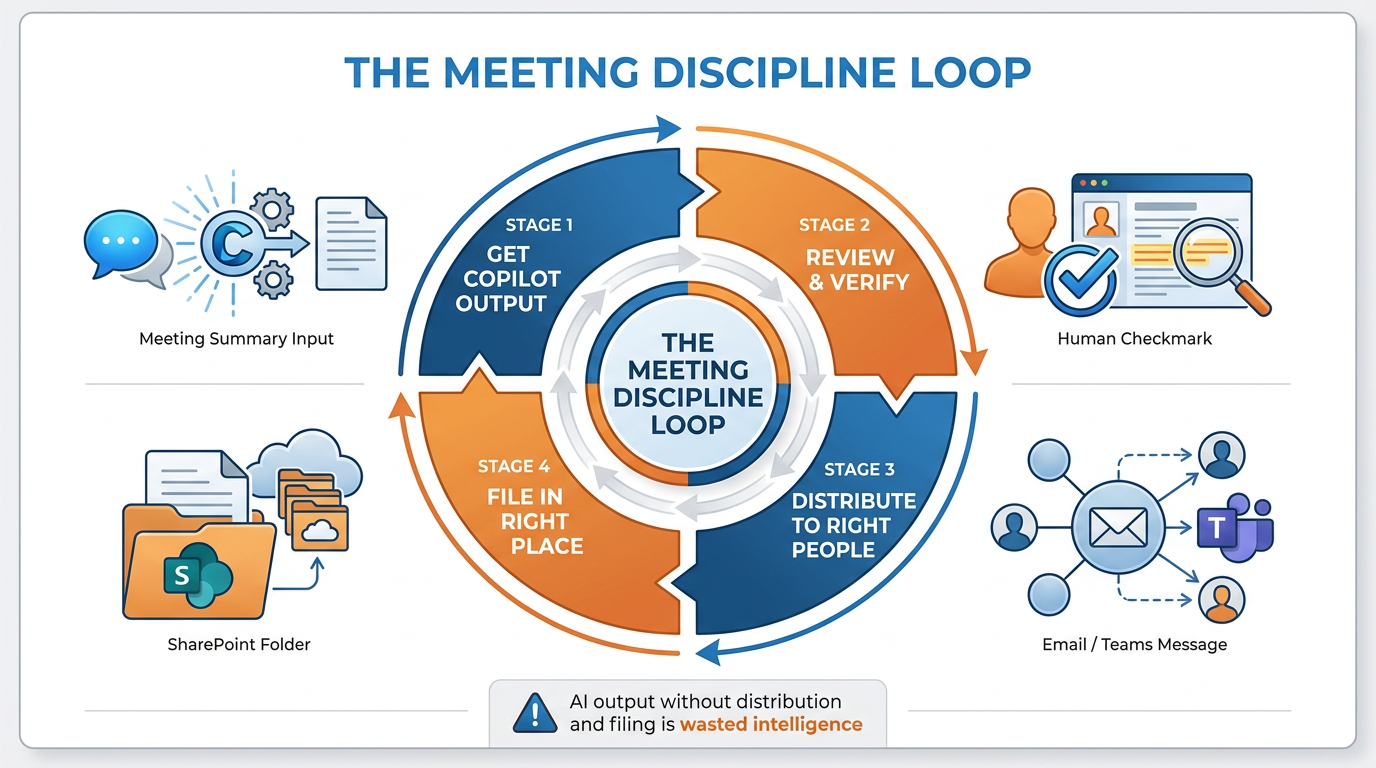
Figure 10:Copilot’s output is raw intelligence. The discipline loop — Get, Review, Distribute, File — is what transforms it into institutional value. AI output without distribution and filing is wasted intelligence.
The framework has four steps:
1.10.1Step 1: Get the Output (Within 15 Minutes of Meeting End)¶
The window of highest value for generating Copilot’s post-meeting output is the fifteen minutes immediately after the meeting ends. Your memory of what happened is still fresh — which means you can verify Copilot’s output efficiently and catch any errors quickly. Waiting until end of day, or doing it the next morning, reduces the quality of your verification because your recollection has faded.
Set a habit: end of meeting, open the recap, run your standard post-meeting prompt. It takes three minutes. Get the output while it is warm.
1.10.2Step 2: Review and Verify (5 Minutes)¶
Read through what Copilot produced. Check for:
Misattributed statements — did Copilot correctly identify who said what?
Missing decisions — did Copilot capture all of the key decisions, or did some get lost in the noise?
Incorrect figures — did Copilot accurately capture any specific numbers discussed?
Tone — is the summary professionally appropriate for distribution?
Do not assume Copilot is wrong. The goal is verification, not skepticism. Most of the time, the output is accurate. The review exists for the exceptions.
1.10.3Step 3: Distribute to the Right People (2 Minutes)¶
Once you are satisfied that the summary is accurate, distribute it — to the right people, through the right channel. Not every meeting summary needs to go to every participant. Consider:
The deal file summary: Into the SharePoint deal folder, accessible to the deal team
The action item list: Sent directly to the individuals responsible for each item, not as a group broadcast
The committee meeting log: Filed in the credit file per BankUnited’s documentation protocols
The client call summary: Into the CRM or deal tracking system
The examiner meeting log: Reviewed by compliance before filing
The discipline here is specificity. A Copilot-generated summary sent to “everyone who was on the call” as a general FYI is less useful than a targeted distribution that puts the right information in the right hands with clear expectations about what needs to happen next.
1.10.4Step 4: File in the Right Place (1 Minute)¶
Meeting output that is not findable is not useful. Within BankUnited’s SharePoint and Teams environment, you should have consistent filing locations for meeting documentation by deal, by project, or by relationship. The Copilot-generated summary goes into that location — not into email, not into a personal folder, not into a chat thread that will scroll out of view by next week.
Consistent filing practices multiply the value of every meeting Copilot summarizes, because they create a searchable institutional memory of decisions, commitments, and deliberations. Six months from now, when a question arises about what was decided in a particular committee meeting, the answer is findable — because the discipline loop was followed.
1.11Productive Struggle Problem¶
1.12Discussion¶
Think about the last three meetings you attended at BankUnited that produced decisions or action items you were responsible for.
How were those decisions documented? How confident are you that the documentation accurately reflects what was decided and who committed to what?
If Copilot had been active in all three meetings, what would the output have looked like? What value would it have added — and what risks, if any, would it have introduced?
What is the hardest meeting type in your current role to document effectively — and how could Copilot in Teams change that?
1.13Glossary¶
Copilot in Teams Microsoft’s AI assistant integrated into Teams meetings, which summarizes discussions, extracts action items, and answers questions about meeting content in real time or after the meeting.
Live Transcription A Teams feature that converts spoken words to text in real time during a meeting. Required for Copilot to operate in “during and after” mode. Visible to all participants.
During and After Mode The Copilot meeting configuration that enables full post-meeting intelligence — summaries, action items, and Copilot chat — but requires transcription to be active during the meeting.
Only During Mode The Copilot meeting configuration that uses speech-to-text in real time without creating a persistent transcript. Post-meeting capabilities are not available in this mode.
Meeting Recap The post-meeting section in Teams where transcripts, Copilot summaries, and recordings are available after a meeting ends.
Late Joiner Catch-Up The automatic Copilot notification that appears when a participant joins a meeting more than five minutes after it began. One click generates a summary of what was discussed before they arrived.
Action Item Extraction Copilot’s capability to identify, from the meeting transcript, specific commitments made by named participants — including who is responsible and any deadline mentioned.
Post-Meeting Export The ability to send Copilot responses longer than 1,300 characters to Word or Excel for further editing, sharing, or filing.
All-Party Consent The legal and professional requirement that all participants in a recorded or transcribed meeting have been informed and have agreed to the recording or transcription.
Meeting Discipline Loop The four-stage process — Get, Review, Distribute, File — that transforms Copilot’s meeting output into institutional value.
Copilot Prompt Gallery Microsoft’s curated library of ready-to-use prompts for Copilot across Microsoft 365 applications, accessible at copilot.cloud.microsoft/prompts.
Examiner Meeting A meeting between BankUnited staff and regulatory examiners (OCC, FDIC, or state banking regulators) to review policies, practices, loan portfolios, or controls.
Deal Review Call An internal BankUnited meeting where a relationship manager presents a potential transaction to senior partners or credit staff for early-stage feedback and assessment.
Speech-to-Text The underlying technology that converts spoken words to text in real time. Used by Copilot in “only during the meeting” mode, without creating a persistent stored transcript.
Transcript Accuracy The degree to which a Teams transcription correctly captures spoken words. Affected by audio quality, speaking clarity, simultaneous speech, and technical jargon. Always verify specific figures and names.
1.14Leader’s Takeaway¶
The problem Copilot in Teams solves is not a new one. Organizations have been losing institutional memory to imperfect meeting notes for as long as people have held meetings. What is new is that the solution is now built into the tool you are already using to hold those meetings.
The practical implication for BankUnited leadership is straightforward: meetings where decisions are made should produce documented records of those decisions. Not because compliance requires it — though it often does — but because organizations that can reliably recall what was decided, who committed to what, and why a particular choice was made are more effective, more accountable, and more resilient to staff turnover and the fog of time.
Copilot in Teams does not make this automatic. It makes it achievable with dramatically less friction. The discipline loop — Get the output, Review it, Distribute it, File it — is the human system that converts Copilot’s capability into organizational value.
Every BankUnited professional who routinely chairs meetings should configure those meetings for Copilot access, should start transcription as standard practice (with appropriate disclosure), and should have a consistent habit for generating and filing the post-meeting summary. Done consistently, this practice will produce a measurable improvement in institutional memory, action item completion, and the quality of documentation available to credit reviewers, compliance staff, and regulators.
The question “Did anyone take notes?” should become a question you never have to ask again.